
Reports for your team
Use the reports that are in the menu. Clarity is coming soon and is not a finished analytics app in this guide.
Applies to Technician Admin
Staff status lives in the app you already use. Clarity, the analytics product, is coming soon. Do not treat it as generally available, and do not follow an old reports link into it as if those screens were the supported guide.
Clients do not have a report page in the portal yet. See Service reports.
Where to look#
- For backup health, open Backups, then Dashboard or Jobs. See See backup status and Read backup jobs and alerts.
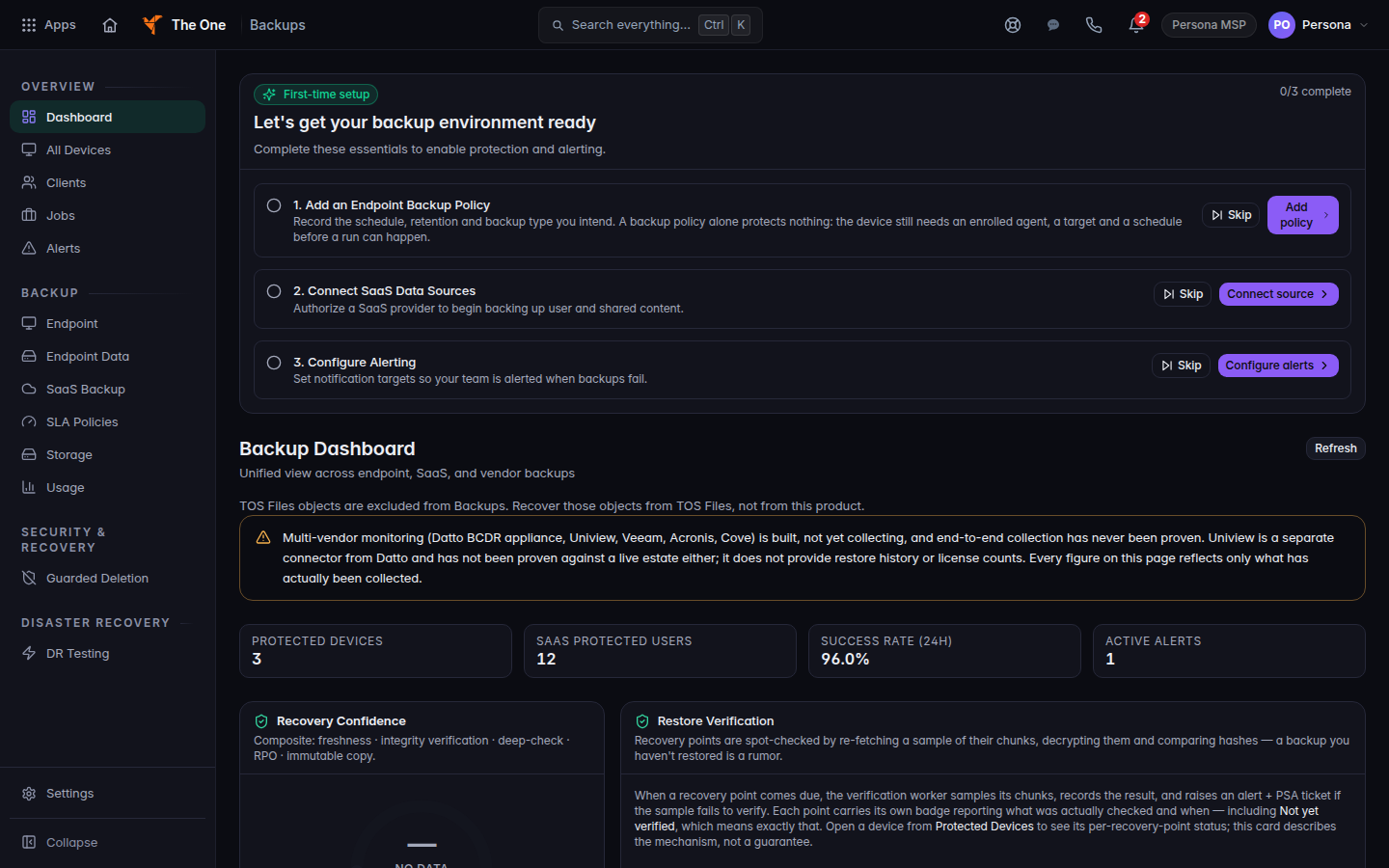
Backup dashboard - For import activity, open Integrate, then Analytics. The heading says it is an activity overview with 30-day sync trends. Choose Refresh to reload.
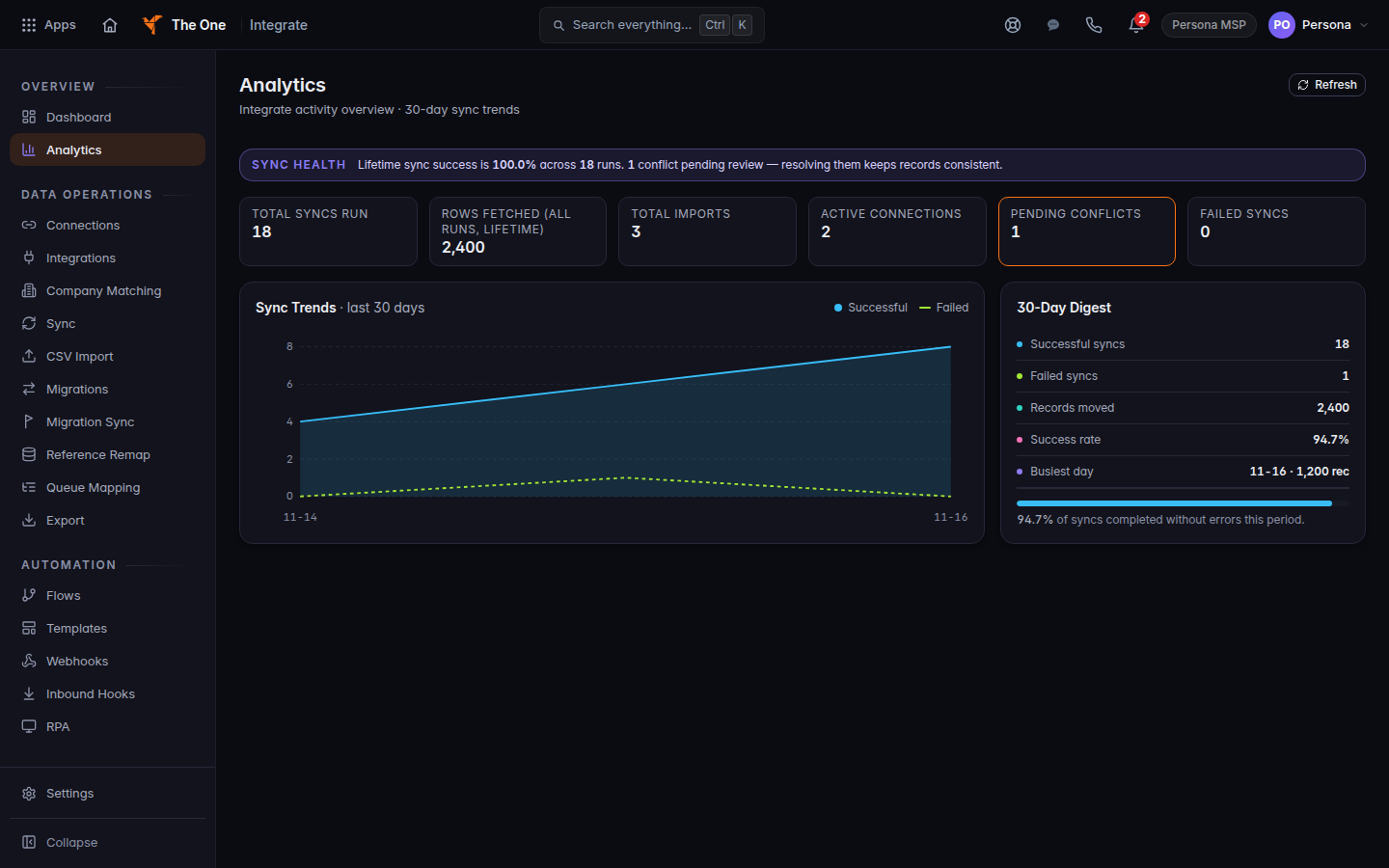
Integrate Analytics - Do not point clients to a portal report page. It is not available yet. Share the report with them yourself.
Backup pages such as a quarterly review or a return figure are not in the working menu. A link to one of them opens the backup dashboard. Use Dashboard instead.
If it goes wrong#
- A reports link opens a product that says it is coming soon. Leave it. Use the dashboard, jobs, or Analytics above.
- Analytics fails to load. Choose Refresh. If it still fails, the counts are not available. Do not invent a zero.
What's next#
Was this article helpful?