
See backup status
Open Backups and read device and cloud status from the pages in the menu.
Applies to Technician Admin
Backups shows whether computers and Microsoft 365 mail and OneDrive were copied, and whether a job failed. Use the pages in the menu. A saved link to an older page opens the dashboard instead.
Start here when you need status. The task articles cover connecting Microsoft 365, setting a schedule, restoring, and alerts.
Open Backups#
- Open Backups. The first page is All Devices (the heading is Protected Devices).
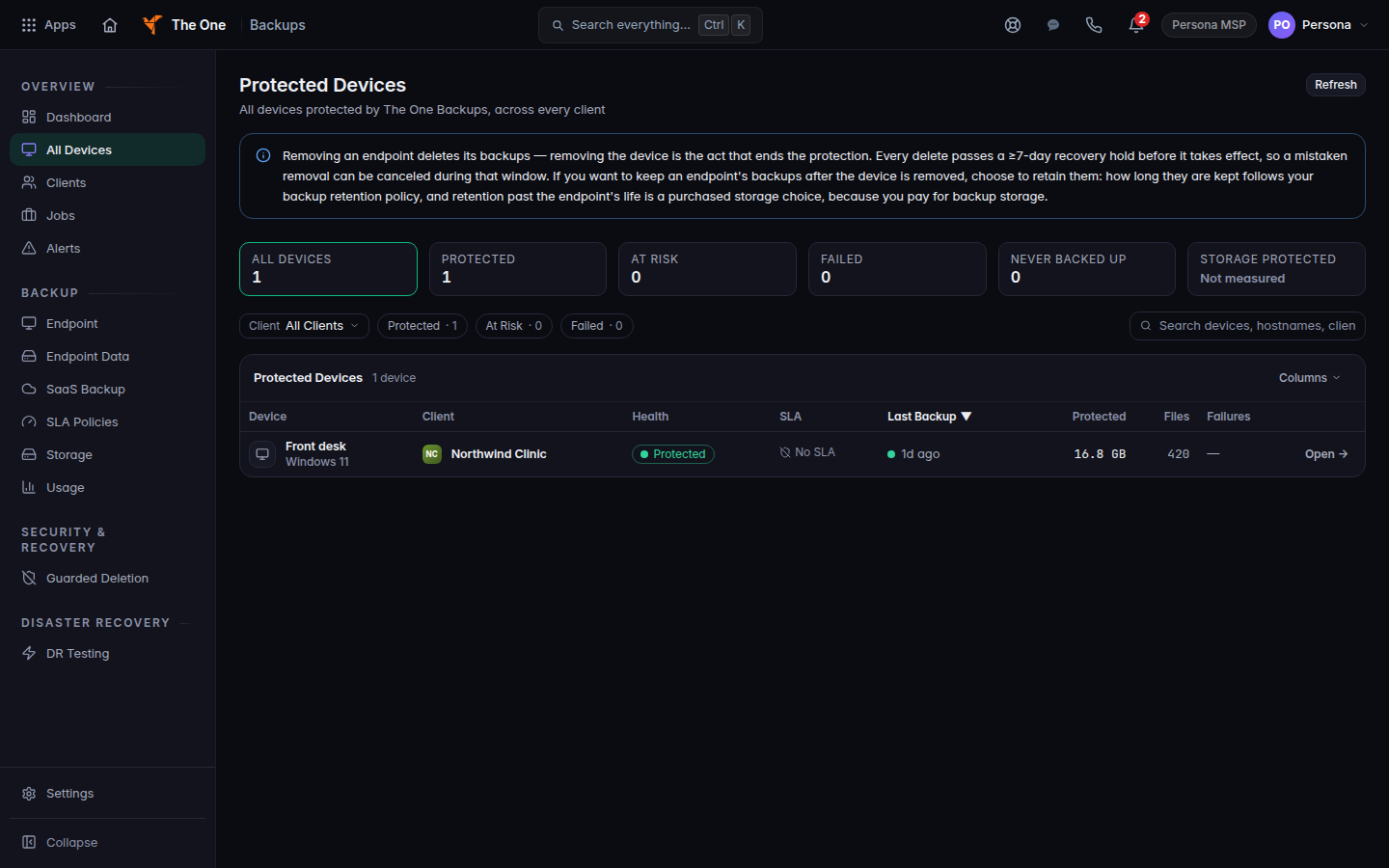
Protected Devices, the first Backups page, in the dark theme - Open Dashboard for a summary, Jobs for runs, and Alerts when something failed.
- Open SaaS Backup for Microsoft 365. The page heading is SaaS Protect.
- Open Endpoint Data for files and folders on a computer. Open Endpoint for that area's policies, devices, and recent jobs.
The menu also includes Clients, SLA Policies, Storage, Usage, Guarded Deletion, and DR Testing. This guide covers backup, restore, jobs, and alerts. It does not name coverage targets.
Owners and admins use the settings gear for Alert Settings and Retention Policies.
If it goes wrong#
- A page you used before opens the dashboard. That page is not in the menu. Use the menu.
- Backups is missing. Your organization does not include it. Ask an admin.
- You cannot open settings. Settings is for an owner or an admin.
What's next#
Was this article helpful?