
Set a cloud backup policy
Choose a schedule and a number of days to keep Microsoft 365 mail and OneDrive.
Applies to Admin
A policy tells Backups which connection to copy, how often, and how many days to keep. The days are a setting on the policy. They are not a lock that stops a later delete.
Create a policy after the Microsoft 365 connection exists.
Create the policy#
- Open Backups, then SaaS Backup, then Policies.
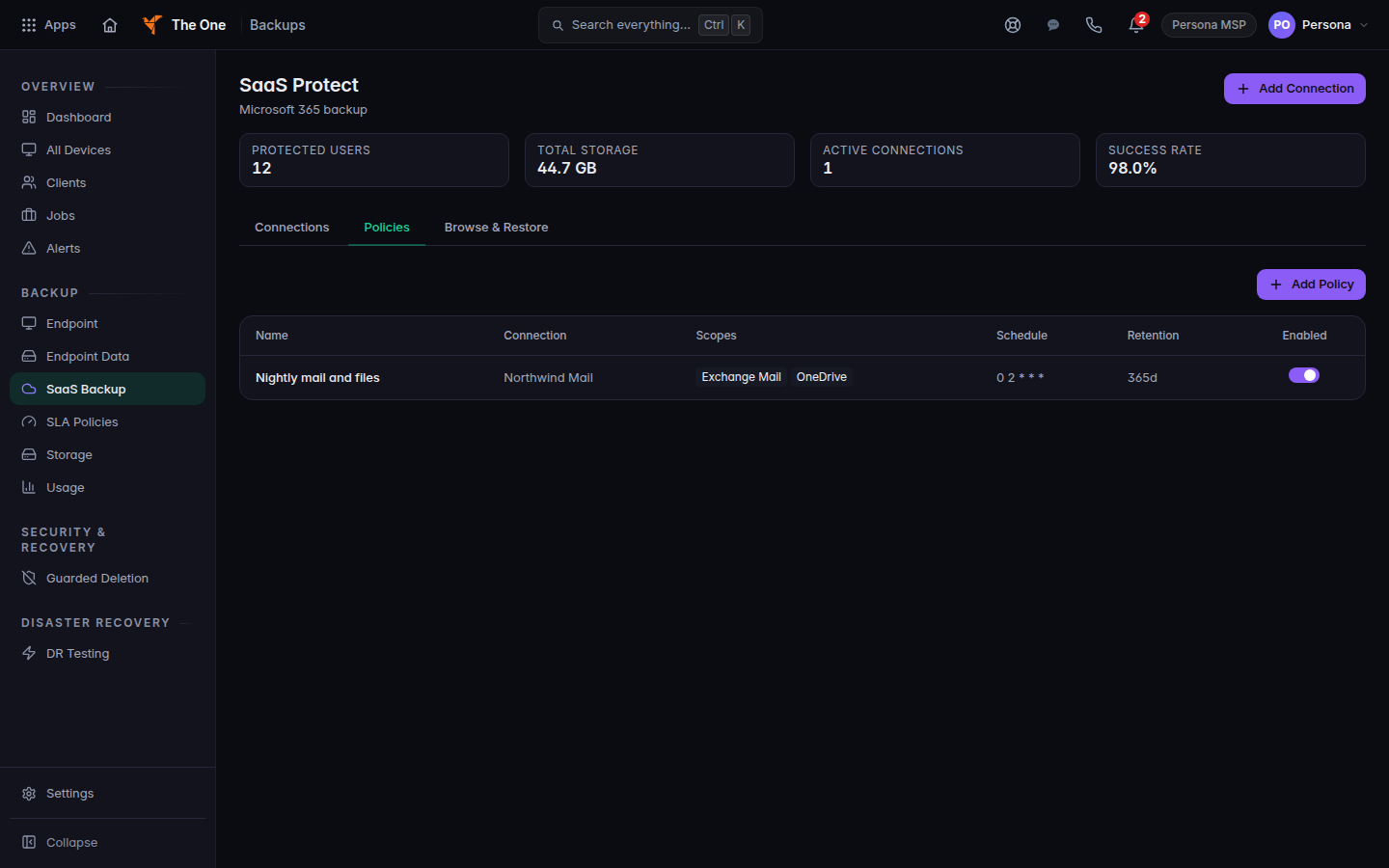
Policies tab, with Add Policy - Choose Add Policy. The dialog title is Add Backup Policy.
- Choose the Connection and enter a Policy Name.
- Under Data to Protect, select Exchange Mail and OneDrive. Leave Teams off.
- Choose a Schedule: Every 4 hours, Every 6 hours, Every 12 hours, Daily at 02:00, or Weekly (Sun 02:00).
- Set Retention (days). The field accepts 1 to 3650. The form starts at 365.
- Choose Create Policy.
Run Backup Now on the connection card when you want a copy before the next schedule.
If it goes wrong#
- Add Policy is unavailable. The button stays off until a connection exists. Add the connection first.
- This connection has no enabled scopes. Edit the connection and select Exchange Mail or OneDrive.
- Failed to load policies. Refresh the page. If it stays, check Alerts.
What's next#
Was this article helpful?