
Restore mail and OneDrive
Put Microsoft 365 mail or OneDrive files back into the account they came from.
Applies to Admin Technician
An in-place restore writes mail or OneDrive files back into Microsoft 365. Mail and OneDrive are the restores this product has proven. A download does not write anything back. See Download a cloud backup.
Use this when a person deleted mail or files and you want them in the live account again.
Run the restore#
- Open Backups, then SaaS Backup, then Browse & Restore.
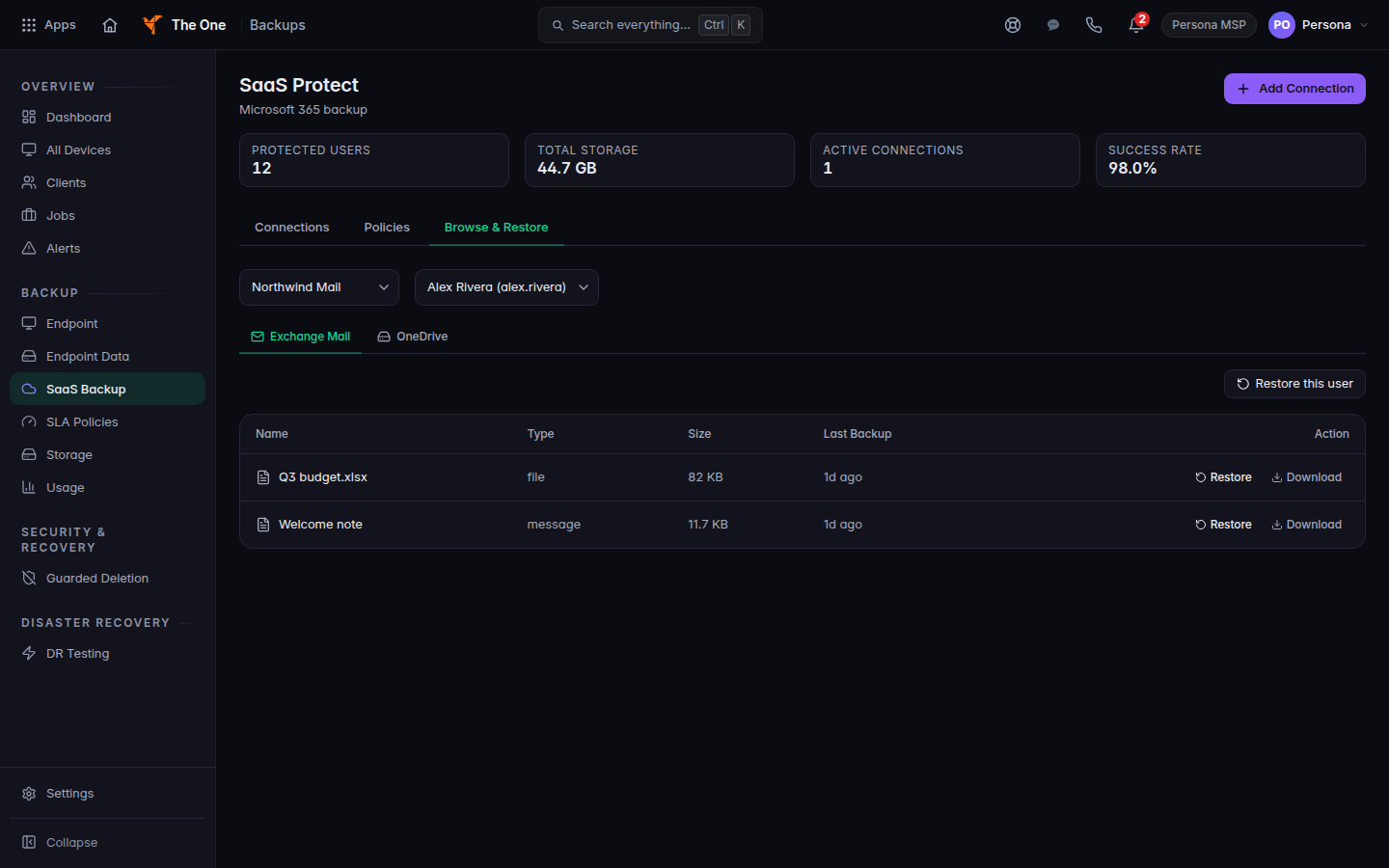
Browse and Restore, with a connection and a user - Choose the connection and the user. Choose Exchange Mail or OneDrive.
- Choose Restore this user, or restore one item.
- On What to restore, confirm the account and the items.
- On How, choose one of these:
- Restore as a copy puts items in a new folder named Restored plus the date. Nothing already there is changed.
- Restore missing items only puts back what is gone, in the original place, and skips what is still there.
- Overwrite the original replaces what is there. Owners and admins only.
- Restore to a different user copies into another person in the same organization.
- Read Preview, then on Confirm and run choose Run restore. For an overwrite, the button is Overwrite now.
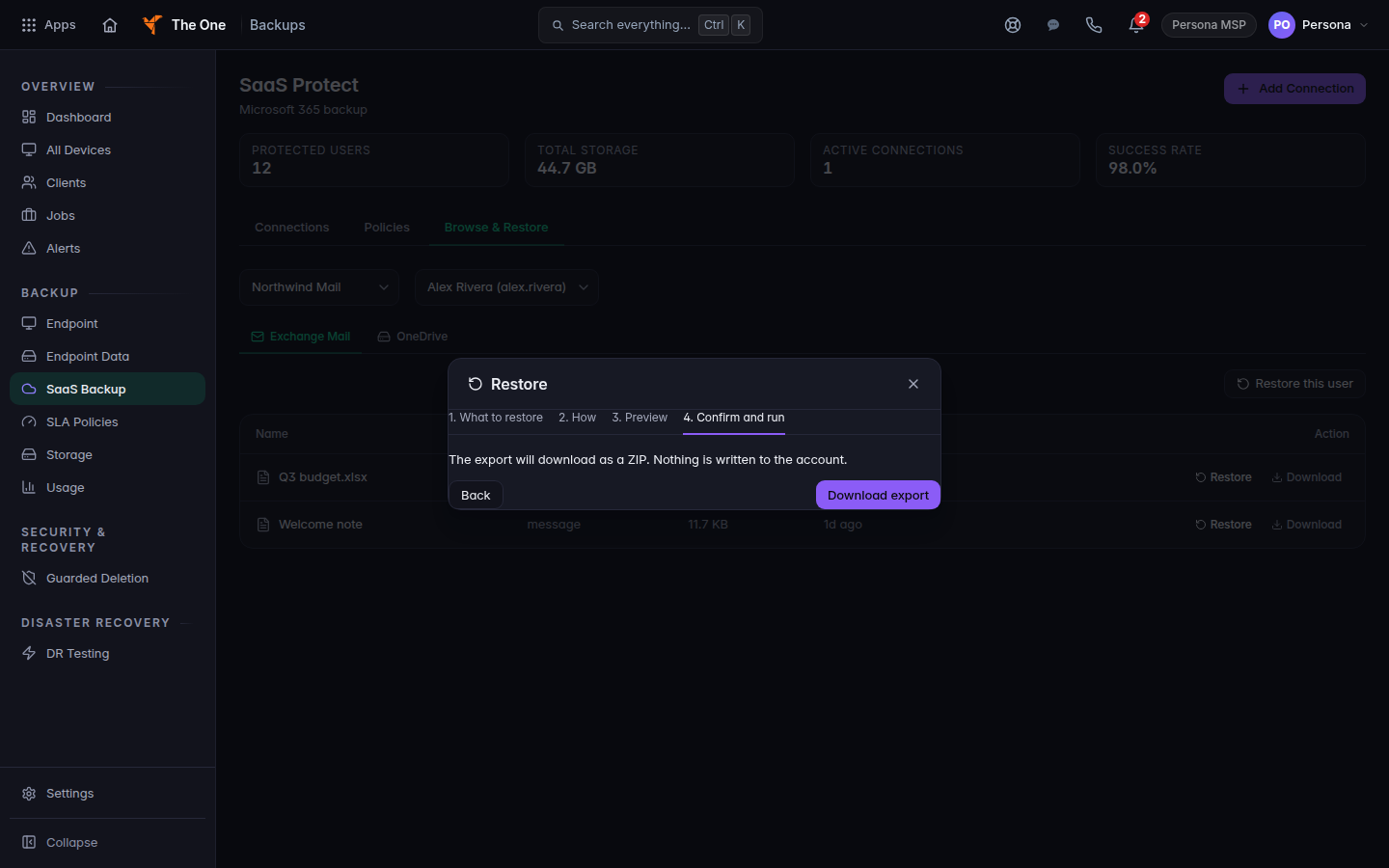
Restore wizard on Confirm and run, with Download export
A customer who is allowed to ask, rather than run the restore, sees Send request. Backup Status is not in the client portal yet, so a client asks you directly. See Backup status for a client.
If it goes wrong#
- Restore is not enabled for this account yet. Backup can still run. An admin has to grant the write permission the message names, then try again.
- Could not load restore options. Refresh and open Browse & Restore again.
- Preview failed. Change the selection and preview again.
- Restore failed. Read the message on the wizard. A download still works when a write does not. See Download a cloud backup.
- Only an organization owner or admin can overwrite the original. Sign in as an owner or admin, or choose Restore as a copy.
What's next#
Was this article helpful?