
Connect Microsoft 365 backup
Add a Microsoft 365 connection and choose mail and OneDrive.
Applies to Admin
A Microsoft 365 connection is how Backups copies a customer's mail and OneDrive. You add it from SaaS Backup, then sign in at Microsoft to grant consent.
Connect a tenant before you create a policy or restore anything.
Add the connection#
- Open Backups, then SaaS Backup.
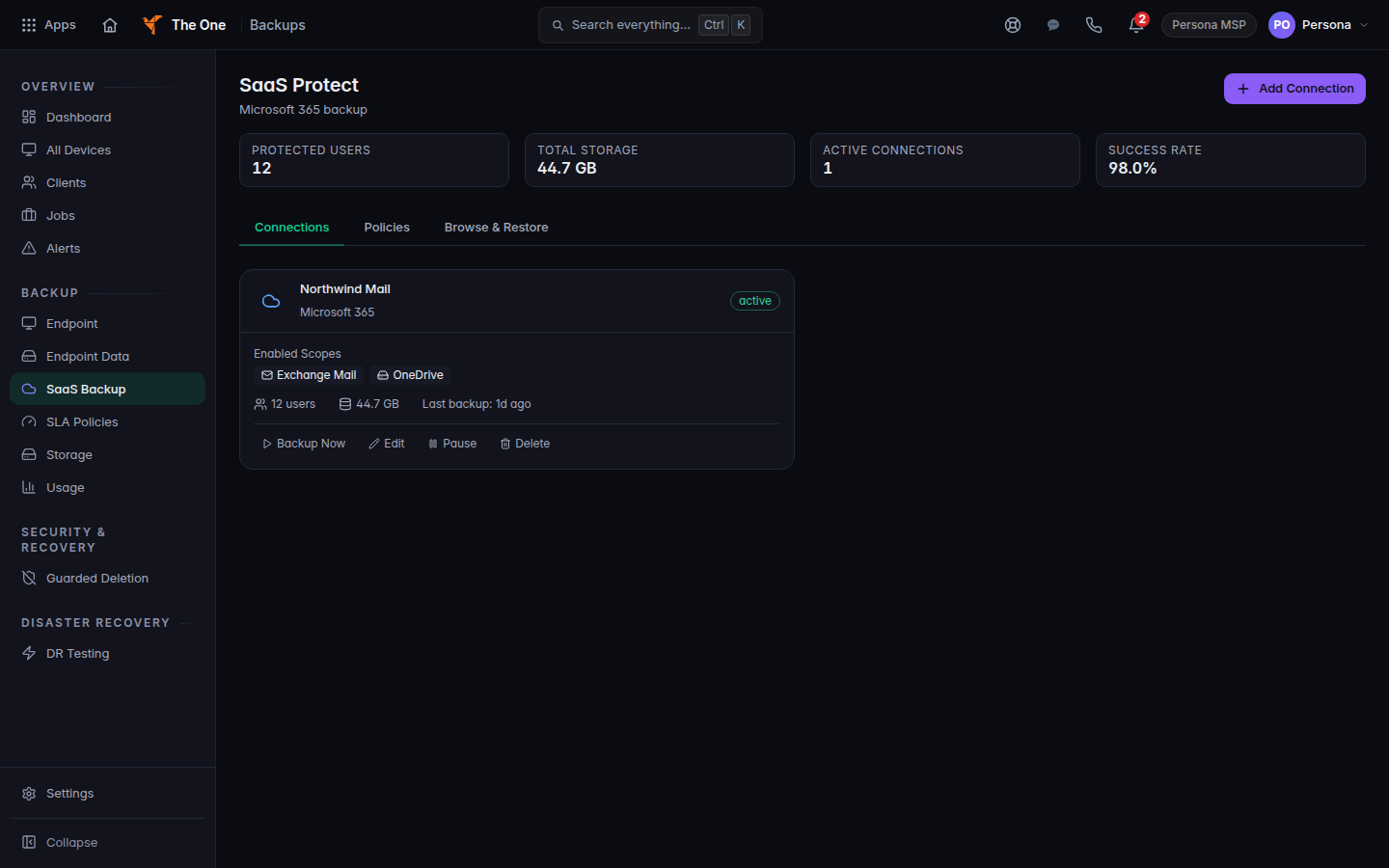
SaaS Protect, with Add Connection - Choose Add Connection. The dialog title is Add SaaS Connection.
- Choose the Customer. If the banner says No customer selected, pick one before you continue.
- Enter a Connection Name and the Microsoft Tenant ID.
- Under Data to Protect, leave Exchange Mail and OneDrive selected.
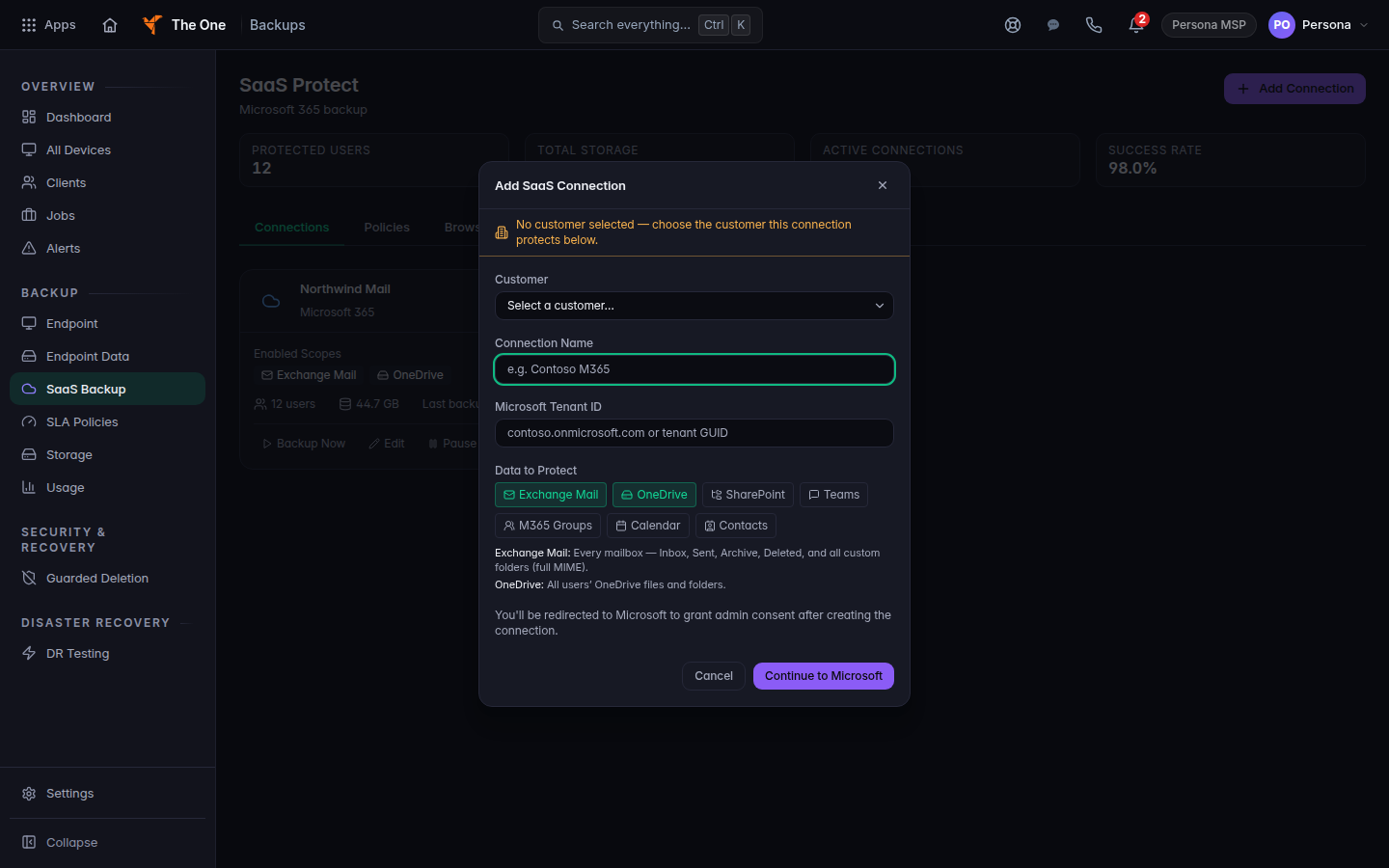
Data to Protect, with Exchange Mail and OneDrive selected and Teams left off - Choose Continue to Microsoft and approve the consent prompt.
SharePoint, Calendar, Contacts, and M365 Groups are on the same form. The in-place restore this guide covers is mail and OneDrive. For the other choices, use a download. See Download a cloud backup.
Leave Teams off. See Teams is not backed up.
Google Workspace is not on this dialog. See Google Workspace backup.
If it goes wrong#
- A connection name is required. Enter a Connection Name.
- Microsoft tenant ID is required. Enter the tenant domain or the tenant id Microsoft shows.
- Select at least one data type to protect. Select Exchange Mail or OneDrive.
- Failed to create connection. Consent did not finish. Run Add Connection again.
- The customer is missing. Add the company first. See Find a company.
What's next#
Was this article helpful?