
Invite a teammate
Send a staff invite from Team Members, or invite several people at once.
Applies to Owner Admin
Invite a teammate when someone on your staff needs their own sign-in. Owners and admins can send the invite. A member can open the list and see who is on the team, and cannot send an invite.
The invite sets a platform role. It does not turn on every app. Assign apps on their profile after they appear.
Send one invite#
- Open Settings, then Users. The page title is Team Members.
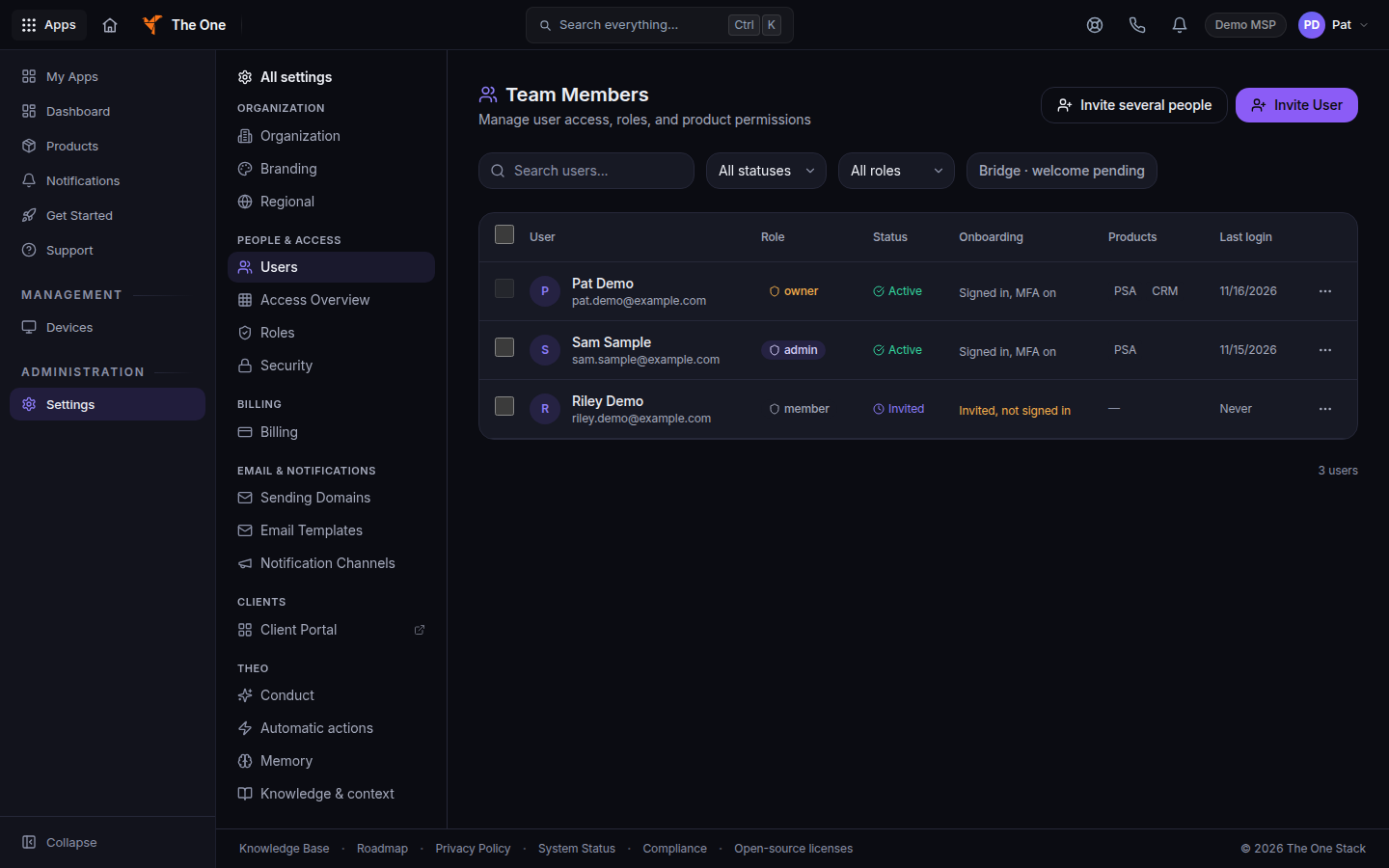
Team Members, with Invite User - Choose Invite User.
- In Invite Team Member, enter Email address, Display name, and Platform role. The choices are Admin, Accounting, Member, and Viewer.
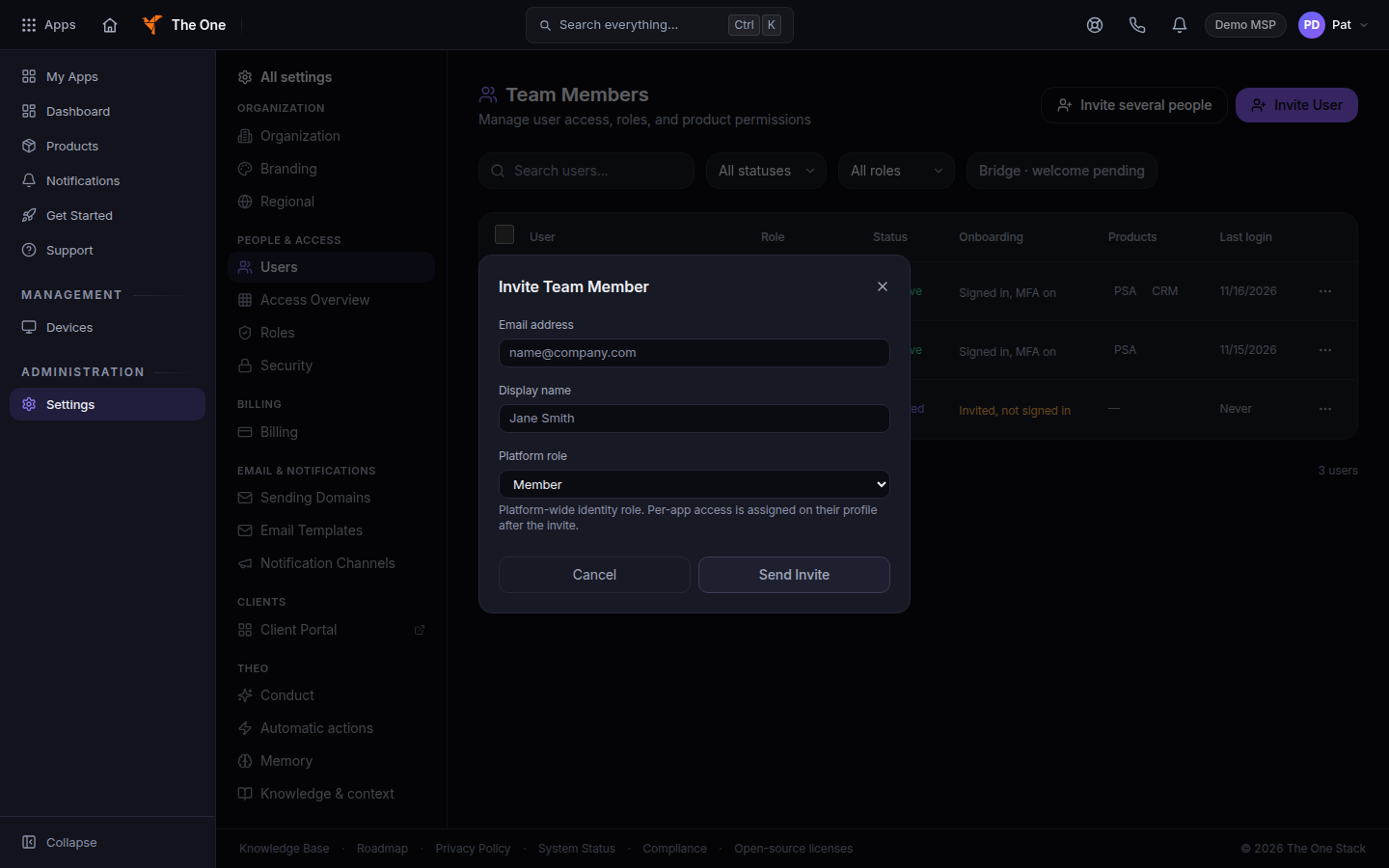
Invite Team Member, with email, name, and role - Choose Send Invite. The button reads Sending... while it sends.
The note under the role says per-app access is assigned on their profile after the invite. The list shows Invited until they accept. The toast says to assign apps from their profile once they appear.
If the email does not arrive, open their row and choose Resend Invite. Send Welcome sends the welcome again.
Invite several people#
- On Team Members, choose Invite several people.
- Add each person, then send.
- Read the summary. Fix any row it refused, and send those again.
If it goes wrong#
- The person is already on the list. Search Team Members before you invite them again. Status filters are All statuses, then Active, Invited, Suspended, and Deactivated.
- They can sign in and a tile is missing. Open their profile, tab Access & Permissions, and assign the app. See See who has access.
- You need them to be an owner. Edit them after the invite. Only an owner can assign Owner. See Change a person's role.
What's next#
- Roles and permissions What each platform role can open.
- Set up your client portal A client does not use a staff invite. See Add a person to a client portal.
Was this article helpful?