
Set up your client portal
Turn on a customer's portal from Client Portal Admin.
Applies to Owner Admin
The client portal is the site your clients sign in to. They do not need a staff seat in the Hub. You set one customer up at a time, and you can set defaults that apply to every customer.
Portals is a different product: a site the customer runs for its own customers. See Open Portals.
Owners and admins configure the portal. A manager can open the customer list and cannot choose Set up a customer.
Set up one customer#
- Open Client Portal Admin, then Customers. From Settings, Client Portal opens Defaults for all customers.
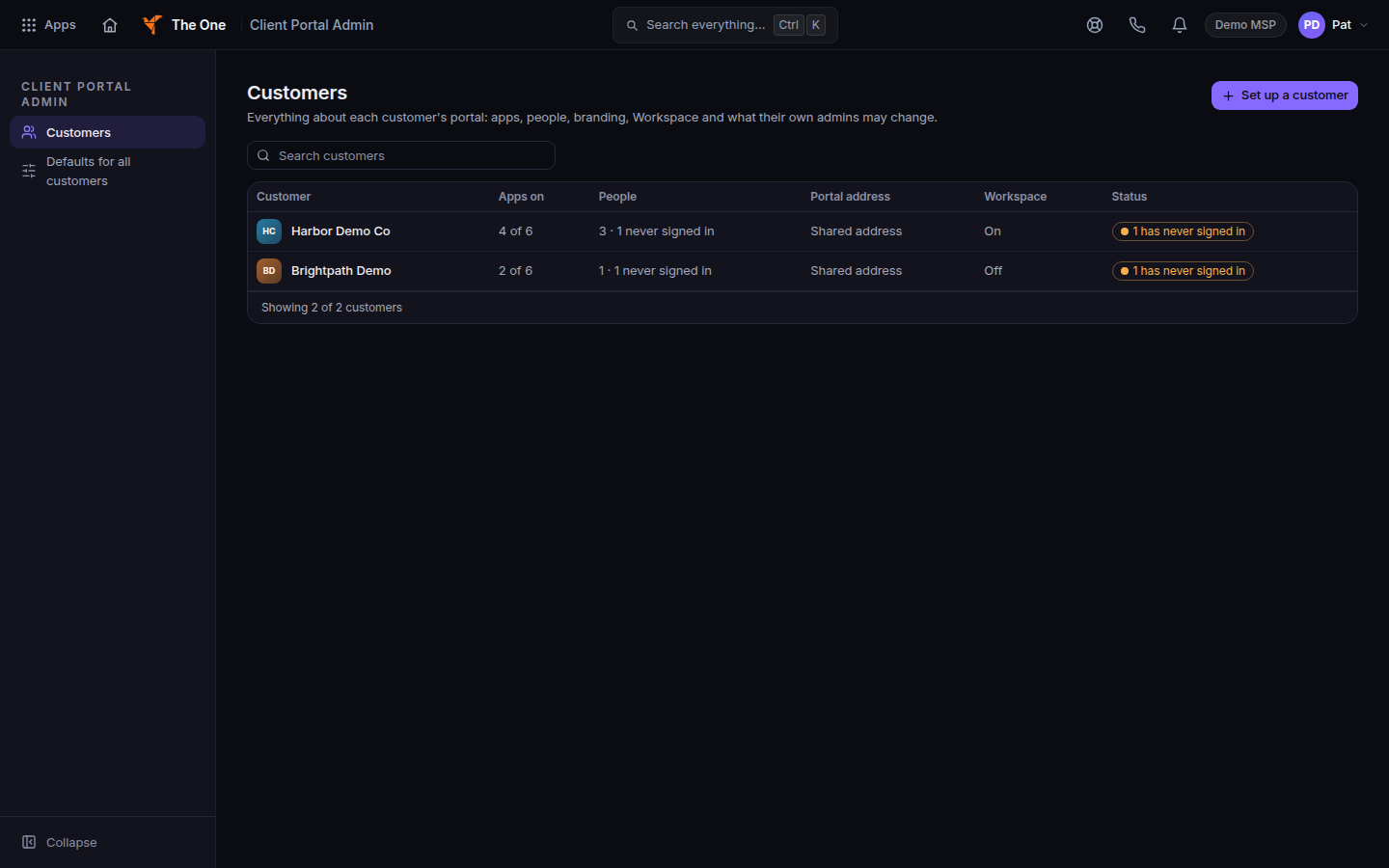
Client Portal Admin, Customers, with Set up a customer - Choose Set up a customer.
- Enter Customer name, Portal name in the address, and Type of organization. Choose Set up customer.
- When the page says the customer is set up, choose Open customer or Done.
- On the customer, use the tabs.
- Overview shows apps on, people, the portal address, and Portal layout. See Switch the portal layout.
- Apps & products for what they can open. See Turn a client app on.
- People & access for who can sign in. See Add a person to a client portal.
- Branding & domain for the name and logo. The shared hostname list is under Defaults for all customers. See Brand the client portal.
- App settings holds per-app options, including AI FAQ.
- Customer admin is what their own admins may change. See Decide what client admins can change.
- History
A manager sees Overview, Apps & products, People & access, and History.
Defaults for all customers is on the Client Portal Admin rail, next to Customers. It is the same kind of setup for every customer at once. Owners and admins see it. Managers do not.
Publish something they can read#
Knowledge base articles are written in CMDB, under Documentation, then Knowledge Base. The section on the article is Client portal. Turn on the switch Publish to client portal. See Publish a knowledge base article. Client Portal Admin does not store the article itself. Knowledge Base is not turned on for clients yet, so a published article is not visible to them until it is.
AI FAQ stays off until you turn on Enable the AI FAQ area under App settings, then AI FAQ. The hint says it is off by default. With no published articles, clients do not see an AI FAQ item.
If it goes wrong#
- Set up a customer is missing. You are a manager, or you cannot manage apps. Ask an owner or admin.
- The client does not see a knowledge base. Knowledge Base is not turned on for clients yet, so a published article is still not visible.
- You expected a CRM page called Client Portals. Use Client Portal Admin.
- Add people is missing. Adding a person needs an owner or admin. A manager can read the list.
- You changed Portals and the client menu did not move. Portals is the customer’s own site. Client apps are Apps & products.
What's next#
Was this article helpful?