
Get help in the client portal
For clients. Where to sign in, what the menu shows, and where each task starts.
Applies to Client
The client portal is the site your IT provider gives you. You sign in there. You do not need a staff login to the Hub.
What you see depends on your role and on what your provider turned on. A missing menu item means that app is off for you. A page that says Not turned on for your account is a setting, and there is nothing to retry.
Find your way around#
- Sign in with email and password, a sign-in link, or a passkey.
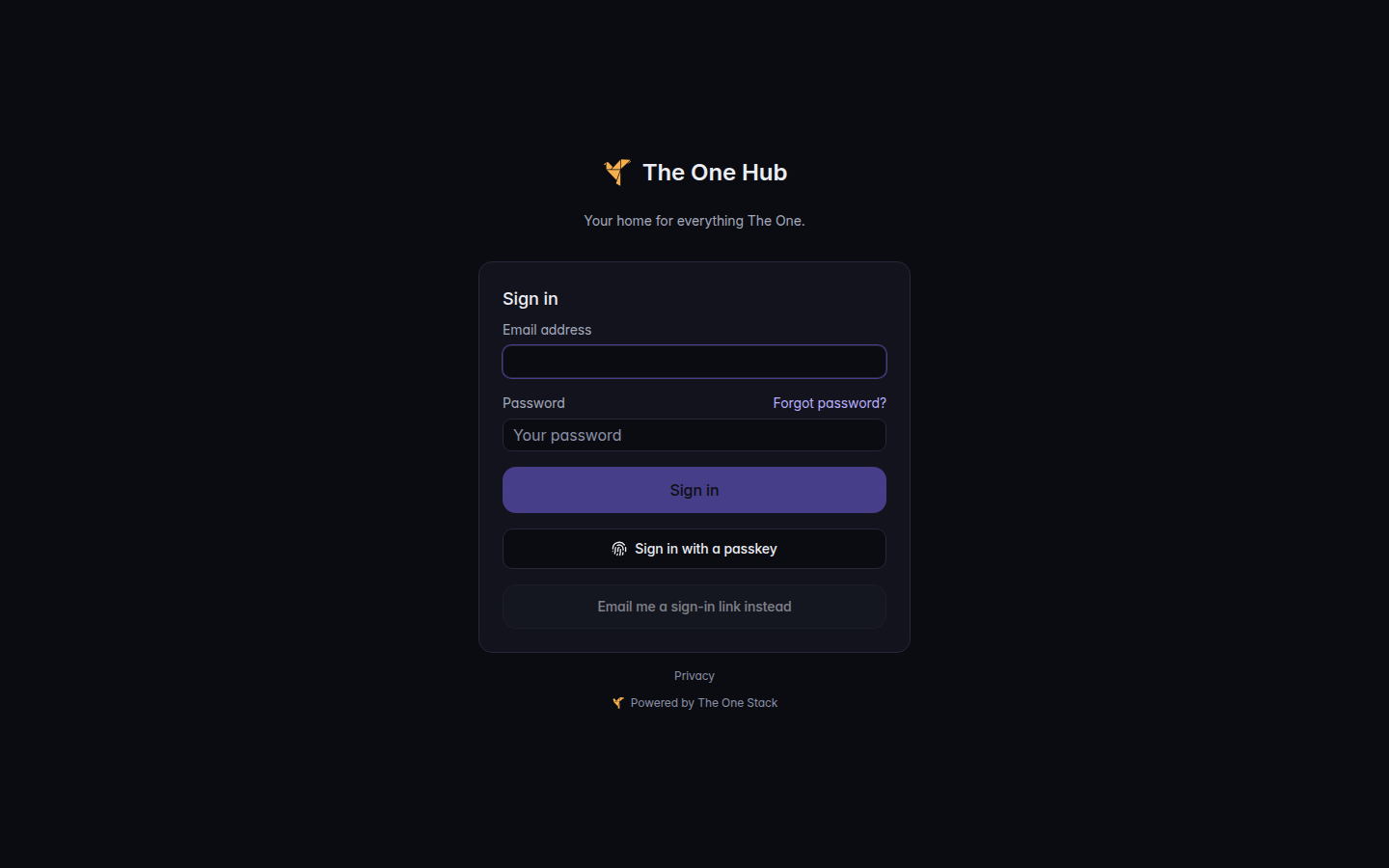
The client portal sign-in page, with Email address and Sign in - If the first item is Today, you are on the Apps layout. That page is your home. See Use the Today page.
- If the first item is Home or Support, you are on the classic layout. Support is where requests live.
- On the Apps layout, IT Support holds Tickets and Get help. Requests & Approvals holds forms, New employees, and Departing employees.
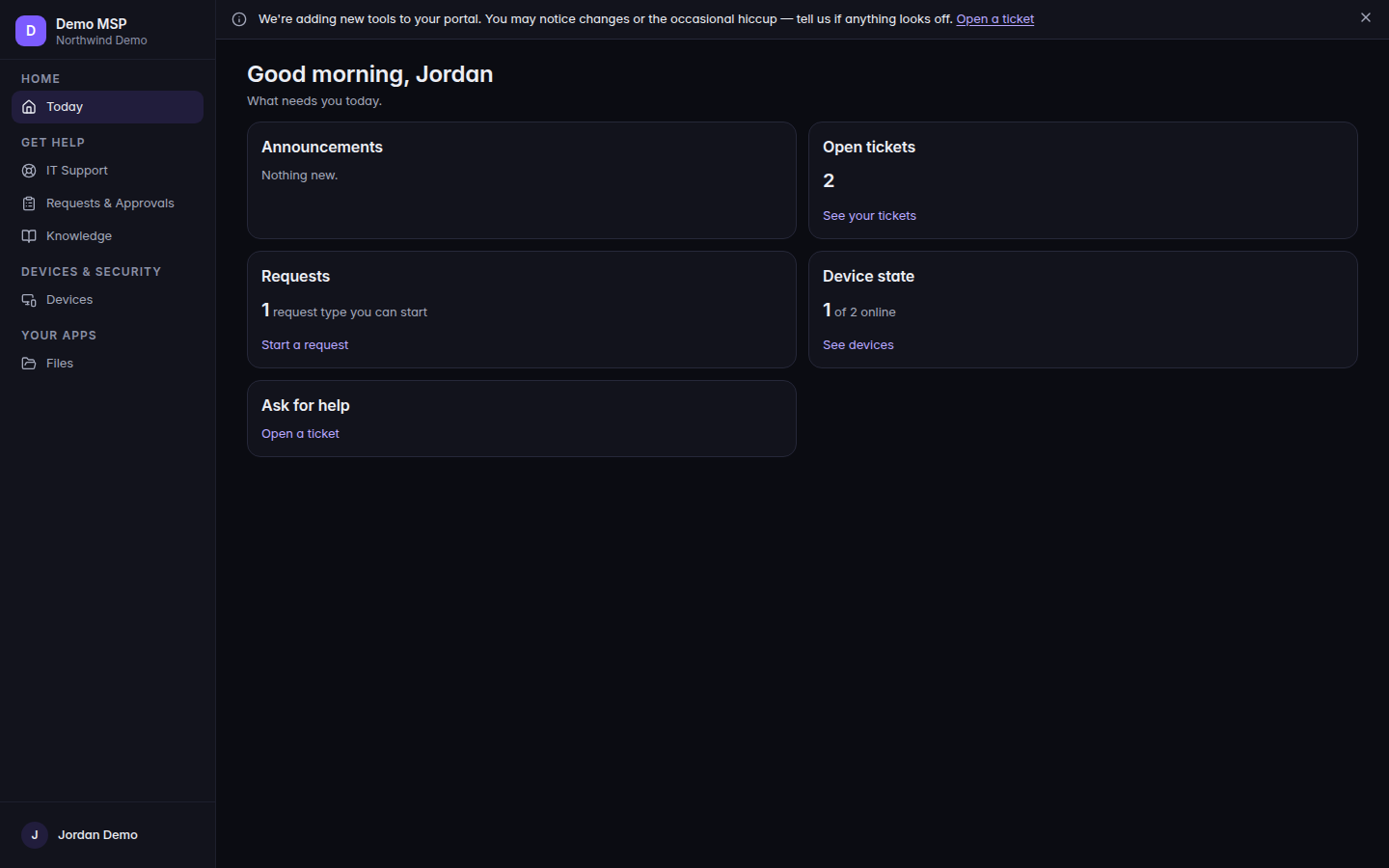
The Apps layout rail, with Today and IT Support
Knowledge Base is not turned on for clients yet, so it is not in your menu even when your provider has written a guide.
AI FAQ appears only when your provider has turned that area on and published at least one answer.
Your own pages are Notifications and Account settings, at the bottom of the menu. See Change your portal account.
Apps your company holds, such as Files, CRM, Projects, and E-Sign, appear only when they are on for you. To talk to a person, open Get help and choose Start a chat on Chat with your IT team. It is there when your provider has turned it on. Otherwise use a request. Team messaging (Messages) is not available to clients.
If it goes wrong#
- A section is missing. Ask your provider to turn it on. Not turned on for your account means the same thing.
- This isn’t part of your plan. Your provider has not included that feature. Ask them. There is nothing to change on your side.
- The provider name shows as IT Support. That placeholder appears before branding loads. Refresh once.
What's next#
Was this article helpful?