
Open a request in the portal
For clients. Start a ticket from IT Support or Support, and send it to your provider.
Applies to Client
A request is a ticket your IT provider works. You open one from the portal when you need help. Staff open tickets in their own desk. See Open a ticket.
You need permission to open tickets. The New ticket button is hidden when you do not.
Send the ticket#
- Open IT Support on the Apps layout, or Support on the classic layout.
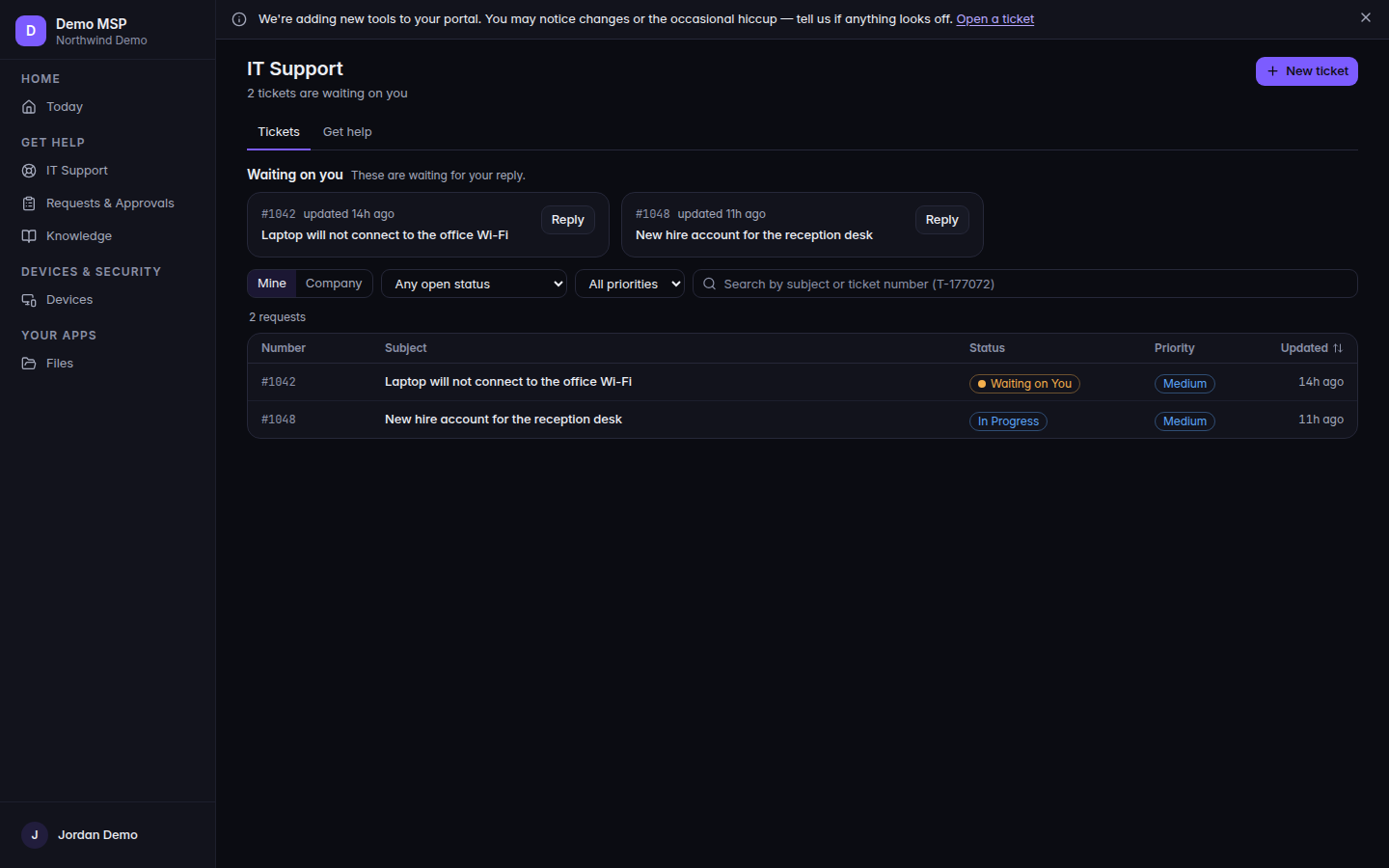
IT Support, with the Get help tab and New ticket 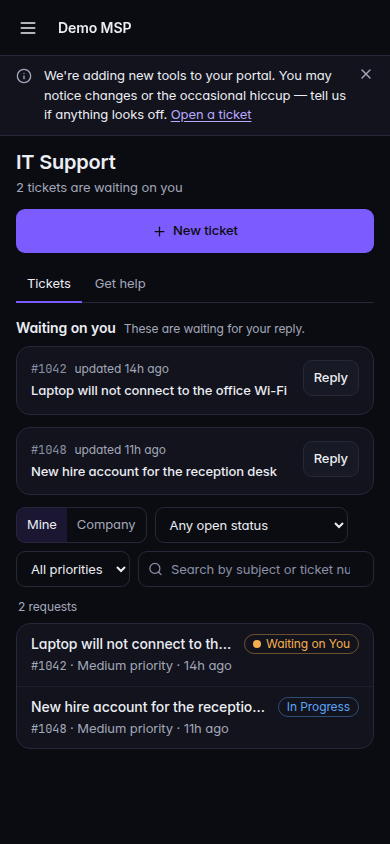
IT Support, with the Get help tab and New ticket, on a phone - Open Get help, then New ticket. The page title is New ticket. The line under it is Describe the problem and the team will get back to you.
- Choose Category: General, Hardware, Software, Network, Email, Security, or Other.
- Choose Priority: Low, Medium, High, or Urgent.
- Fill Subject and Description. Both are required.
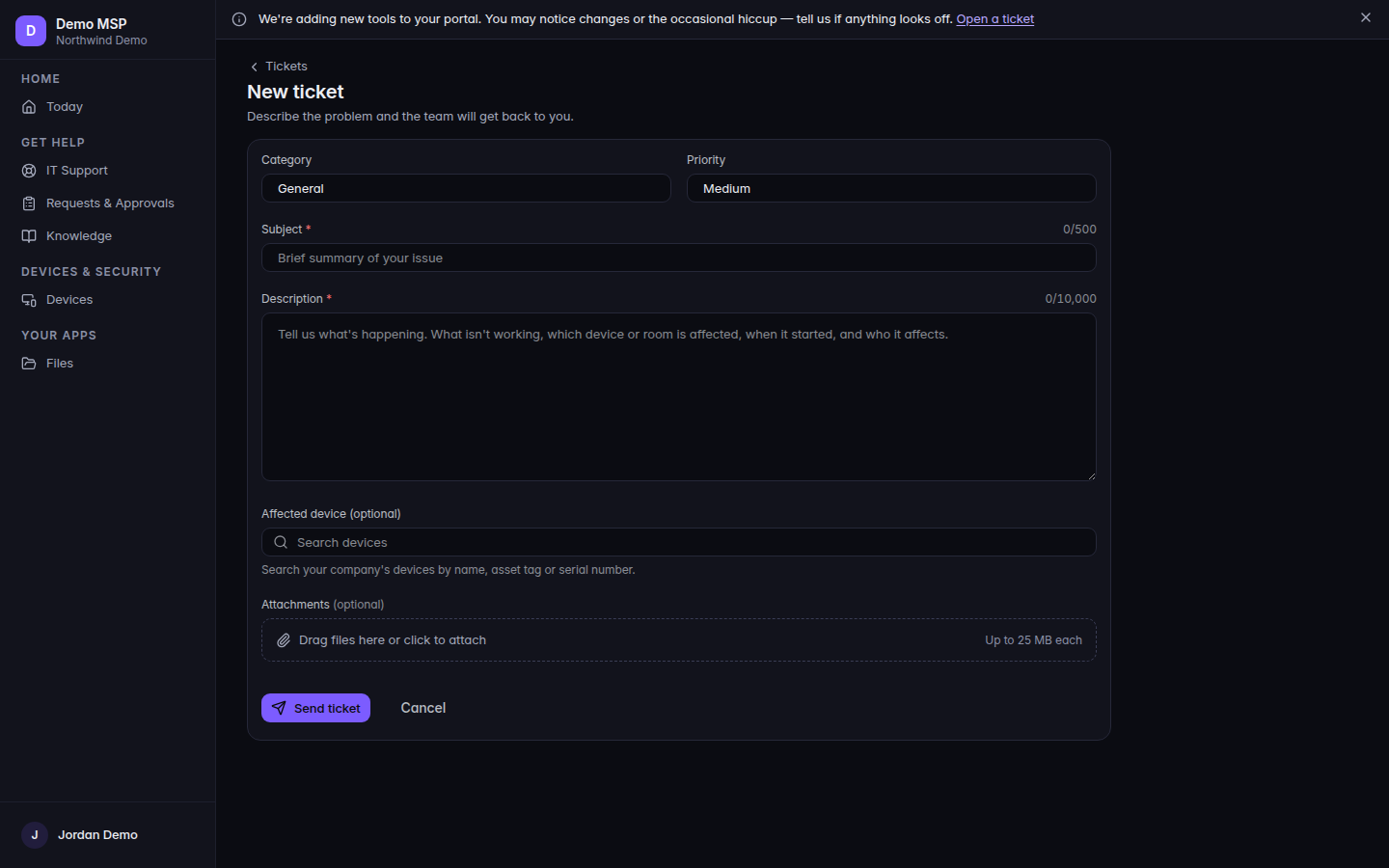
The new ticket form, with Subject, Description, and Send ticket 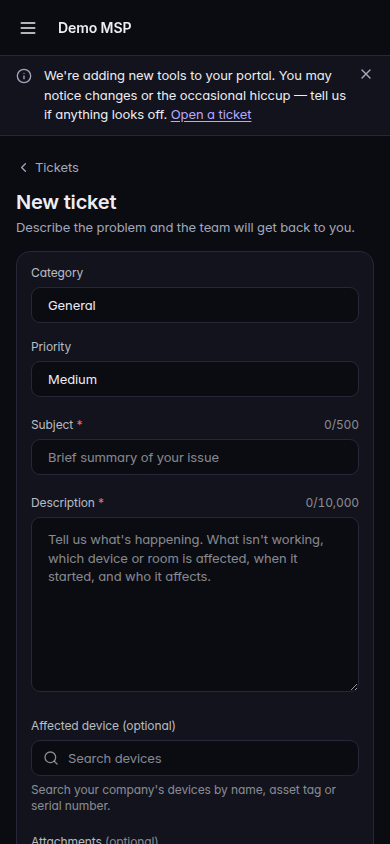
The new ticket form, with Subject, Description, and Send ticket, on a phone - Choose Send ticket. While it sends, the button reads Submitting....
Get help is hidden when your provider turns that tab off. Tickets stays. Use New ticket from the ticket list when it is shown.
If it goes wrong#
- Subject is required. or Description is required. Fill the field the message names.
- Subject must be 500 characters or fewer. or Description must be 10,000 characters or fewer. Shorten the text and send again.
- Something went wrong submitting your request. Please try again, or call us. The form keeps what you typed.
- New ticket is missing. You cannot open tickets, or support is not set up for your company. Ask your provider.
- Not turned on for your account. IT Support is off. Ask your provider.
What's next#
Was this article helpful?