
Reply to a request in the portal
For clients. Open your ticket, send a reply, and read the status your provider set.
Applies to Client
A reply is how you add detail after a ticket exists. Your provider sees it. You only see the conversation your role is allowed to see.
Viewers who cannot comment do not get the reply box.
Send a reply#
- Open IT Support or Support, then Tickets.
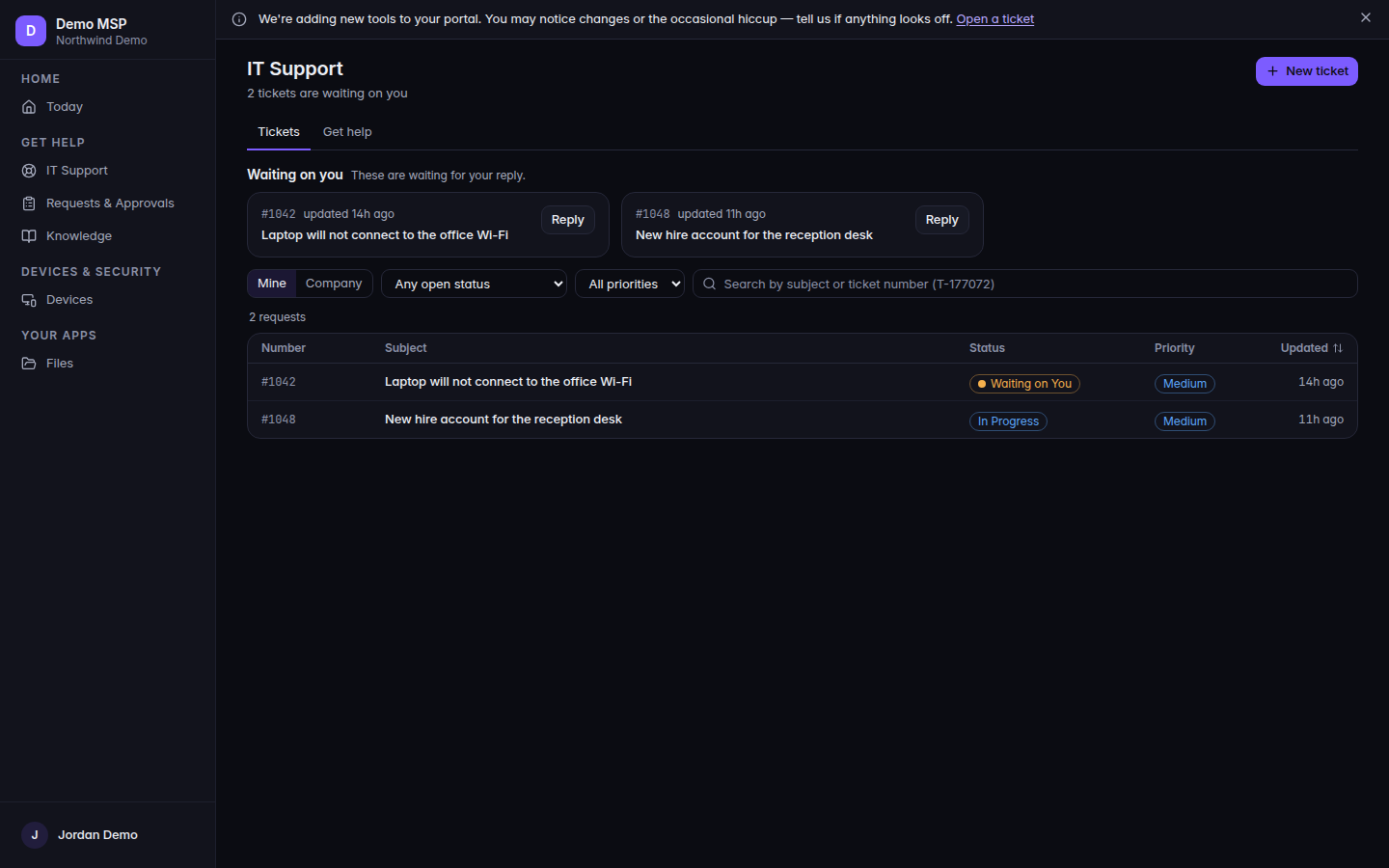
The ticket list, with Subject 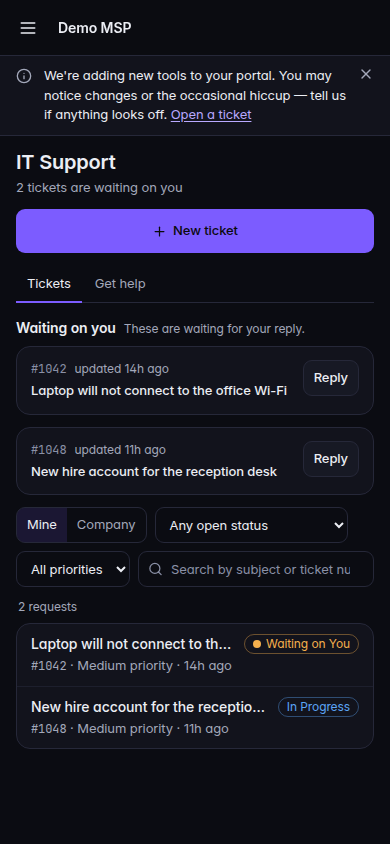
The ticket list, with Subject, on a phone - Open the request. Status words you may see include Waiting on You and Waiting on your provider’s name.
- In Reply, type in Type your reply….
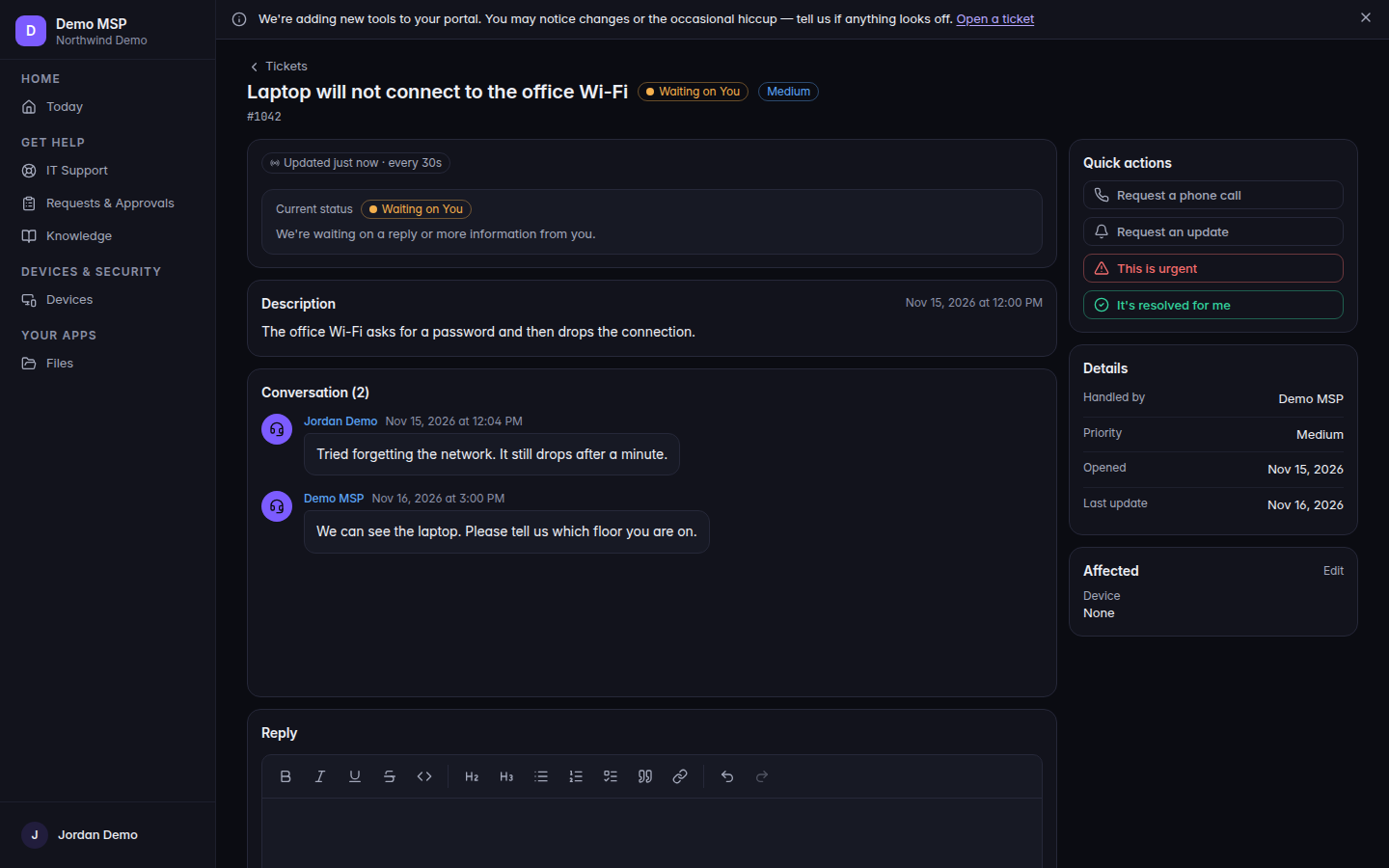
The reply box, with Send reply 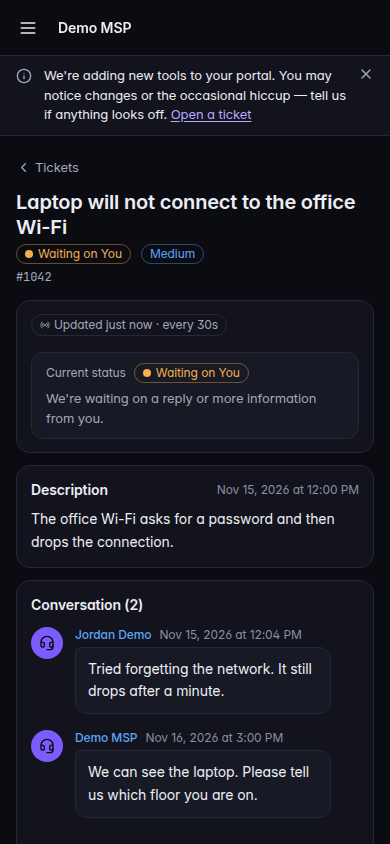
The reply box, with Send reply, on a phone - Add a file if you need one, then choose Send reply.
- When it is sent, the page says Reply sent and names your provider.
If the request is resolved, the heading is Reply to reopen this request and the button is Reply & reopen. The page says sending a reply will reopen it.
If the request is closed and the follow-up box is showing, choose Create follow-up request. If that box is not there, the page says This request is closed. Please open a new request if you need further help.
A co-managed person also sees Public reply and Co-managed note. A co-managed note stays with your IT team and your provider. The button for that note is Add co-managed note. Switching modes with text in the box asks you to confirm, because a public reply is visible to end users. Choose Switch and clear draft or Keep my draft.
If it goes wrong#
- We couldn’t send your reply. It has not been posted — your text is still here, so you can try again. Nothing was posted. Send again.
- Your reply is too long. Shorten it. The message shows the limit.
- There is no Reply box. You cannot comment, or the request is closed. Ask someone who can reply, or open a new request.
- Past the reopen window. Use Create follow-up request. A public reply is refused after that window.
What's next#
Was this article helpful?