
Open Files in the portal
For clients. Open Company files, download a file, and see why a control is missing.
Applies to Client
Files is your company’s file area in the portal. The page title is Company files. You see the folders your access allows.
Your provider turns Files on. Until then the row is absent, or the page says it is not turned on. See Turn Files on.
Open a file#
- Open Files. On a Workspace seat the same app can sit under Workspace as Files.
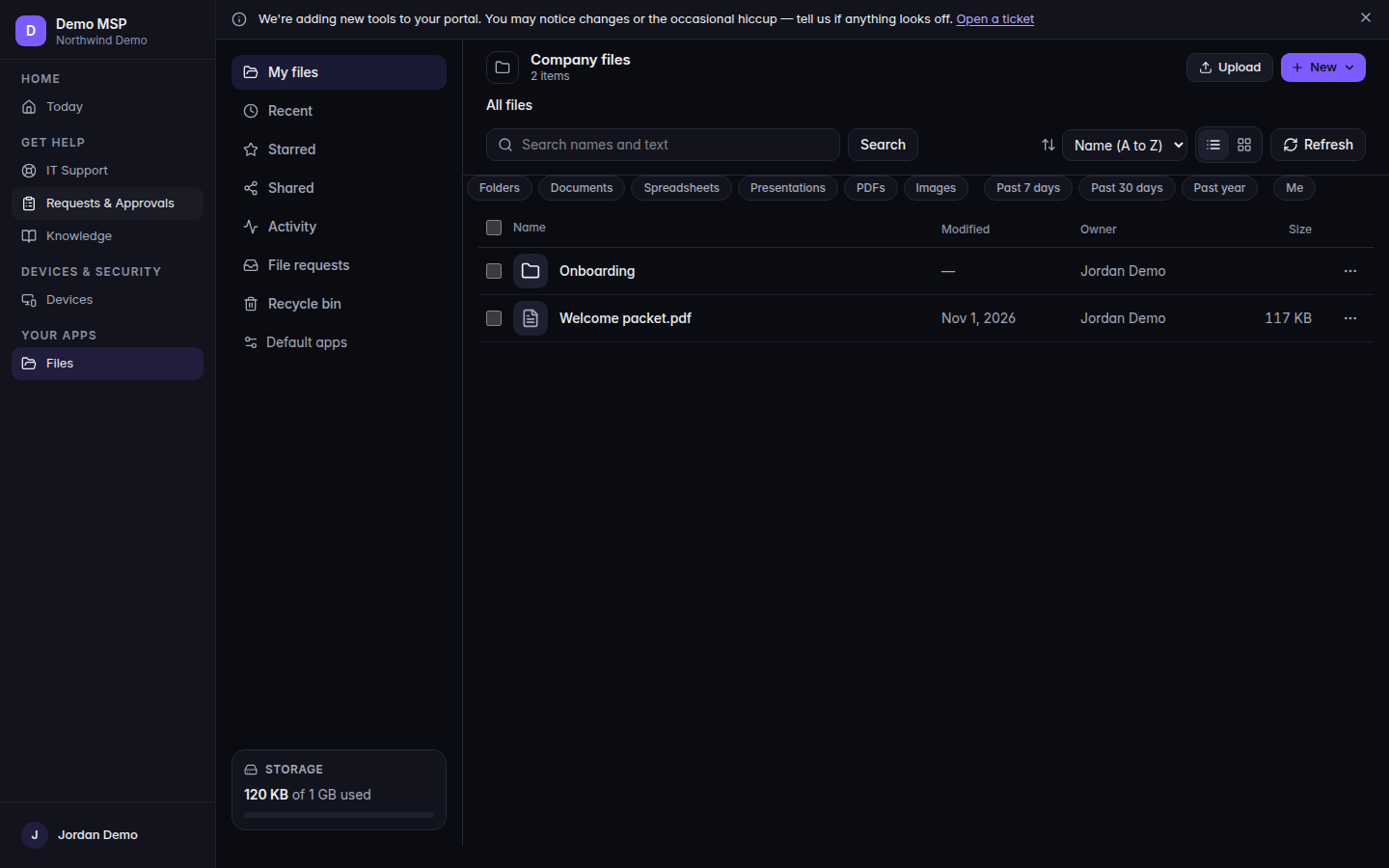
Company files, with the file list and All files 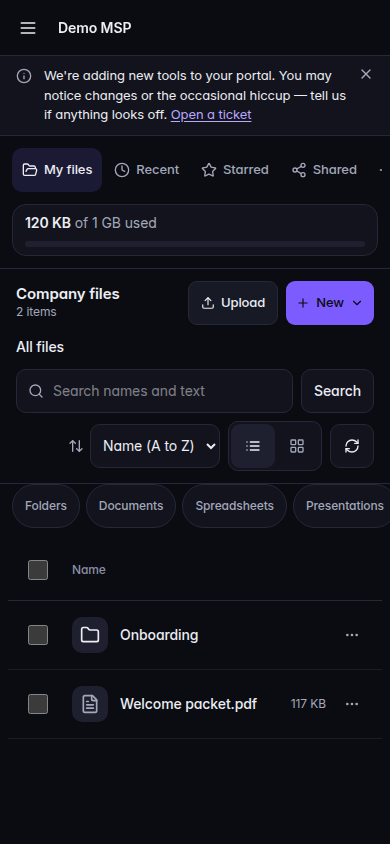
Company files, with the file list and All files, on a phone - Stay on Files to browse. Recent and Starred are the other views. All files is the top of the folder tree.
- Open a folder. An empty one says This folder is empty.
- Choose Open or Download on the file. Preview opens it in the page when a preview exists.
- Choose Refresh if the list looks old.
Show more holds Rename, Move, Make a copy, Copy to…, Share, Versions, and Delete when you are allowed to use them. Star keeps a file on Starred.
A read-only visit says Read-only: you are viewing this company’s files as their IT provider.
If it goes wrong#
- Not turned on for your account. Files is off. Ask your provider.
- There is no preview for the file, or it is too large to preview here. Choose Download.
- That file or folder is no longer there. Refresh to see what is.
- Your session ended. Sign in again to continue.
- You are viewing this company’s files read-only. Nothing was changed.
- Files did not answer. Nothing was changed — try again.
- Files refused that request, and nothing was changed. The reason was not one the page names. Nothing was written.
What's next#
Was this article helpful?