
Change your portal account
For clients. Open Account settings for your profile, notifications, and sign-out.
Applies to Client
Account settings is your own page. It does not change what the company can see, and it does not change another person’s access.
The menu label is Account settings. The page title is Account.
Update your account#
- Open Account settings from your name at the bottom of the menu.
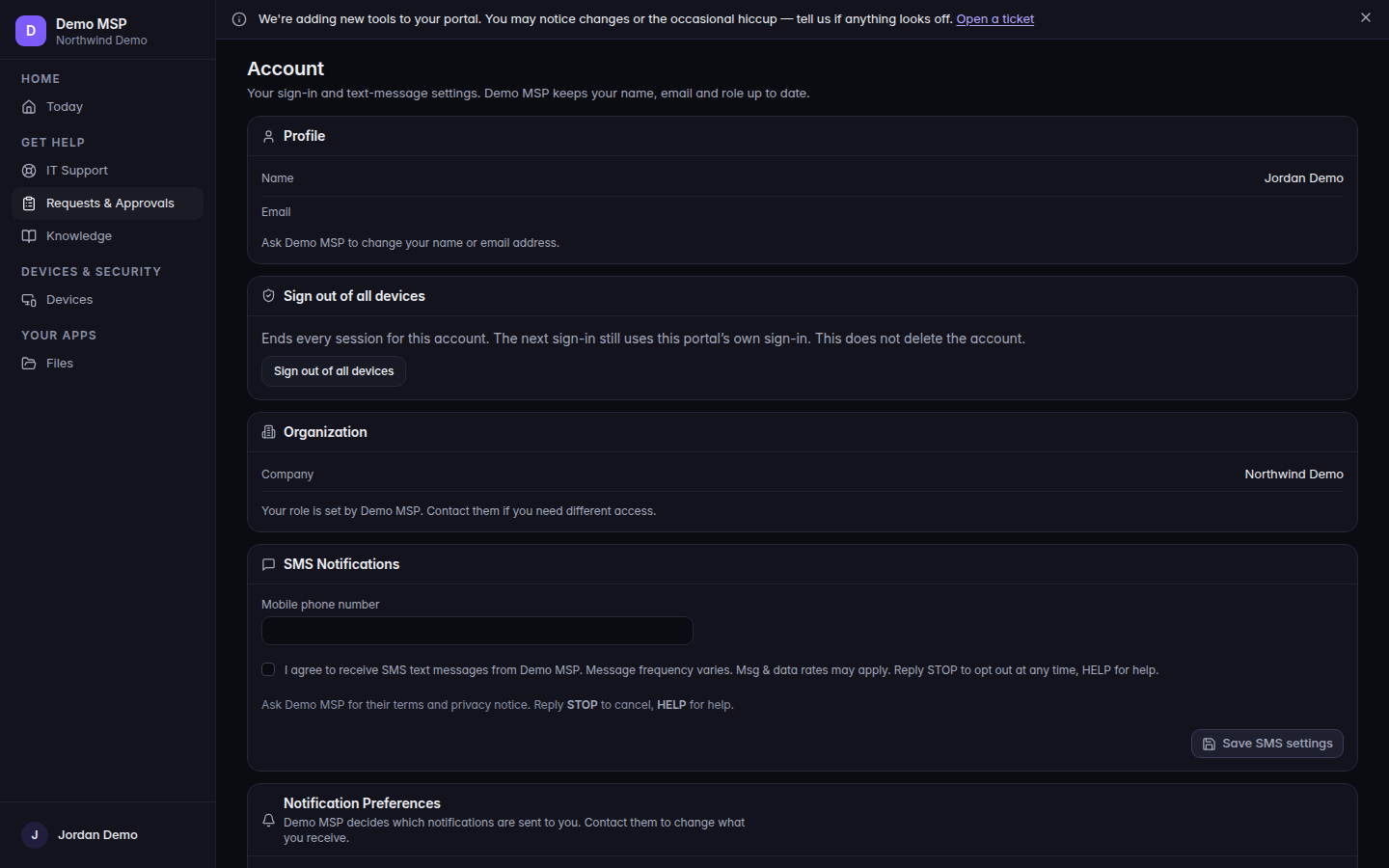
Account, with Profile and Notification Preferences 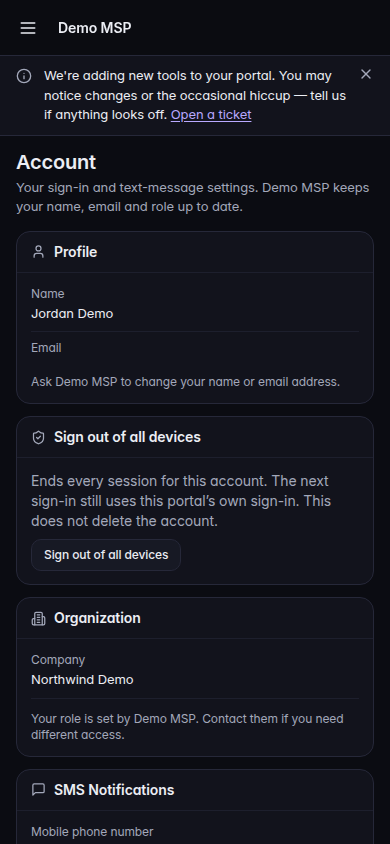
Account, with Profile and Notification Preferences, on a phone - Use Profile for your own details.
- Organization and Your IT provider show who you belong to and who supports you. They are not a place to edit the company.
- Under Notification Preferences, choose what you want to be told about. SMS Notifications is the text-message block when it is shown.
- If you have no password yet, the page says you can keep signing in the way you do now, or set a password as a second way in.
- To leave every session, open Sign out of all devices. The confirm line is Sign out of all devices? Each one will need a new sign-in. Nothing is signed out until you confirm.
Password reset from the sign-in page is Forgot password?.
Company admins also see Your company when your provider allows it: People and roles, Access to your data, and Files admin. Those pages follow the grants your provider set. See Decide what client admins can change.
If it goes wrong#
- We couldn't load your text-message settings. SMS settings failed to load. Retry. Your other account sections are separate.
- You cannot change another person. Use People and roles only when you are a company admin and that page is on. Otherwise ask your provider.
- Account settings is missing. Ask your provider. The shell link is part of the portal, and a hidden section means they turned it off.
What's next#
Was this article helpful?