
Upload a file in Files
For clients who can add files. Upload a file or a folder into Company files.
Applies to Client
Upload adds a file to the folder you are in. You need more than view access. A view-only role can open and download, and Upload is not offered.
Upload#
- Open Files and open the folder.

Company files, with Upload and Upload folder 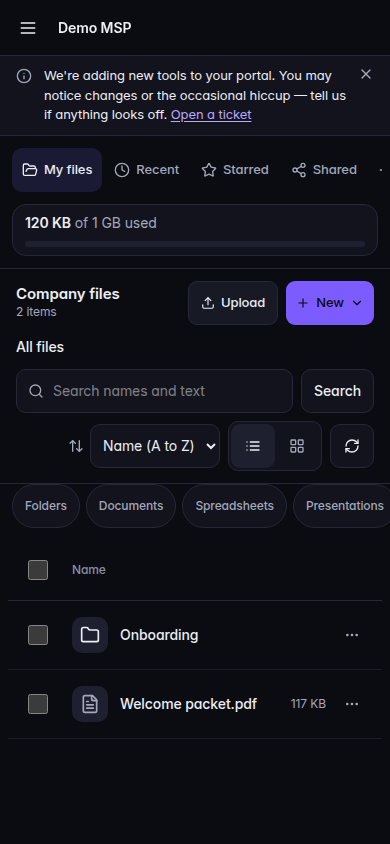
Company files, with Upload and Upload folder, on a phone - Choose Upload and pick the file. Choose Upload folder to send a folder’s files.
- Wait until the row finishes. The page shows how much has been sent. Checking the file before sending appears before the bytes move.
- If you are creating a folder yourself, choose New folder, enter Folder name, and choose Create.
Upload folder sends the files inside the folder you pick. Empty folders are not included that way. Drag the folder in if you need the empty folders kept.
If it goes wrong#
- There is not enough space left for this upload.
- Uploads are paused: this company has used its storage and its grace allowance. Existing files can still be opened and downloaded. Ask your provider to add storage.
- That file is over the 100 GB limit for one file, so nothing was sent.
- This file is too large to open in the browser. Download still works when the file is already there. This line is about opening, not about the upload limit.
- A file or folder with that name already exists here. Choose a different name.
- That upload expired. Start it again. Choose Retry upload when the row offers it.
- That upload was stopped before it finished.
- That name can’t be used. Avoid slashes, colons, and other special characters, and do not end with a space or a dot.
- Someone else changed this a moment ago. Refresh and try again.
What's next#
Was this article helpful?