
Turn a client app on
For owners and admins. Switch one app on for one customer, and for one role.
Applies to Owner Admin
Apps & products is where you decide which portal apps a customer can open. A row the customer cannot open is hidden in their menu. Turning an app on does not buy it.
Turn it on#
- Open Client Portal Admin, then Customers, and open the customer.
- Open Apps & products and select the app.
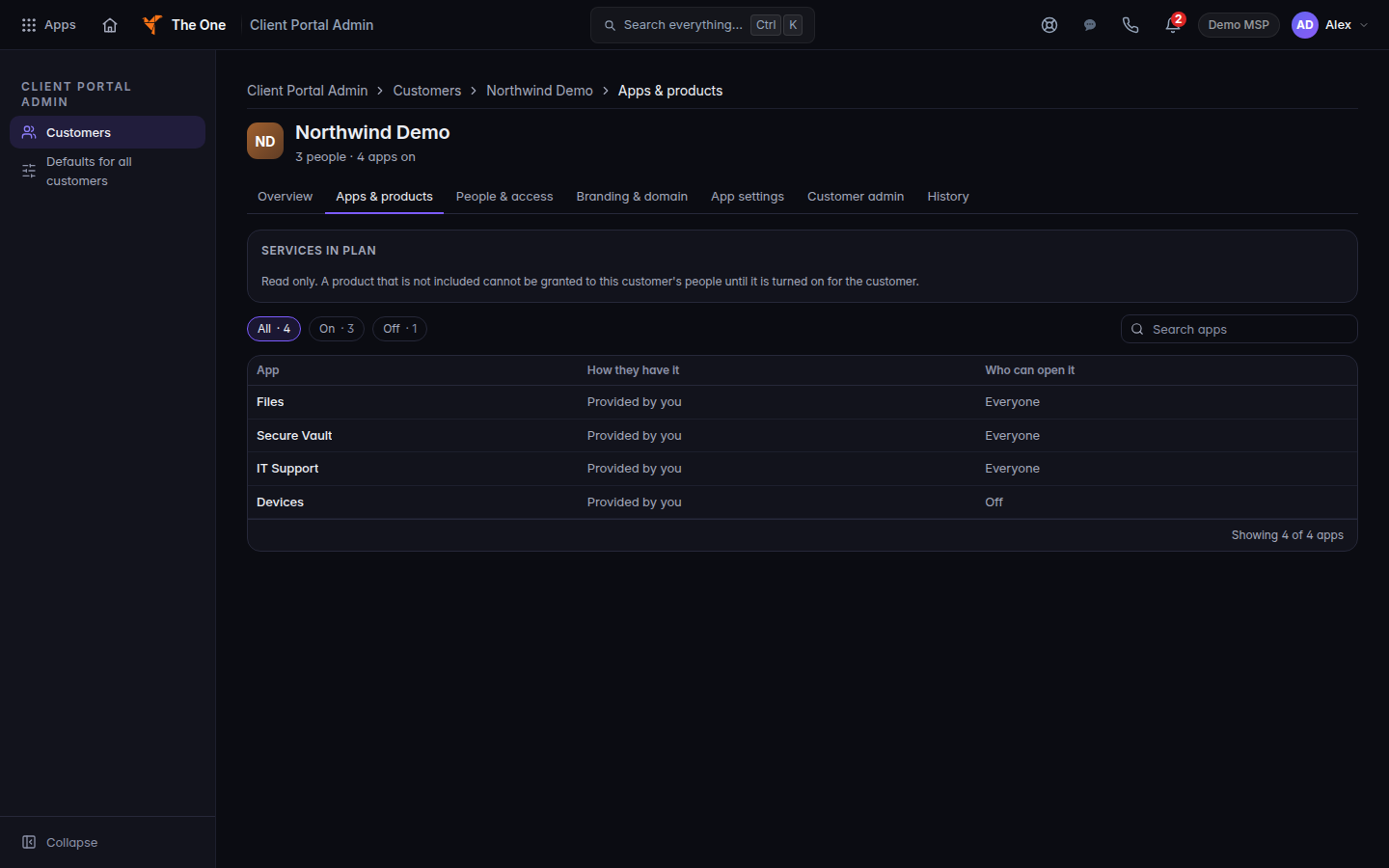
Apps and products, with one app’s On and Off switch - Under This customer, choose On. Default follows your default for all customers. Off hides it. Coming soon shows the name and lets nobody open it.
- Confirm Turn on. The line says people at that customer can open it, within each person’s role.
- Under Roles, set Admin, User, and Viewer to On, Off, or Inherits. Inherits follows the customer setting.
Who can open it shows the result. Open to names the roles. People set separately counts people with their own exception.
A sold app the customer has not bought says The customer has not bought this app, so nobody can open it yet. Confirming Turn on in that case says the same thing.
Projects can be on here and still hidden. If you see Not showing in the portal yet, the Projects section of that customer’s portal is off. Open the portal tab on the company in CRM and turn that section on. See Find a company.
If it goes wrong#
- You cannot change the switch. You can view the customer and you cannot manage apps. Ask an owner or admin.
- The client still does not see it. Their role is Off, or they are View only on an app that needs more, or the layout they use hides a section you turned off in the classic layout. See Switch the portal layout.
- The confirm stays and names an error. The change was refused. The app stays as it was.
What's next#
Was this article helpful?