
Open a project
Open Projects inside PSA, then open one project from the list or the dashboard.
Applies to Technician Admin
A project is one plan: tasks, dates, and the people on it. Open it from PSA when you need that plan.
You need the Projects area in PSA. A bookmark from an older Projects address lands in the same place.
Open the list#
- Open PSA, then Projects.Screenshot coming
The Projects sidebar inside PSA - Choose Projects in that sidebar. The page title is Projects.
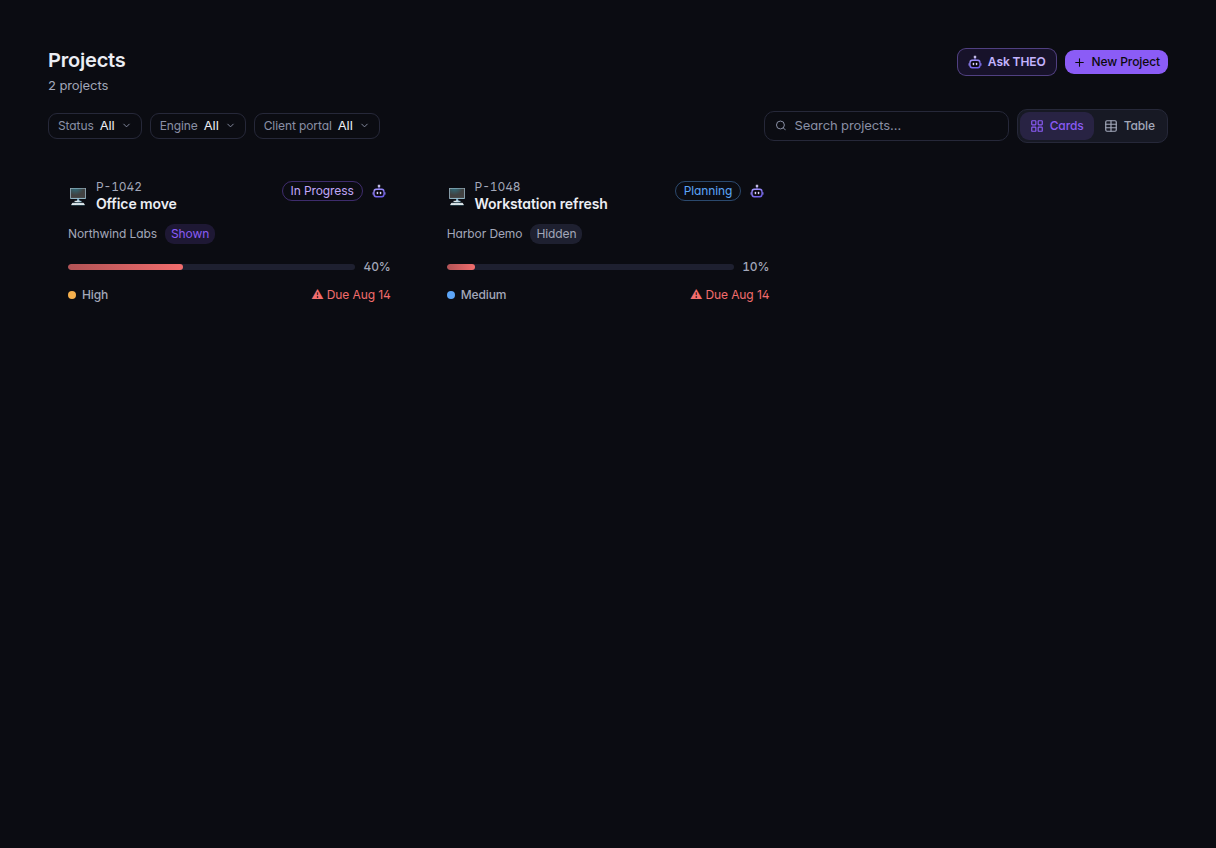
The project list, with New Project, Cards, and Table - Select the project name. You land on that project, on the Overview tab.
Dashboard is the home. It shows New Project, recent projects, and an empty line No projects yet when the list is empty.
What you can switch#
On the list, Cards and Table change the layout. Status filters Planning, In Progress, On Hold, and Completed. Client portal filters Shown to client and Hidden from client.
On the project, the tabs are Overview, Board, Sprints, Timeline, Milestones, Time, Documents, Team, and Tickets. Some engines rename Sprints or Milestones. The Board is this project's board. There is no separate board for every project at once.
If it goes wrong#
- Projects is not under PSA. The organization does not include Projects. Ask an owner.
- Couldn't load projects. Refresh the list. If it stays, ask an admin to confirm Projects is on for the organization.
- Project not found. The project was deleted or you do not have it. Use Back to Projects.
- Page not found. The address is not a Projects page. Choose Go Home or open Projects from PSA again.
What's next#
Was this article helpful?