
Show a project in the client portal
Turn on Show in client portal so the linked client can follow the project. It stays off until a manager turns it on.
Applies to Admin
Show in client portal decides whether the client can see this project. It is off until someone turns it on. A manager, an admin, or an owner can change it.
The client then sees the project under the projects your organization runs for them. They can follow progress and comment. They do not edit your board.
Show it#
- Open the project.
- In the bar under the title, find Show in client portal.
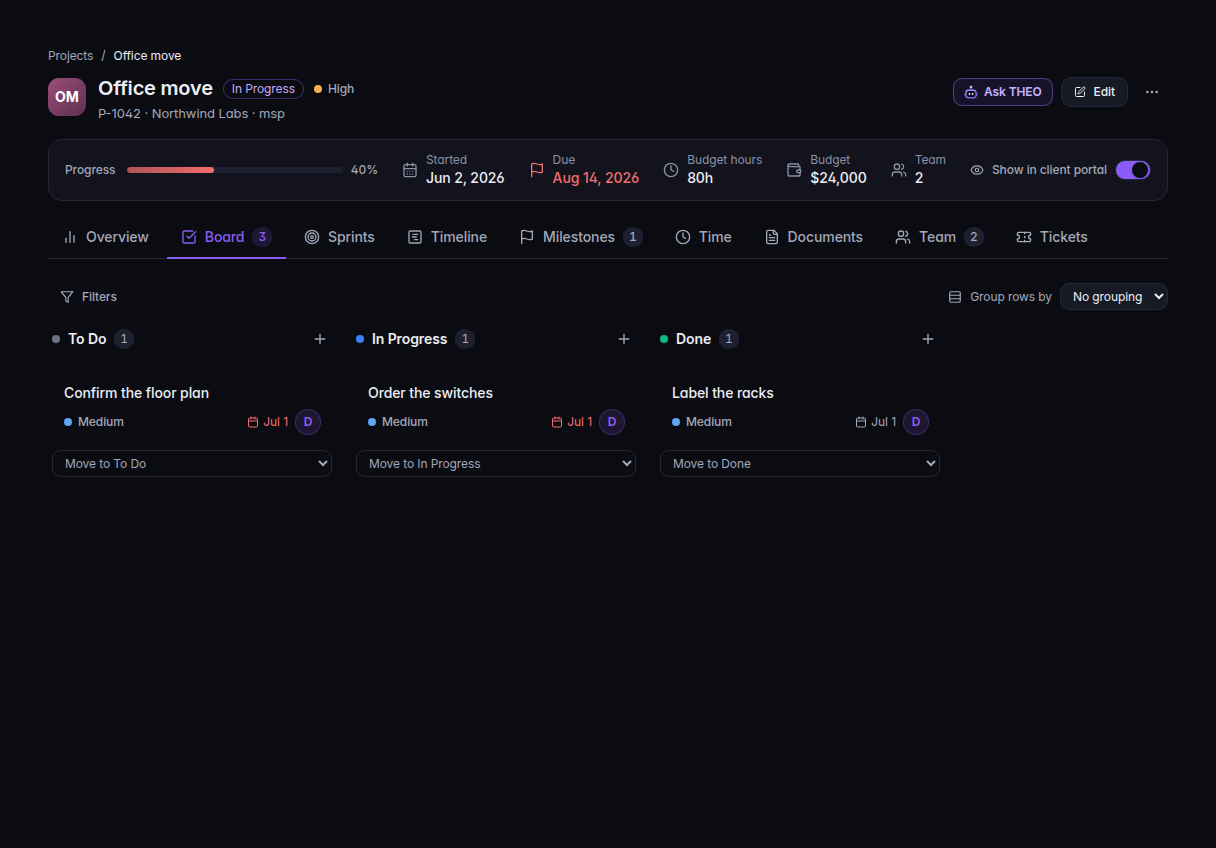
Show in client portal, switched on, on the project bar - Turn the switch on. The tip says the client can see this project in their portal.
Turn it off to hide the project. The list filter Client portal can show Shown to client or Hidden from client.
To show every new client project without flipping the switch each time, an admin turns on Show new client projects in the client portal under Settings, then Defaults. See Change Project settings.
What the client sees#
They open Projects in the portal. The section heading is Projects followed by your organization's name and runs for you. The line under it says the list is read only, that you update these, and that they can follow progress and comment.
On one project they can open Overview, Milestones, Tasks, Activity, and Discussion. Approvals appears when something is waiting for them. Send on Discussion is available when they are allowed to comment.
If it goes wrong#
- The switch is disabled and the tip says Internal projects have no client to show them to. Pick a Client first.
- The tip says A manager, admin or owner can change this. Ask one of those roles to flip the switch.
- Couldn't save. Try again. The change did not stick. Turn the switch again.
- The client still does not see it. Confirm the switch is on, the company is the one they sign in as, and their portal includes Projects. See Set up your client portal.
What's next#
Was this article helpful?