
Use the project board
The Board tab on a project is the column view of that project's tasks. Drag a task to change its column.
Applies to Technician Admin
The board is the column view of one project's tasks. Open it when you want to see what is not started, what is moving, and what is done.
There is no board that mixes every project. Open the project first.
Open the board#
- Open the project.
- Choose Board.
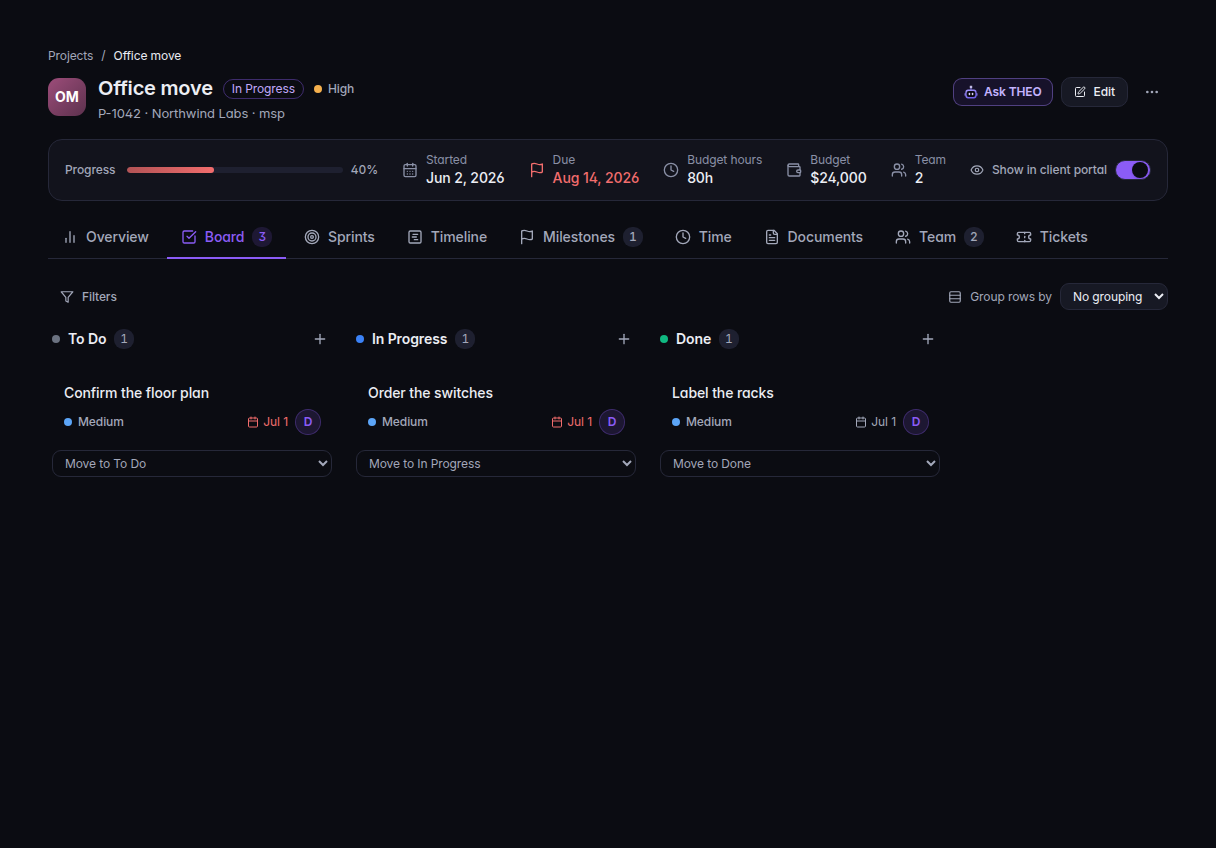
The Board tab, with To Do, In Progress, and Done - Drag a task from one column to another. The column is the task status.
Filters narrows the cards. Assignee can be All or Unassigned, or one person. Type filters by task type. Clear removes the filters. Group rows by stacks the board into rows. The choices include Assignee.
An empty board says No tasks yet and Add your first task to start tracking work on this board. See Add a task to a project.
If it goes wrong#
- Couldn't load the board. Refresh the project. The tasks were not deleted by the error.
- Using default columns — couldn't load your status configuration. The board is using the built-in columns. An admin can check Statuses under Settings. See Change Project settings.
- You cannot drag a card. Your role can view the board and cannot change tasks.
What's next#
Was this article helpful?