
Log time on a project
Log hours on a project's Time tab, or from Time Entries for any project. This is separate from time on a ticket.
Applies to Technician Admin
Log time on a project when the hours belong to the project, or to one of its tasks. Ticket time is a different entry. See Log time on a ticket when the hours belong on a ticket.
Log it on the project#
- Open the project and choose Time.
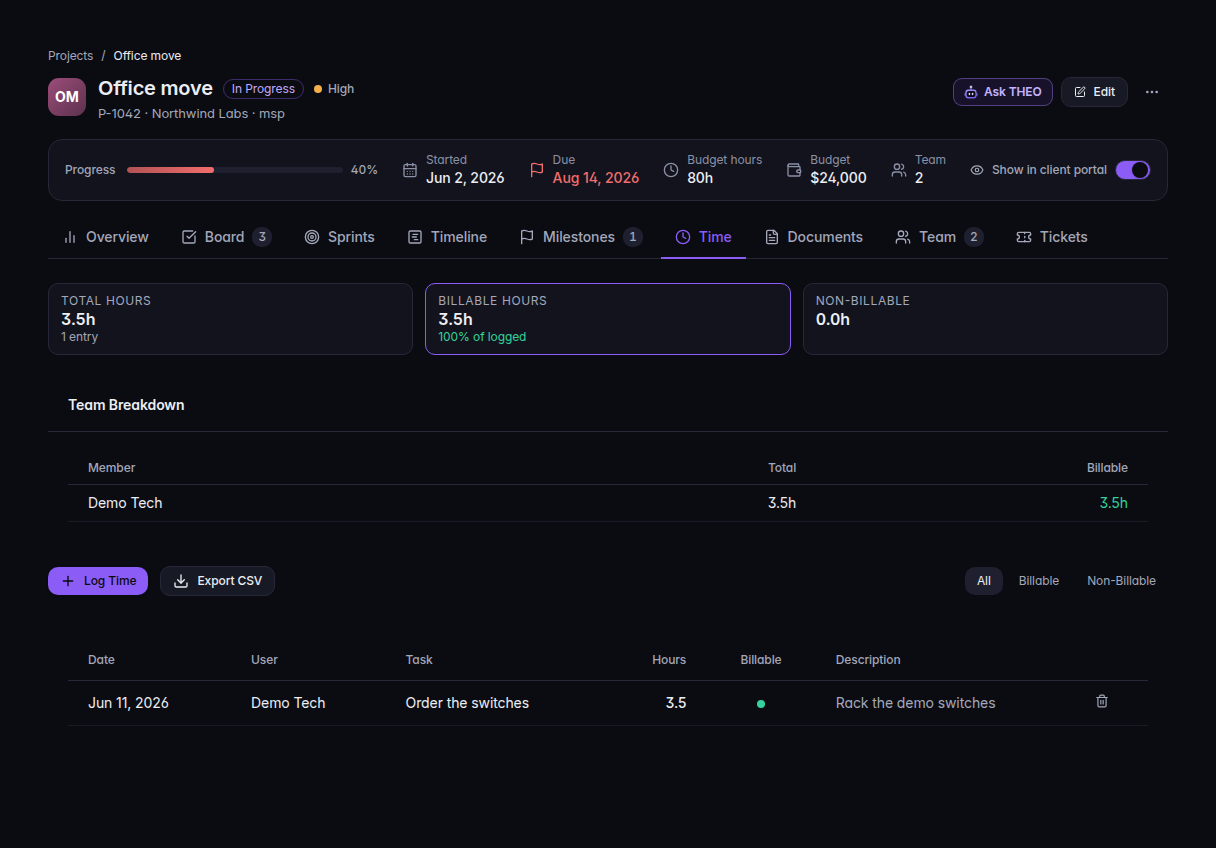
The Time tab, with Log Time and one entry - Choose Log Time.
- Pick Task (optional) if the hours belong to one task.
- Set Date and Hours. Turn Billable on or off.
- Describe the work. The box says What did you work on?
- Choose Log Time again to save.
The tab shows Total hours, Billable hours, and Team Breakdown. All, Billable, and Non-Billable filter the list. Export CSV downloads the rows.
Log it from Time Entries#
- Open PSA, then Projects, then Time Entries. The page title is Time Tracking.
- Choose Log Time. The form title is Log Time Entry.
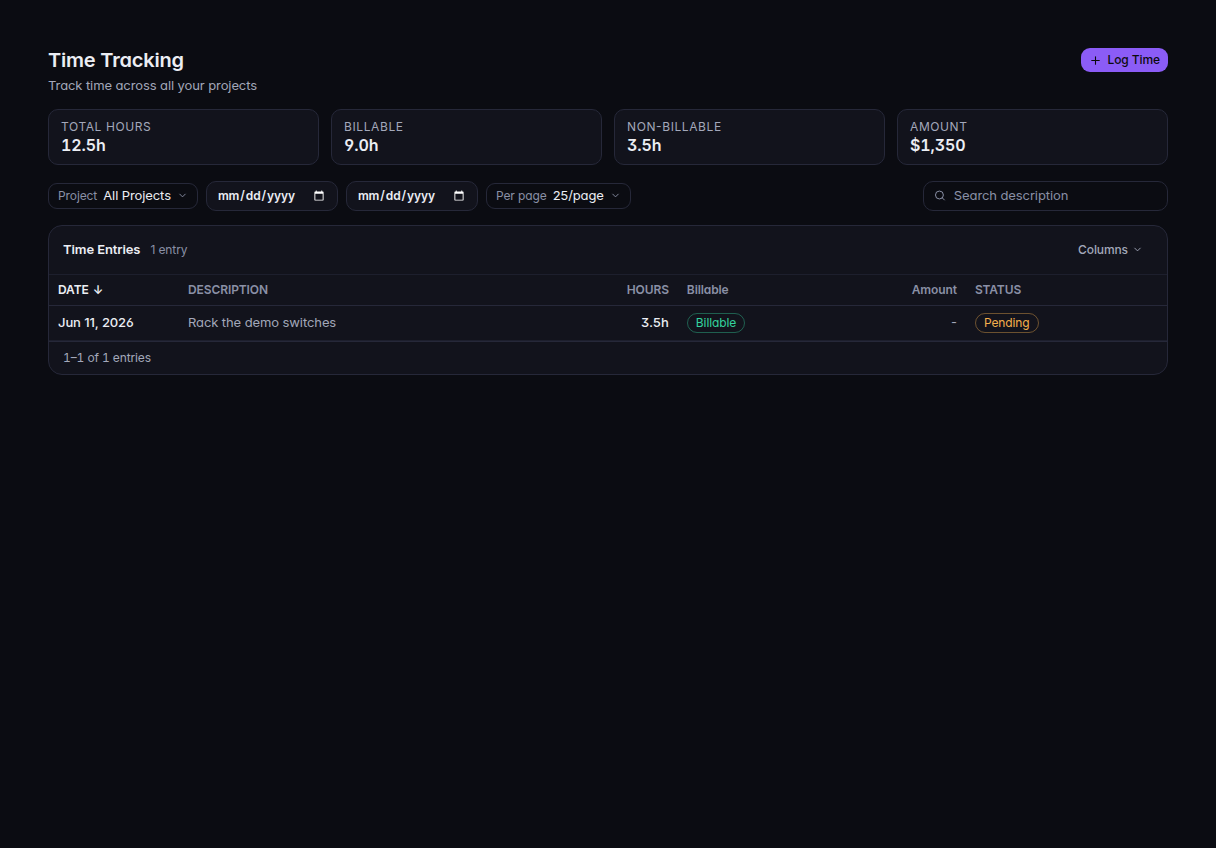
Time Tracking, with Log Time and the entries table - Choose a project under Select Project. Enter the description, Hours, and the date.
- Leave Billable checked when the hours should count as billable.
- Choose Save Entry.
The page totals Total Hours, Billable, Non-Billable, and Amount.
If it goes wrong#
- Couldn't load time entries. Refresh the tab. The hours you already saved are still stored.
- Failed to log time entry. The row was not saved. Check Hours and the project, then try again.
- No time entries. Nothing has been logged for this filter. Clear the date range or choose All Projects.
- Log Time is missing. Your role cannot write time.
What's next#
Was this article helpful?