PSA 20 of 50

Log time on a ticket

Record minutes on the ticket you are working, with a timer or a typed entry.

Applies to Technician Admin

Log time on the ticket while you work, so the timesheet matches the work. You can start a timer or type the minutes.

The ticket entry is the usual path. Time Tracking is where you review the week. See Submit your timesheet.

Log it#

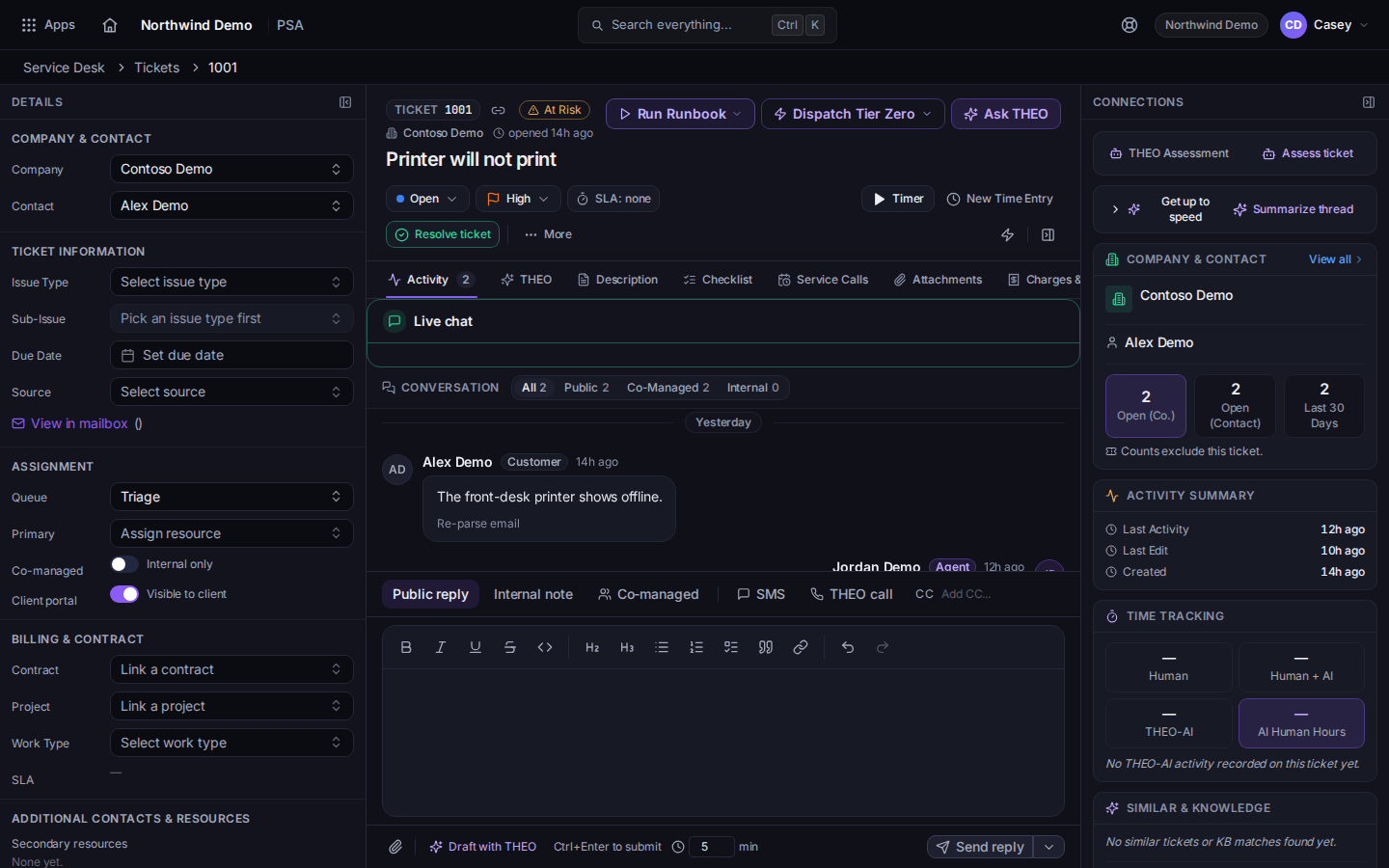
  1. On the ticket, choose Timer to start the clock, or New Time Entry to type the time.
    Timer and New Time Entry on a ticket
    Timer and New Time Entry on a ticket
    While the timer starts, the button reads Starting…. Stopping it uses the tooltip Stop & log time entry.
  2. The form title is Log Time.
  3. Choose Human for your own work. Human + AI and THEO-AI are the other tracking areas.
  4. Enter Duration (minutes), Date worked, Work type, and Description. If no work types exist, the field says No work types configured.
  5. Leave Billable on for client work. The note says it counts toward invoiced labor. Turn it off for internal work.
  6. Choose Log Time. While it saves, the button reads Logging….

If it goes wrong#

  • Enter a duration between 1 and 1440 minutes. The minutes are empty, zero, or longer than a day.
  • Choose a date. The date is empty.
  • Time cannot be logged in the future. Pick today or a past day.
  • Time cannot be logged more than 90 days back. Pick a more recent date.
  • Failed to log time entry. Nothing was saved. Try again. If it keeps failing, tell an admin.
  • The entry is on the wrong ticket. Open the right ticket and add the time there. This article does not move an entry between tickets.