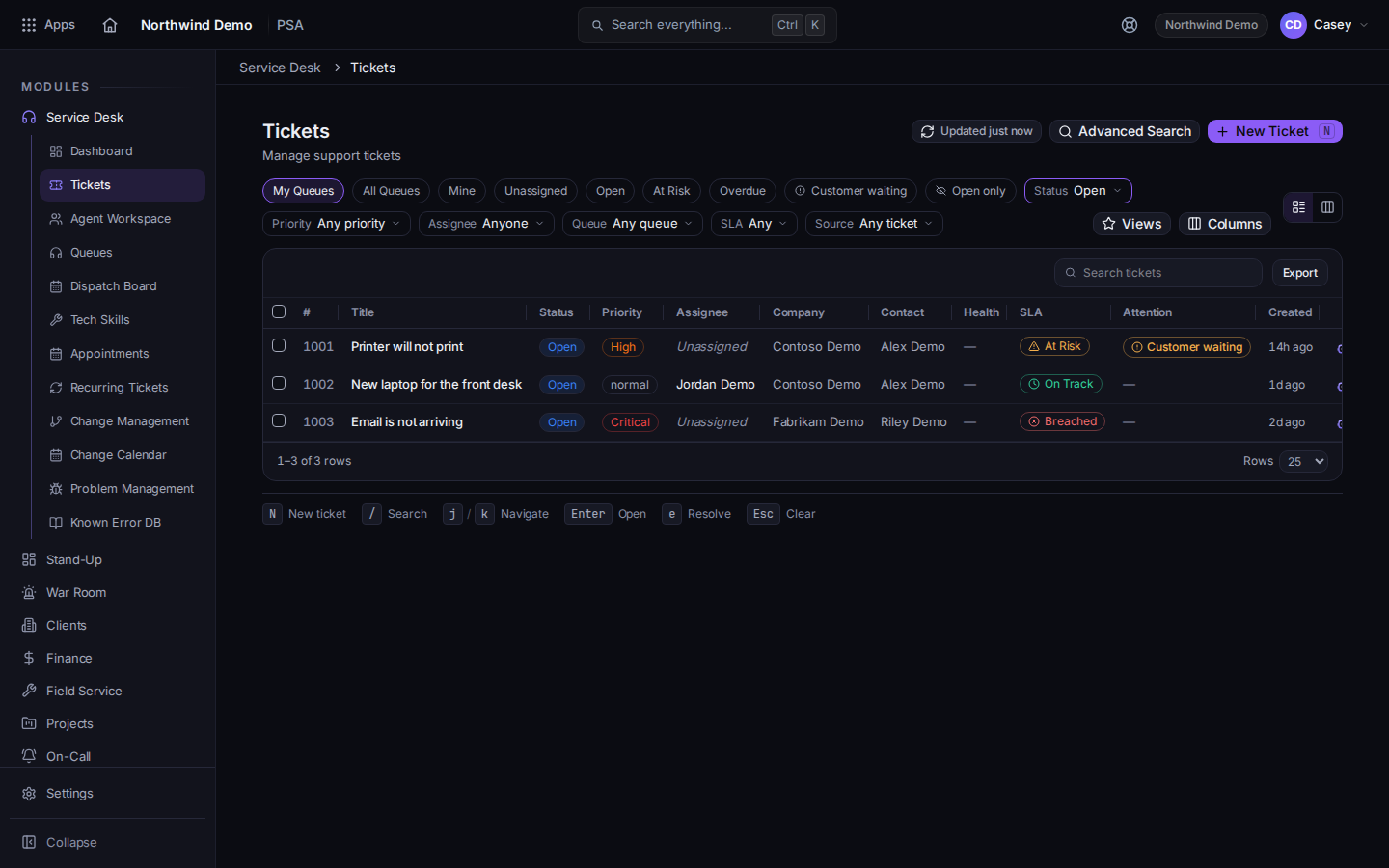
Open PSA, then Service Desk, then Tickets.The ticket list with My Queues, Mine, and New TicketNew Ticket is at the top. The chips sit above the rows.
Stay on My Queues to see the queues you belong to. Choose All Queues when a ticket is missing.
Choose Mine for tickets assigned to you, or Unassigned for tickets with no owner.
Choose Open for open work. Open only hides resolved and closed tickets. Incl. closed shows them.
Open one ticket and read Activity. The THEO tab is THEO on this ticket.
Agent Workspace is another way to work the same tickets. The list is the path these articles use.
On the table, the hint rail can show N for a new ticket, / to search, j and k to move, Enter to open, and Esc to clear. e resolves the highlighted row only when your role can close tickets. Those keys are hidden in the board view.