
Daily work in PSA
Find, create, reply to, time, escalate and resolve tickets. SLAs, queues and the Dispatch Board.
Applies to Technician Admin
PSA is where you spend most of your day: tickets, time, queues and the Dispatch Board. This article walks through the tasks in the order you do them. Part of the Staff Guide.
Find and work your tickets#
- Open PSA, then Service Desk, then Tickets.
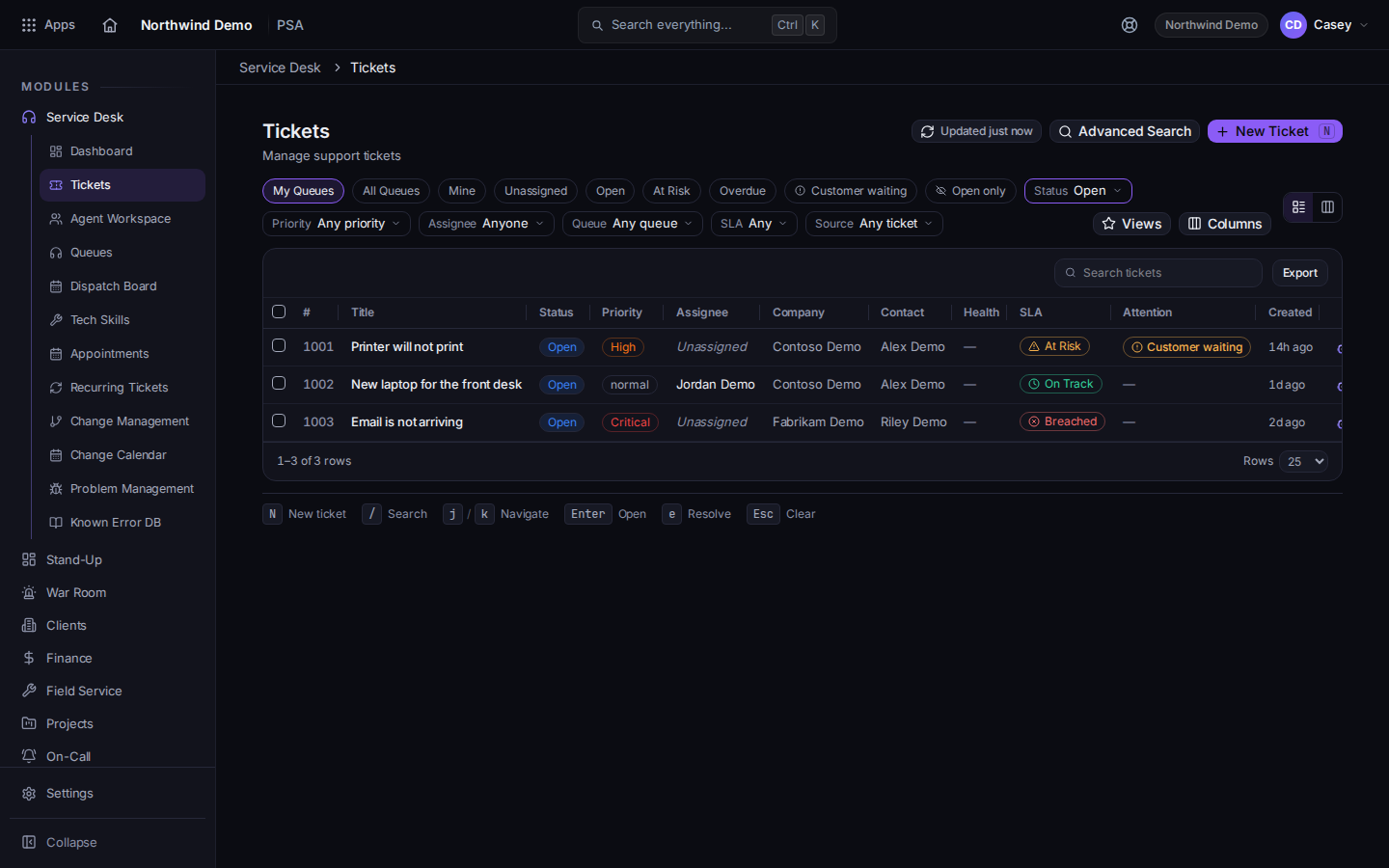
The ticket list, with the At Risk chip - Click a chip: Mine (assigned to you), Unassigned, At Risk, Overdue or Customer waiting. My Queues and All Queues change which queues you see.
- Narrow the list with Status, Priority, Assignee, Queue, SLA or Source. Save a combination you use often as a View. Columns and Export are next to it.
- Open the ticket you need. Read Activity. The THEO tab is THEO on this ticket.
Keyboard shortcuts on the table: N new ticket, / search, j and k move, Enter open, Esc clear. e resolves the highlighted row only when your role can close tickets. Those keys are hidden in the board view.
Tip. The SLA column shows On Track, At Risk, or Breached. Work At Risk before anything else. See Read a ticket SLA.
Create a ticket#
- Click New Ticket or press N.
- Pick the Company, then the Contact. Add a clear Subject and a Description.
- Set Type, Priority, Source, and Category. THEO can suggest category, priority, and assignee. Accept or change them.
- Optional: link an Asset / Device.
- Leave Queue on Auto-route (default queue) and Assignee on Auto-assign from queue unless you know better, then choose Create Ticket.
More detail: Open a ticket.
Reply to the customer or write an internal note#
- In the ticket, find the row under the conversation: Public reply, Internal note, and Co-managed when that ticket uses it. SMS and THEO call are not turned on yet. They show up only after an administrator turns them on.
- Public reply goes to the customer. Internal note is staff-only. If the queue is hidden, the composer says: This queue isn't visible to the client. They won't see this ticket in their portal.
- Type your text. Click Draft with THEO for a starting draft, then read and edit it.
- Optional: the minutes field next to the send button is Minutes to log for this note.
- With no status change, a public reply uses Send reply. The arrow is Submit as plus the status. Command+Enter on a Mac, or Ctrl+Enter on Windows, submits.
- Use the All / Public / Co-Managed / Internal filter above the conversation to see one kind only.
Check the tab name before you send. Public reply is the one the customer reads.
Log time#
- On the ticket, click Timer to start and stop a live timer, or New Time Entry to type it in.
- Pick Human for your own work. Human + AI and THEO-AI are for AI-assisted work.
- Enter Duration (minutes), Date worked, Work type and a Description of what you did.
- Leave Billable on for client work. Turn it off for internal work.
- Click Log Time. Your total shows under Time Tracking > Timesheet.
At the end of the week, open Time Tracking, then Timesheet, and use Submit for Approval. Your lead approves it. See Submit your timesheet.
Escalate and resolve#
- Change Status and Priority with the two drop-downs at the top of the ticket.
- Need help? Click Escalate and pick an action, if that button is there, or set Primary. See Escalate a ticket.
- Add a Checklist or Attachments from the tabs under the title.
- When the work is done, write the final note, then click Resolve ticket (or press e).
- Use More, then Merge Tickets, to combine two tickets. See Merge two tickets.
The cards on the right include the company and the device. See How PSA fits with other apps.
SLAs and stale-ticket reminders#
- Every ticket has an SLA chip with a live countdown. Hover it to see the target.
- Targets come from an SLA policy for each priority. The clock follows business hours and pauses outside them and on holidays. See Set SLA business hours.
- SLA Breached and At Risk are on the dashboard. The chip on the ticket uses the same states. See Read the service desk dashboard.
- A ticket is stale when it has had no activity for longer than the limit your admin set. Any note, reply, time entry, or status change counts as activity.
The stale-ticket limits are set by your admin under Settings > Service Desk > Stale-Ticket Policy. That page is the source of truth for your organization.
For leads#
Morning sweep
- Open PSA, then Service Desk, then Dashboard. Read Open Tickets, SLA Compliance, SLA Breached, At Risk, and Unassigned.
- Open Tickets and click Unassigned. Give each ticket an owner by opening it and setting Primary.
- Click At Risk and Overdue. Ask the owner for an update or take it yourself.
- Open Queues and look for Unstaffed w/ Work.
- Open Time Tracking > Approvals and approve submitted timesheets. Use Approve all pending only after you have looked.
Queues and Field Service
- Open PSA > Service Desk > Queues. Each row shows Open Tickets, Roster, Routing, Urgent, Backlog age and SLA.
- Click a queue to see its tickets. Use Move tickets to send tickets to another queue.
- The Client portal intake queue is where tickets that clients file in the portal land. It must be a queue that clients can see.
- Open PSA > Field Service > Dispatch. Every PSA organization has it. Use Calendar, List, or Unassigned Queue. The legend is SLA dot: breached, at risk, and on track.
- New Dispatch schedules an unassigned ticket onto a technician at a time. It does not create a ticket by itself.
See Use the dispatch board. To send a technician to a client from a ticket, see Schedule a visit from a ticket. To let the contact pick a time, see Request a time. Technicians work their visits in Use My Day.
What's next#
Was this article helpful?