
Devices, security and on-call
RMM devices, Defend alerts, remote Connect sessions and acknowledging a page.
This article covers the three places you go when something is wrong: RMM for devices, Defend for security alerts, and On-Call for pages. Part of the Staff Guide.
RMM: devices and alerts#
RMM is included with The One Stack. Computers are here. Vehicles are in Fleet. See Devices and the agent.
- Open RMM, then All Devices.
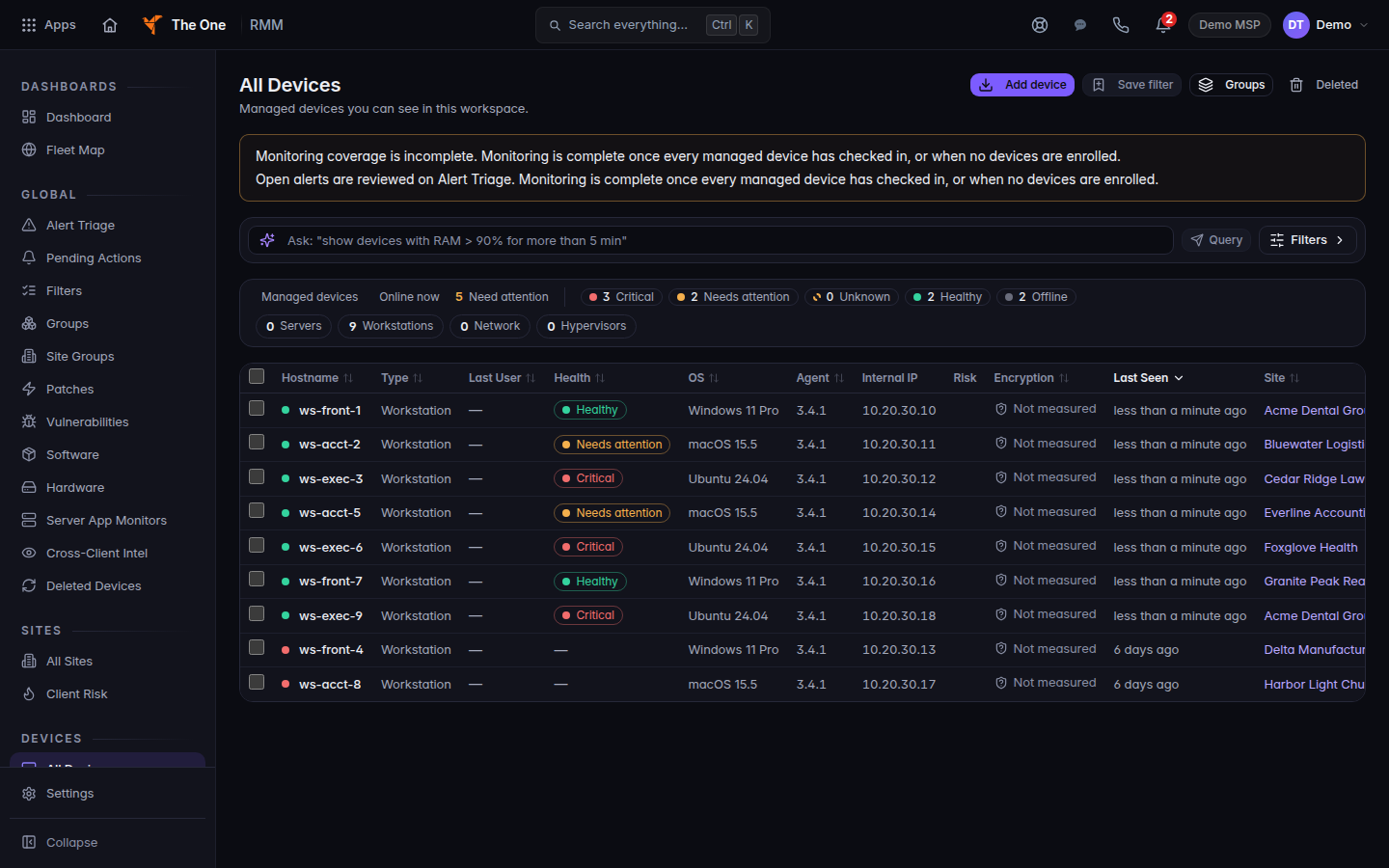
All Devices, with health on each computer
All Devices is the computer list. Vehicles are in Fleet, not here.
- Open a computer. The steps are in Open a device.
- Open Alert Triage for open device alerts. See Work device alerts.
- To install the agent, open Add device. The page title is Agent Installer. Choose the customer, then Generate Token. See Install the endpoint agent.
Remote control#
Remote control is Connect. A client in the portal cannot start it. See Connect to a device.
- Open the device in RMM, then All Devices.
- Choose Remote, or open the Remote tab and choose Connect. There is no Remote Sessions item in the menu.
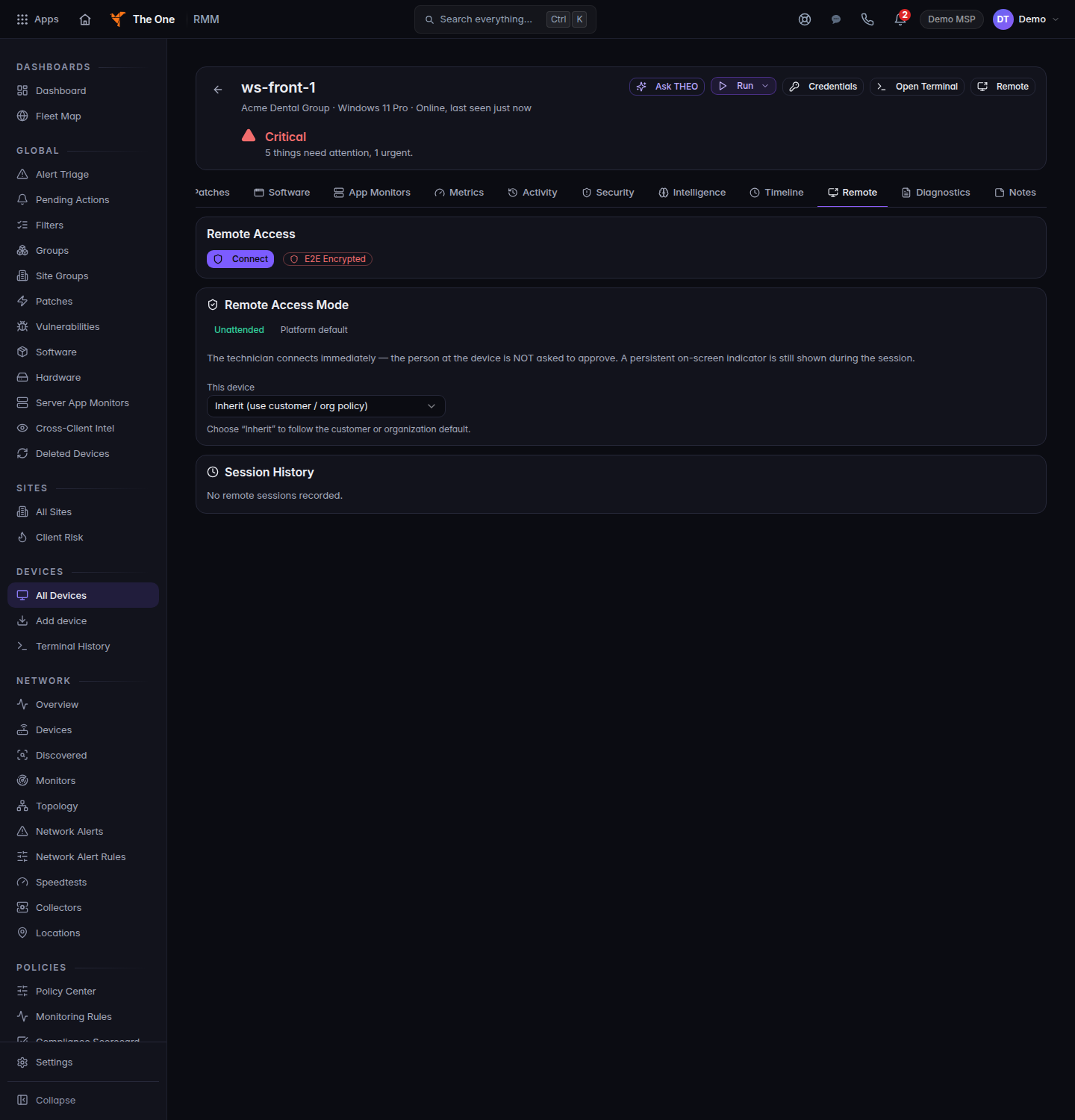
The Remote tab on a device
The Remote tab. Choose Connect. A client in the portal cannot start this.
- Tell the person at the computer before you take control.
- Past terminal sessions are under Terminal History.
If the session drops, start Remote again. If it keeps dropping, note the time and the device and ask your lead.
Owners and admins set attended and unattended access under RMM settings, then Remote Control. See Set remote access.
Defend: security alerts#
- Open My Apps > Defend. The first page, Needs You, shows only the things a person must decide.
- Use the customer picker at the top left to switch from All Customers to one client.
- Open Active Alerts for the live queue across endpoints, network, identity and email. Click an alert to read what fired and why.
- Treat any action that changes a live machine as a real incident. Do it with your lead.
Read Defend user guide.
On-Call#
On-Call is a PSA module. Open PSA, then On-Call.
- Open Overview to see what is active.
- Open Incidents when you are paged, and follow the incident on that page.
- Open Schedules to see coverage, and Escalation to see who is next.
- Services lists what is monitored. Reports is the report list.
Some On-Call pages are hidden and are not part of daily work. Use the six items above.
Next#
Was this article helpful?