
Install the endpoint agent
Mint one token for a customer, then run the command for Windows, Mac, or Linux.
Applies to Technician Admin
The endpoint agent is what puts a computer into RMM. You mint one enrollment token for a customer, then copy the command for that computer's operating system.
The page title is Agent Installer. The same page opens from more than one place. The token and the commands are the same.
Open Agent Installer#
- Open RMM, then Devices, then Add device.
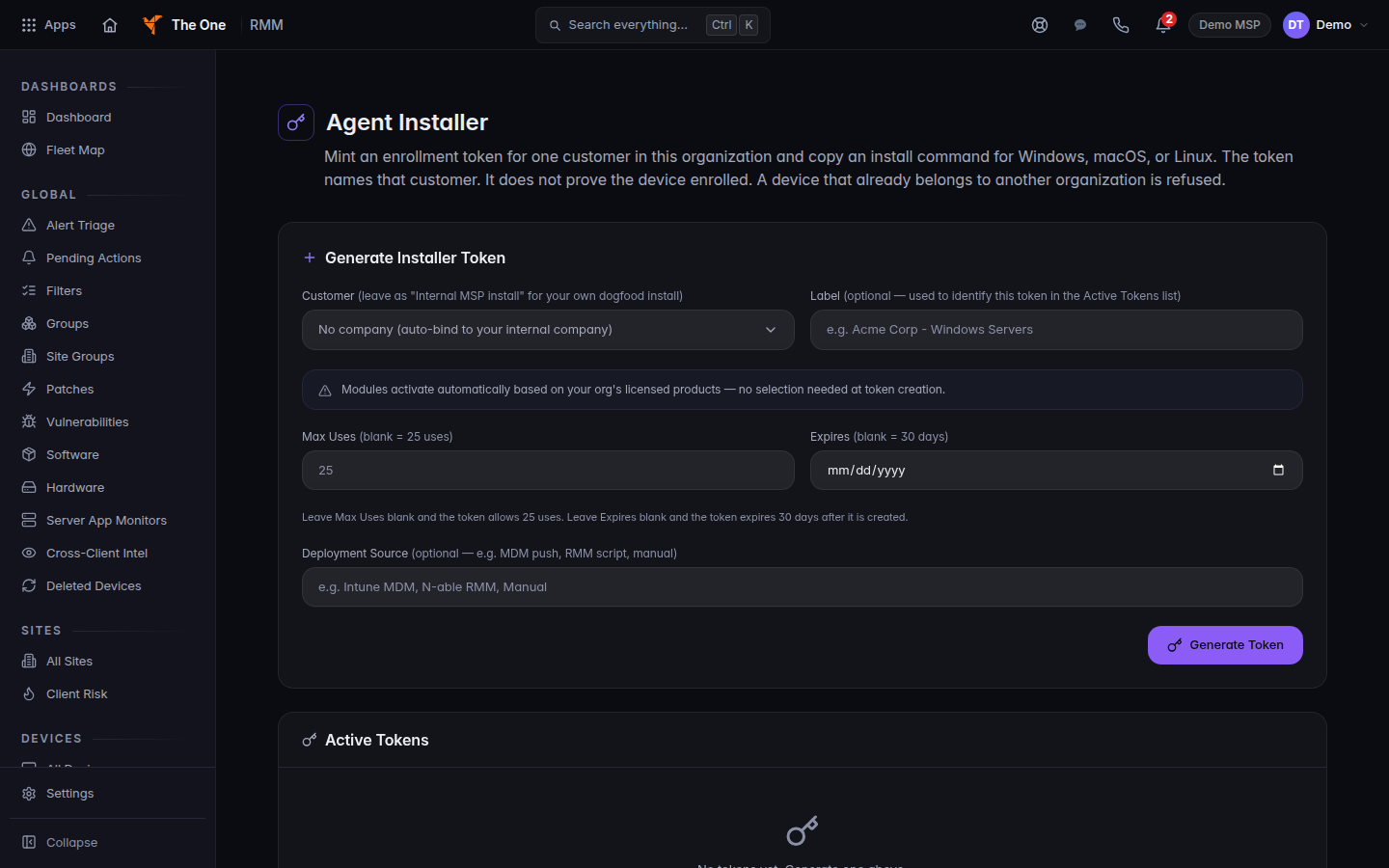
Agent Installer, with the customer field and Generate Token
Agent Installer. Generate Token is the button. The commands appear after you mint a token.
- You can open the same page from Downloads, then the Agent Installer link, or from RMM settings, Agents, then the card Install a new agent (Open Endpoints).
- On a company in CRM, open Endpoints, then Install Agent. That dialog uses Generate Enrollment Token and already names the company.
Downloads offers installer files for Windows and macOS only. Linux commands are on Agent Installer.
Mint the token#
- Under Generate Installer Token, choose the Customer. The blank choice reads No company (auto-bind to your internal company). Use that only for a computer your own organization owns.
- Label is optional. Leave Max Uses blank for 25 uses. Leave Expires blank for 30 days. The page states both.
- Choose Generate Token. While it works the button reads Generating….
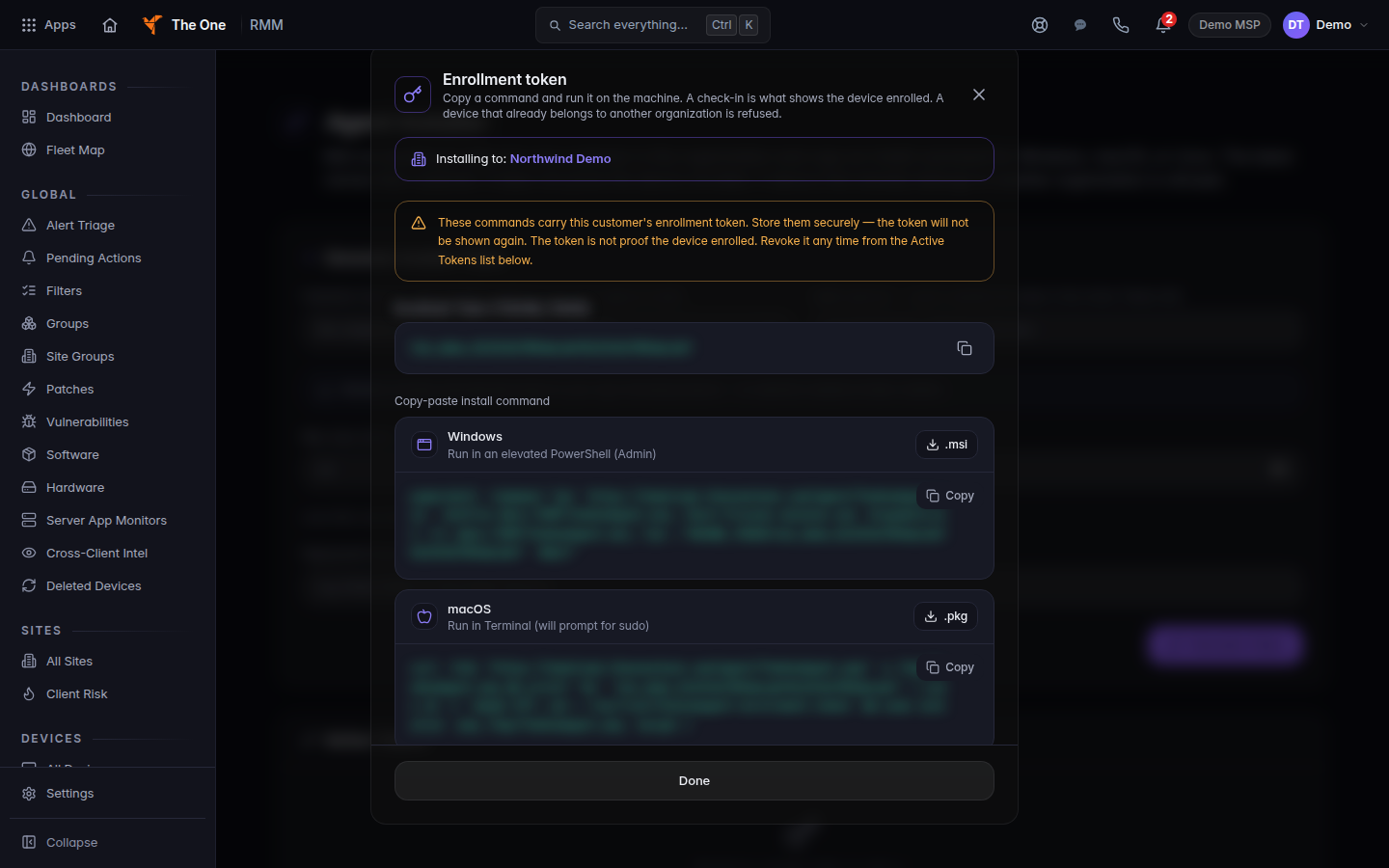
Enrollment token, with a command for each operating system
Enrollment token. The commands are blurred in this picture because a token is a secret. Copy yours from the page. It is shown once.
- In Enrollment token, copy the block for the operating system on that computer. Choose Done when you have it.
The page shows a block only when that installer is published:
| Block | Hint on the page | What you run |
|---|---|---|
| Windows | Run in an elevated PowerShell (Admin) | A quiet install of the Windows package. The token is passed as THEONE_TOKEN. |
| macOS | Run in Terminal (will prompt for sudo) | Downloads the package, stages the token for root, then installs it. |
| Linux | Debian/Ubuntu (.deb) — run as root | Installs the Debian package with THEONE_TOKEN set. |
| RHEL / Rocky / Alma (.rpm) | On the Linux card | Installs the RPM with THEONE_TOKEN set. |
There is no operating-system picker before you mint the token. Every published system appears after Generate Token.
Modules turn on from the products your organization already has. You do not pick modules on this form. The banner says so.
After it installs#
- Return to RMM, then All Devices.
- Confirm the computer is listed. An install command finishing is not the same as the device enrolling. A computer that already belongs to another organization is refused.
Active Tokens lists what you have minted. Revoke asks Yes, Revoke. A revoked token cannot be used again.
The same page has Uninstall & clean reinstall. See Uninstall the agent.
If it goes wrong#
- Failed to generate token. Please try again. Mint it once more. If it keeps failing, ask an admin.
- Failed to load tokens. or No tokens yet. Generate one above. The list failed, or you have not minted one.
- No signed installer has been published yet. The token is still valid. There is no file to download for that system until an installer is published.
- This token is not in the shape we mint. or A download address is not an https installer URL. Do not paste the command. Mint a new token.
- The computer never appears. Confirm the command finished as an administrator, that the token was for the right customer, and that the computer can reach the internet. Then look again after the next check-in.
- You cannot open RMM. Ask an admin to check your role. See Roles and permissions.
What's next#
Was this article helpful?