
Create an automation
Save a rule that runs a script on a schedule or after an event. Owners and admins can save one.
Applies to Admin Owner
An automation is the rule. The script is the command it runs. Creating the rule needs an owner or an admin.
Script steps can be sent to devices. Patch, service-restart, notification, and ticket steps are unfinished. The empty state says those steps record themselves as skipped. Do not add one and expect it to patch, restart a service, notify someone, or open a ticket.
Create it#
- Open RMM, then Automation, then Automation. The title is Automation.
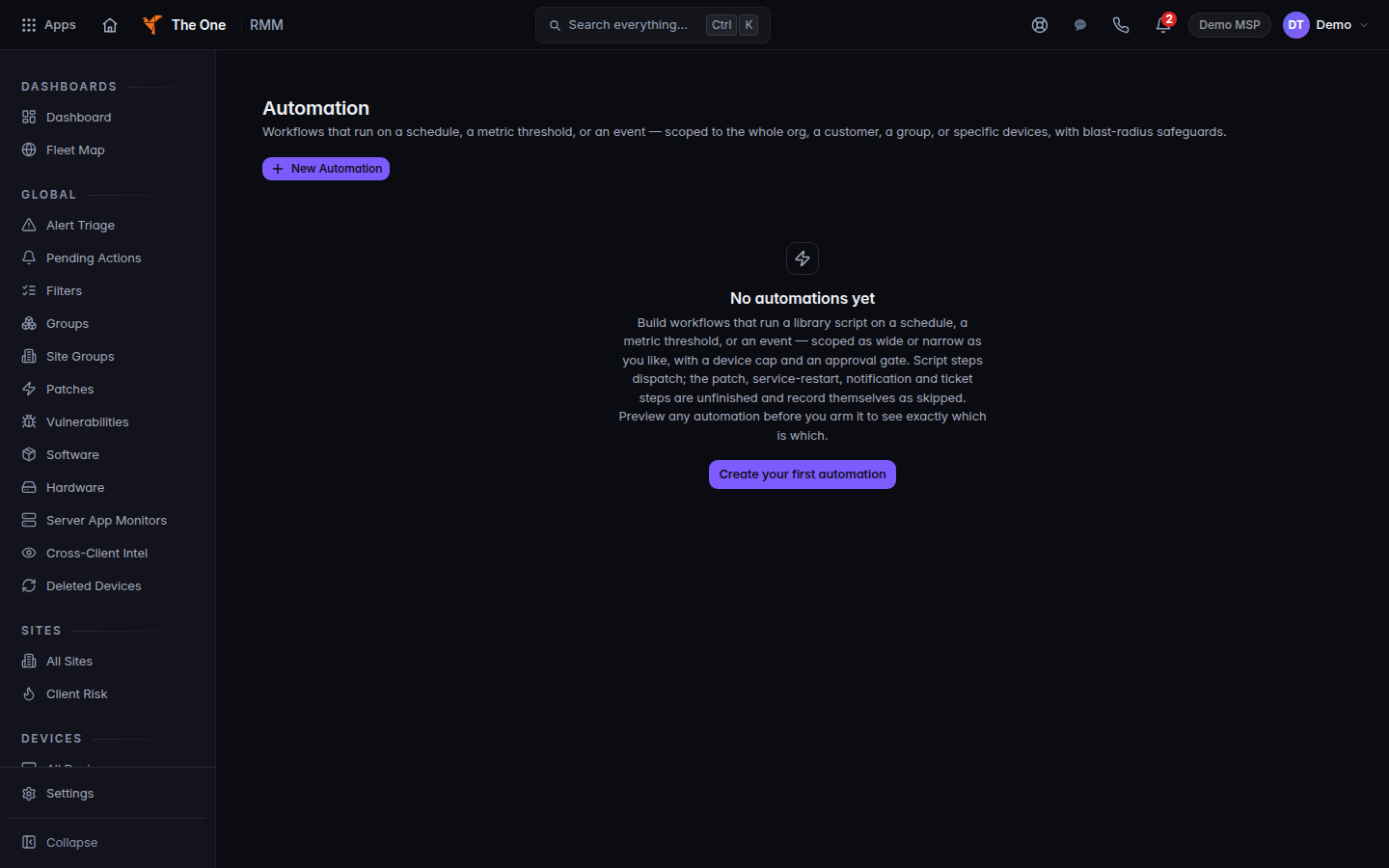
Automation, with New Automation
Automation before any workflow exists. New Automation starts one.
- Choose New Automation.
- Name it, pick the trigger, and add a script step. Leave patch, service-restart, notification, and ticket steps out.
- Choose Create automation. On a later edit the button is Save changes. Cancel leaves without saving.
- A saved rule shows Active or Paused. Approval required means a run waits for a person. Run now runs it once. Preview resolves the targets and does not run.
If it goes wrong#
- Admin role required to create automations. You are signed in as a technician. Ask an admin.
- Couldn't load automations. Retry.
- A step says skipped. It is one of the unfinished step types. Use a script step.
Runbook brief and Agentic Automation open only when that automation add-on is turned on for the organization. If you see Automation Hub isn't enabled for this organization or your account, stop. Those pages are not part of daily device work.
What's next#
Was this article helpful?