
Connect to a device
Start a Connect session from the device. A client cannot start one.
Applies to Technician Admin
Remote control is Connect. A technician, an admin, or an owner can start it. A client in the portal cannot.
There is no Remote Sessions item in the RMM menu. You start from the device. Past terminal sessions are under Terminal History.
Start the session#
- Open RMM, then All Devices, and open the device.
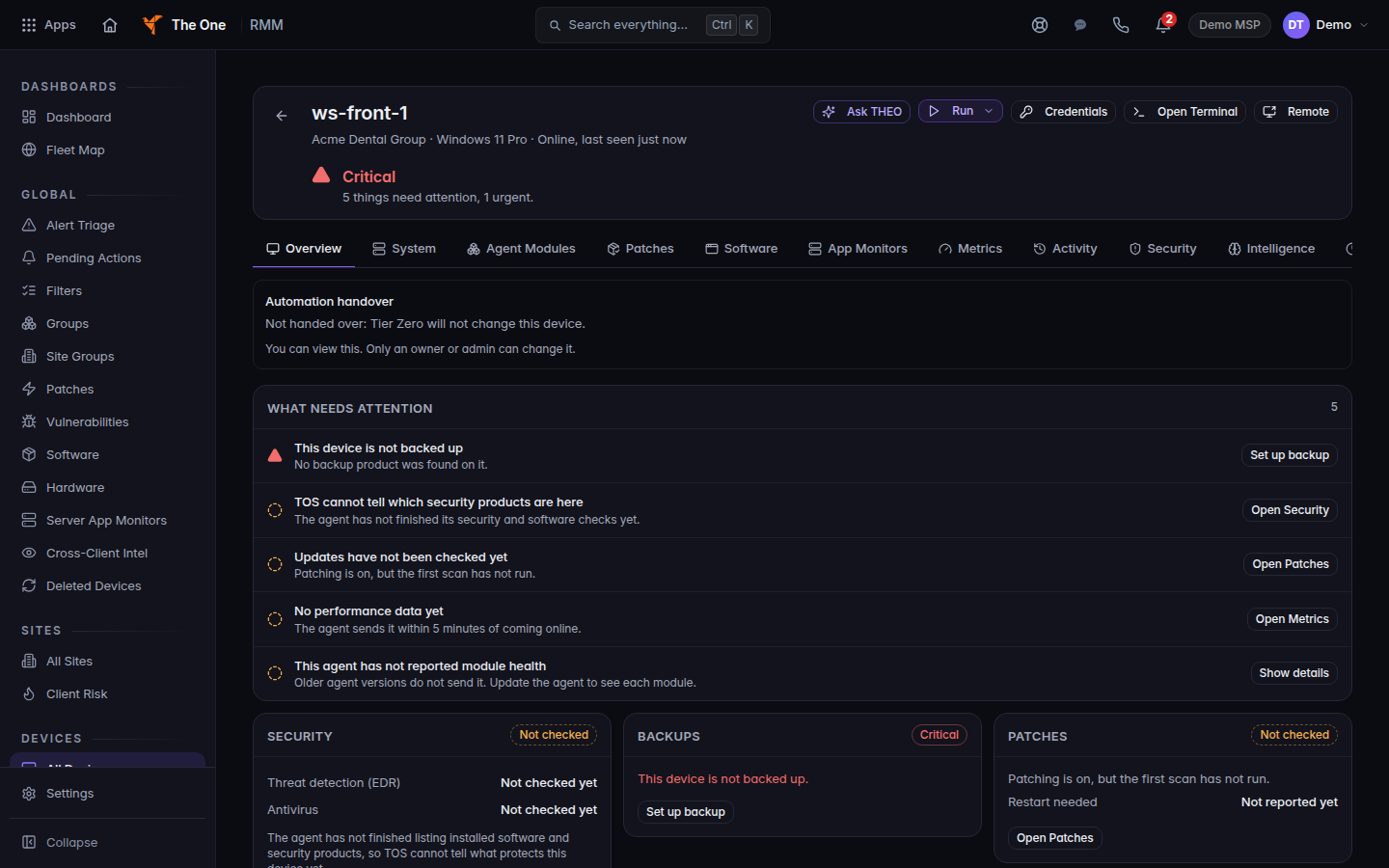
The device header, with Remote
Remote is in the device header. The tip is to open a full-screen session in a new tab.
- Choose Remote in the header. The tip when it is available is Open a full-screen remote session in a new tab. The session opens in a new tab and starts on its own.
- Or open the Remote tab. The card title is Remote Access. Choose Connect. The badge reads E2E Encrypted.
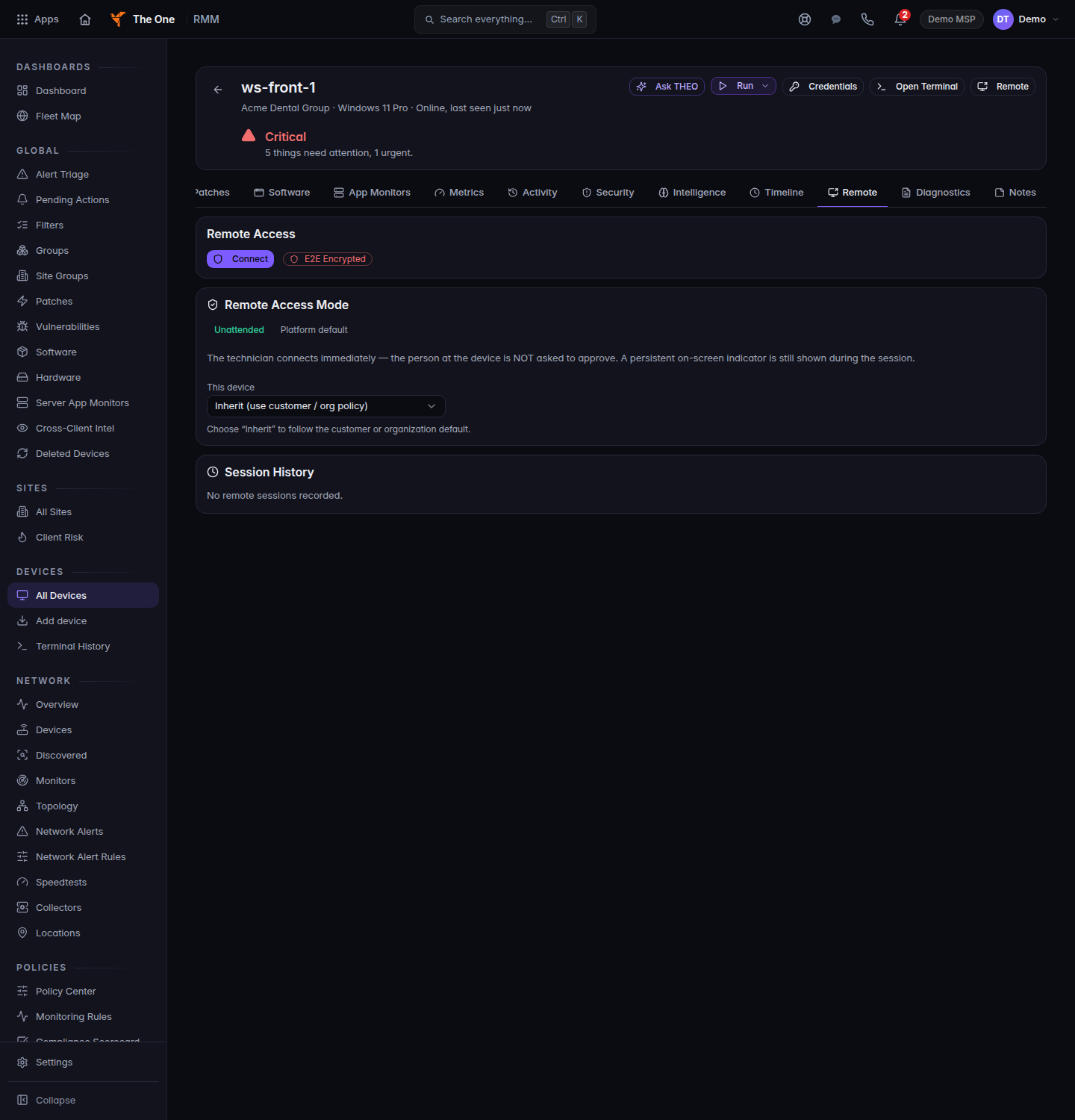
The Remote tab, with Connect
The Remote tab. Connect starts the session. The badge reads E2E Encrypted.
- If the org policy is attended, the tab says Waiting for the person at the device to allow access…. If it is unattended, it says Connecting to the device….
- When you are done, leave the tab. On Active Sessions, End closes a session that is still open.
Open Terminal is a shell, not the screen. Use it when the tip says the computer has no screen to share. See Open a terminal on a device.
If Defend has open alerts on the device, you must choose Connect in hardened view only, Connect with full control anyway, or Cancel. Hardened view has no mouse, keyboard, files, clipboard, or credential vault.
If it goes wrong#
- You don't have permission to start a remote session. You need the technician, admin, or owner role.
- Device is offline. or This device can't be reached for remote support. Wait until the row is online.
- Remote support is turned off for this device. An admin has to turn remote support on for it.
- Multi-factor authentication required. Finish sign-in with the second step, then try again.
- Your network isn't permitted. Your address is outside the allow list. Ask an admin.
- The person at the device declined. Ask them to accept the prompt.
- No response from the device. Nobody answered in time. Start again.
- The device needs to grant permission. On a Mac, Screen Recording and Accessibility must be allowed for the agent.
- This Linux desktop uses Wayland. Screen sharing cannot start on that session.
- Screen sharing is not available on this endpoint. Use the web terminal.
- Connection lost. Reconnecting… Wait, or choose Stop reconnecting and start Remote again.
- Could not load this device. Close the tab and open the device from All Devices.
What's next#
Was this article helpful?