
Open a device
Find a computer in All Devices and open its page.
Applies to Technician Admin
All Devices is the list of computers your agent reports. Open a row to see that machine.
Find it#
- Open RMM, then Devices, then All Devices. The title is All Devices.
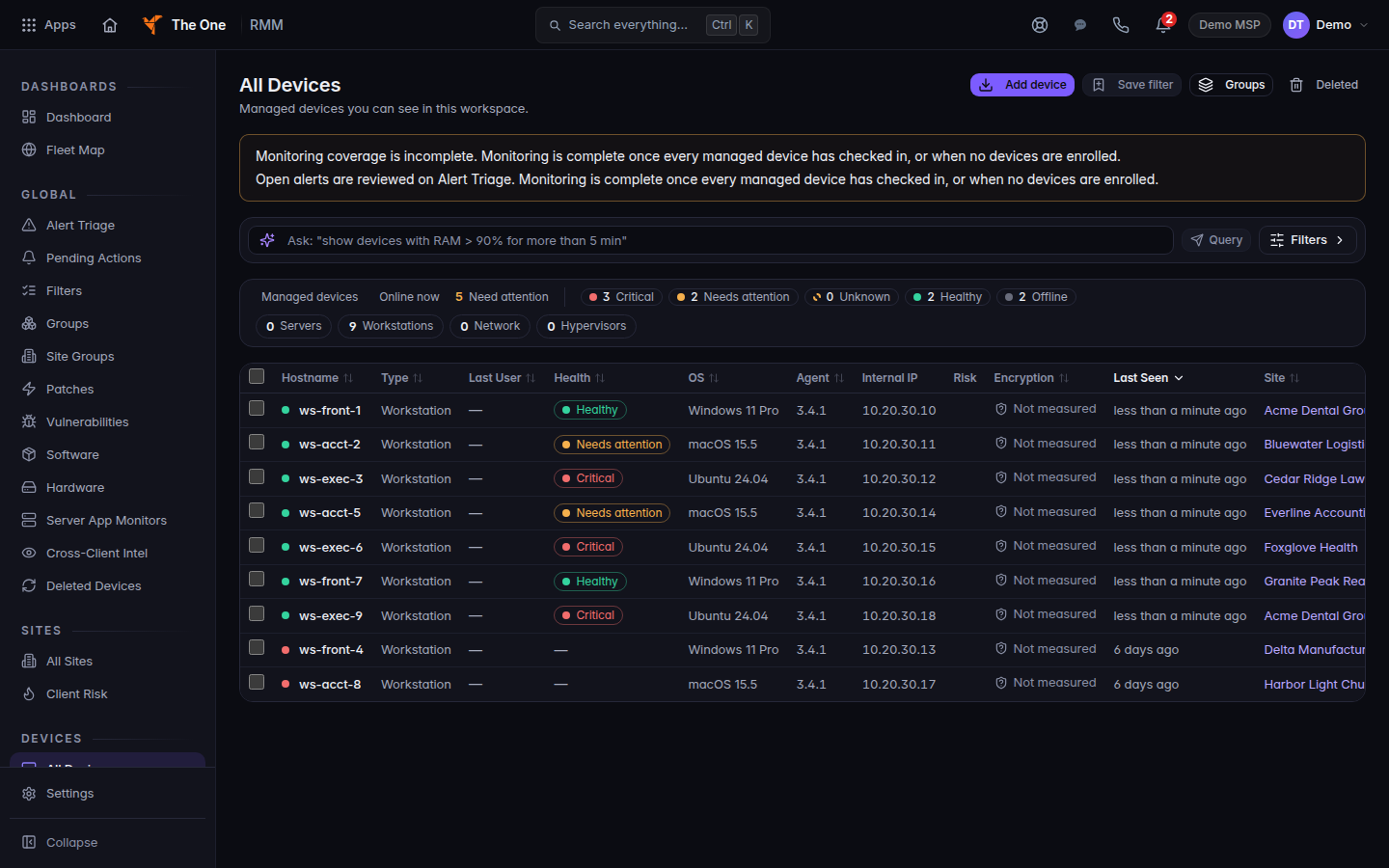
All Devices, with health on each computer
All Devices lists the demo computers. Health reads Healthy, Needs attention, Critical, or Offline.
- Use Filters to narrow the list. You can filter Hostname, status (Online, Offline, Degraded, Maintenance), health, and when it was last seen.
- The count line can show Managed devices, Online now, and Need attention. Health chips are Healthy, Needs attention, Critical, Offline, and Unknown.
- Choose the row. It opens that device.
The columns include Hostname, Type, Last User, Health, OS, Agent, Internal IP, Risk, Encryption, Last Seen, and Site. Remote on the row starts a session when the device is online.
Add device on this page is Install the endpoint agent. Deleted is the restore list. See Delete a device and restore it.
What is on the device page#
The header has Ask THEO, Run, Credentials, Open Terminal, Remote, and Delete when your role can delete.
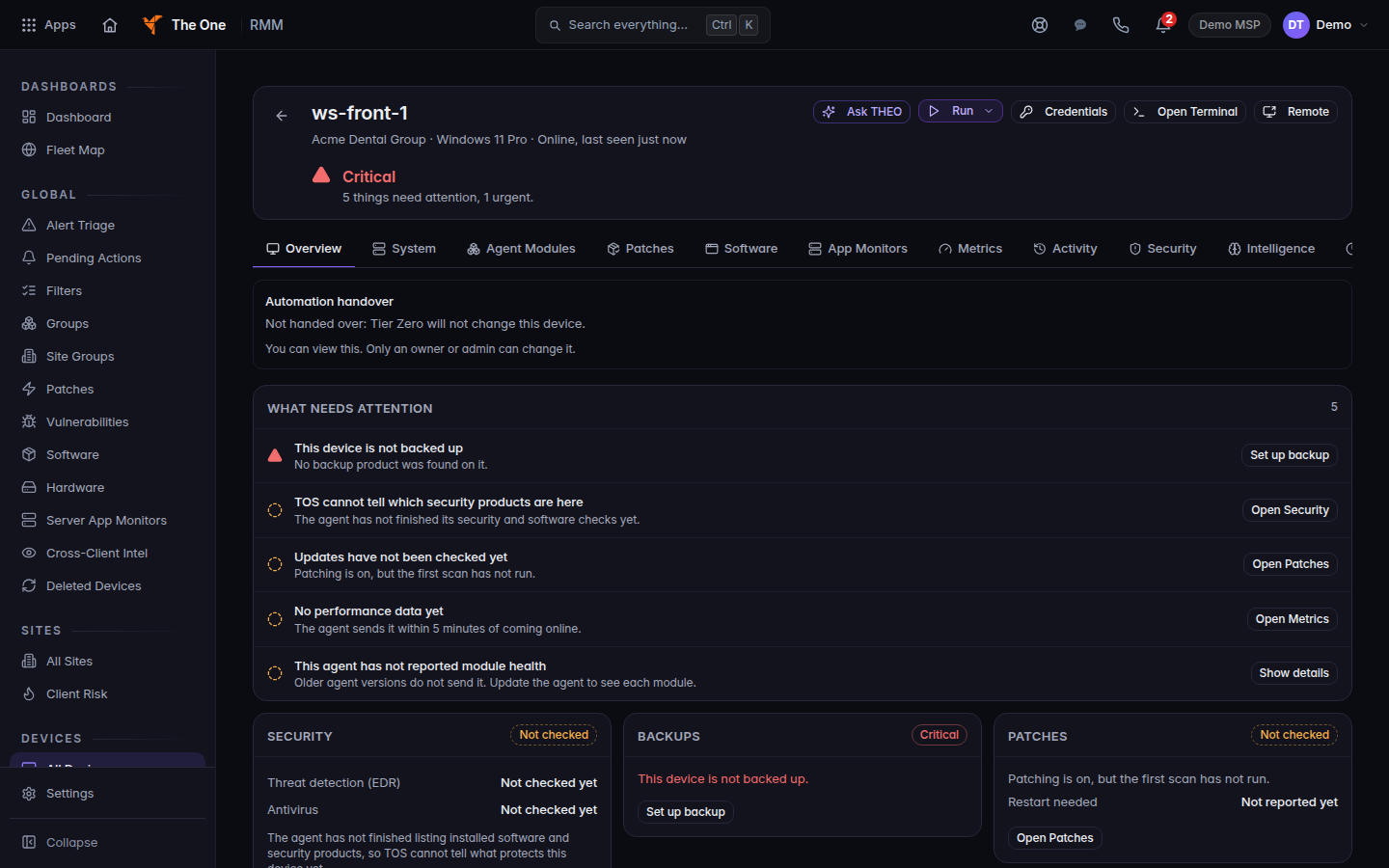
The device page for one demo computer. The header has Ask THEO, Run, Credentials, Open Terminal, and Remote.
The tabs are Overview, System, Agent Modules, Patches, Software, App Monitors, Metrics, Activity, Security, Intelligence, Timeline, Remote, Diagnostics, and Notes.
Run contains Run Script, Run Automation, and Run Runbook when a runbook can target this machine.
If it goes wrong#
- No managed devices yet. Nothing has enrolled. The empty state says an install command does not prove enrollment.
- No devices match these filters. Choose Clear filters.
- Couldn't load device. or Device not found. Use Back to Devices and search again.
- Remote is disabled and the tip says the device must be online. Wait until the row is Online, or use Open Terminal only when a session can start. See Connect to a device.
What's next#
Was this article helpful?