
Work device alerts
Acknowledge, close, or mute an alert in Alert Triage.
Applies to Technician Admin
Alert Triage is the list of device alerts that need a person. Incidents are listed first, then alerts that share a condition.
Acknowledging an alert records that you saw it. Closing it takes it out of Needs triage. Neither one changes the computer by itself.
Work the queue#
- Open RMM, then Alert Triage. The title is Alert Triage.
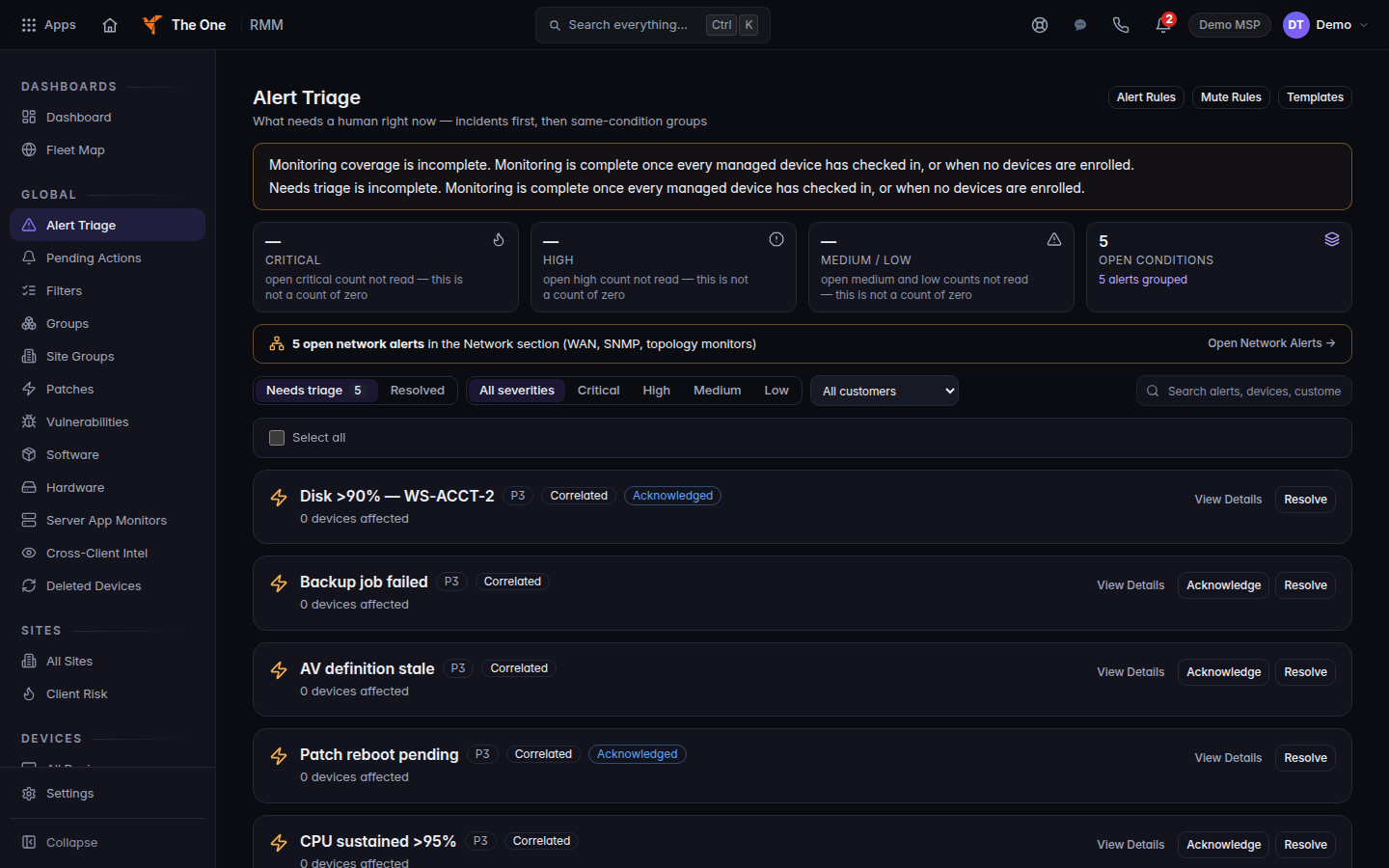
Alert Triage, with Needs triage selected
Alert Triage with Needs triage selected. Each row has View Details and Resolve.
- Stay on Needs triage for open items. Resolved is what you already closed.
- Search with Search alerts, devices, customers, groups… when the list is long.
- On an incident card, choose View Details, Acknowledge, or Resolve.
- On a group, choose Acknowledge, Resolve, Mute 24h, or Ticket.
- On one alert, choose Acknowledge or Resolve. In the detail drawer the close button is Close alert. A success note reads Alert acknowledged or Alert closed.
Select several rows to use Close selected, Acknowledge, Mute 24h, or Clear.
Alert Rules, Mute Rules, and Templates at the top are the settings for what fires. They are not the queue.
If the organization has network monitoring, a banner can say open network alerts live in the Network section. That list is not this page. See Pulse network monitoring and device discovery.
If it goes wrong#
- Bulk action failed. Read the message, then try one alert. Do not assume the whole selection changed.
- Suppression stats unavailable. The suppression read failed. The alert list itself may still be there. Retry.
- You meant a page to a person. That is On-Call, not this queue. See Work an on-call incident.
- The computer needs a person at the keyboard. Open the device and start Remote. See Connect to a device.
- You need a ticket. Choose Ticket on a group, or open one yourself. See Open a ticket.
What's next#
Was this article helpful?