
Request a time
Ask the ticket contact to pick a time from the Scheduling card on the ticket.
Applies to Technician Admin
Use the Scheduling card when the person on the ticket should choose a slot. The button is Request a time. It is not a separate item in the Service Desk menu.
The contact needs an email address. Without one, the card says to add a contact with an email.
Send the request#
- Open the ticket and find the Scheduling card.
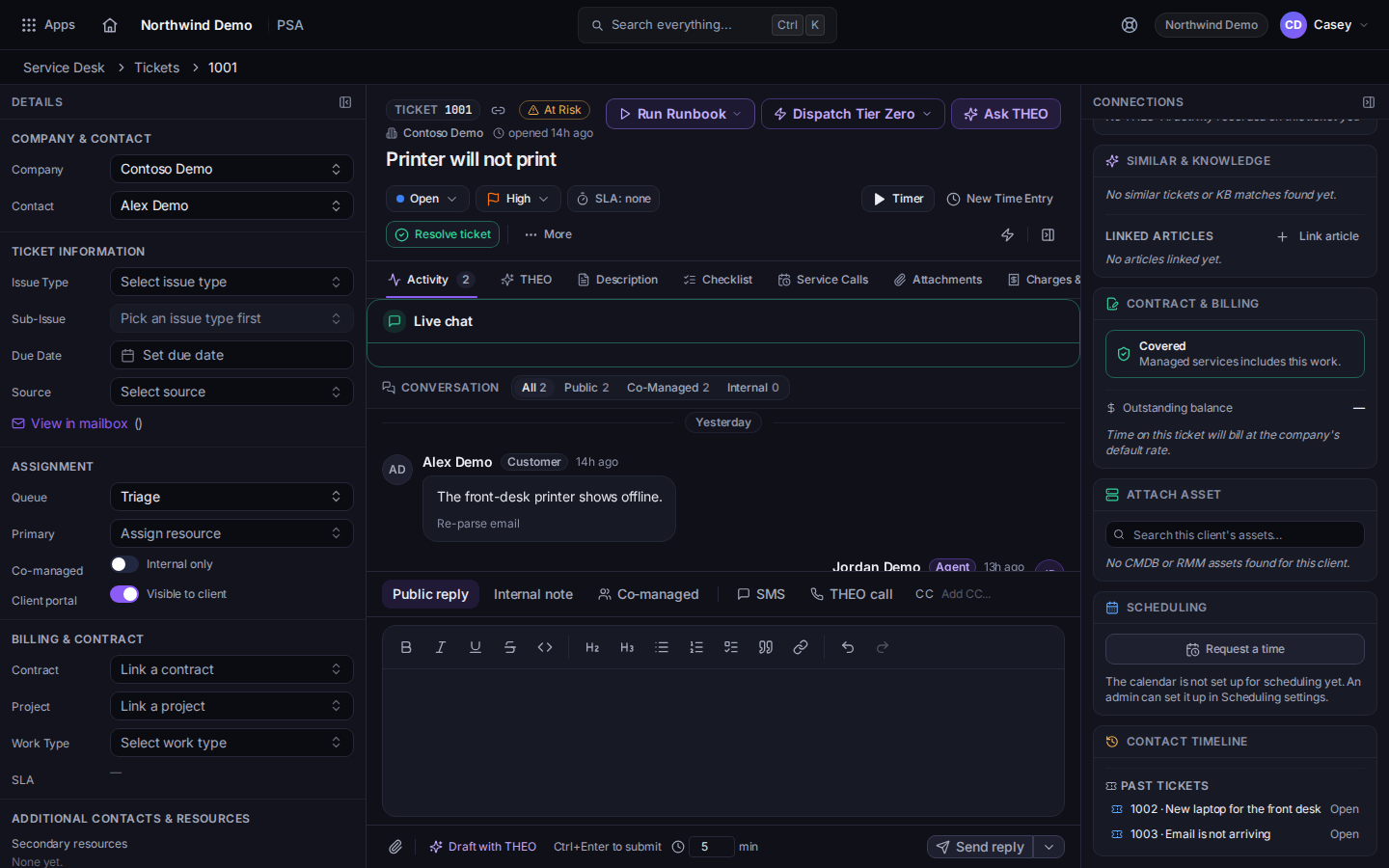
The Scheduling card and Request a time - Choose Request a time. The dialog title is Request a time.
- Complete the dialog and send it.
- Until the client picks a time, the card says Waiting on client to schedule. Use Resend or Cancel from that row.
- If the link runs out, the card says The link expired before the client picked a time. Choose Resend.
The card also says the client picks from the open times on the calendar, and the appointment is added to it.
Owners and admins change how requests work under PSA settings, then Service Desk, then Scheduling. The page title is Scheduling. Other roles cannot open that settings page. If your role cannot send requests, the button stays disabled and the card says your role cannot send scheduling requests.
While a request waits, it shows on the ticket's Visits tab under Awaiting client time pick. See Schedule a visit from a ticket.
If it goes wrong#
- The card says Add a contact with an email to this ticket to request a time. The ticket has no contact email. Add one, then return to the ticket.
- The calendar is not set up for scheduling yet. An admin sets it up on the Scheduling settings page.
- Your role cannot send scheduling requests. Ask an admin to change who may send them.
- You cannot open Scheduling settings. You are not an owner or admin. Send the request from the ticket.
What's next#
Was this article helpful?