PSA 36 of 50

Ask for an update on your request

For clients. On your request, choose Request an update. Your MSP is notified.

Applies to Client

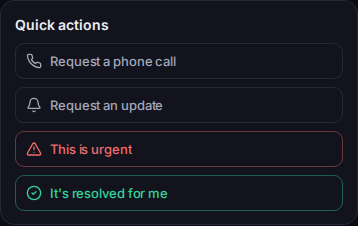
You can ask your MSP for an update without writing a long reply. The button is on the request, under Quick actions.

This is the client portal, not the staff app. See Get help in the client portal.

Ask#

  1. Open Support, then Tickets, and open your request.
    Quick actions, with Request an update
    Quick actions, with Request an update
    On a phone, the same card is on the request.
  2. Under Quick actions, choose Request an update.
  3. You should see We let your support team know you would like an update.

Request a phone call is the button next to it. The confirmation is Your support team has been asked to call you.

To add detail, reply on the request. The send button is Send reply.

If it goes wrong#

  • The button is not there. The request is resolved or closed, or your portal access does not include it. Open Tickets and check the request. If it is resolved, see Reopen your request.
  • We couldn't complete that just now. Nothing has changed on your request — please try again. Nothing was sent. Try again.
  • Opening requests isn't enabled for your account. The page says your access does not include creating new support requests, and that only your MSP can turn it on. You may still be able to open an existing request.