
Reopen your request
For clients. Reopen a resolved request, or start a follow-up when the window has closed.
Applies to Client
Reopen puts a resolved request back with your MSP. It is on Quick actions only while the request is resolved and reopening is still allowed.
A closed request does not offer Reopen. A request that was resolved too long ago offers a follow-up instead.
Reopen it#
- Open Support, then Tickets, and open the resolved request.
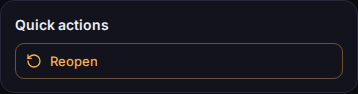
Reopen under Quick actions - Under Quick actions, choose Reopen.
- Read Reopen this request so your support team keeps working on it?
- Choose Reopen.
- You should see Reopened — your support team has been notified.
If the page says the request can no longer be reopened, or that it was resolved more than the number of days shown, choose Create a follow-up request. That starts a new request linked to this one.
You can also reply. When a reply would reopen the request, the button can say Reply & reopen.
If it goes wrong#
- Reopen is missing and you see Create a follow-up request. The window has passed, or the request is closed. Use the follow-up. It links back to this request.
- This request was resolved too long ago to reopen. Use "Create a follow-up request" instead — it links back to this one. Same path. Start the follow-up.
- We couldn't complete that just now. Nothing has changed on your request — please try again. It was not reopened. Try again.
What's next#
Was this article helpful?