
Close out your day
Use Day Checkout at the end of the day, then complete it.
Applies to Technician Admin
Day checkout is the end-of-day page in Time Tracking. It is not the weekly timesheet and it is not approval.
Use it when you are done for the day and your time is already on the tickets.
Close the day#
- Open PSA, then Time Tracking, then Day Checkout.
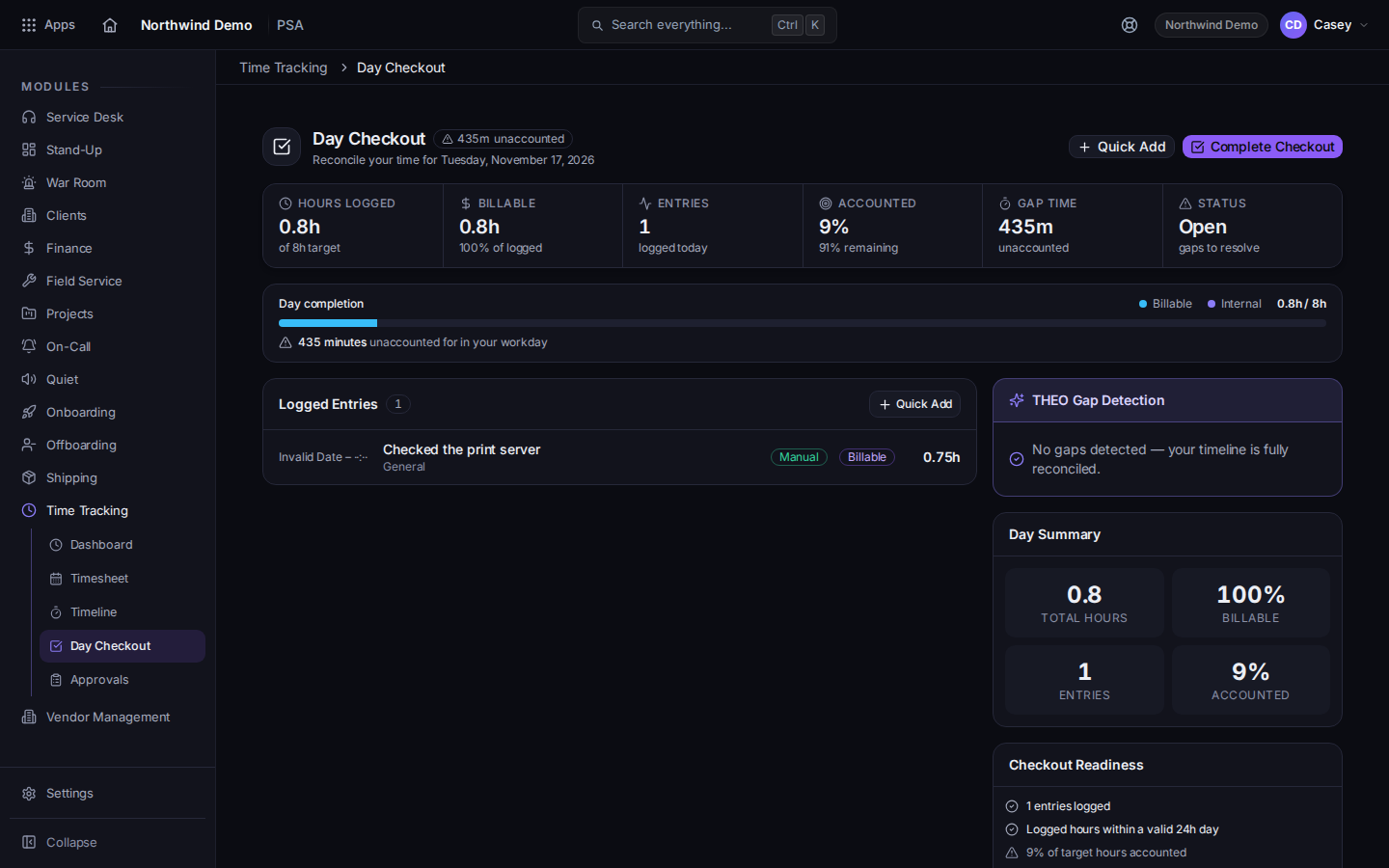
Day Checkout, with Complete Day Checkout - Read what the page shows for the day.
- Choose Complete Day Checkout. While it saves, the button reads Completing….
Submit the week separately, when the week is ready. See Submit your timesheet.
If it goes wrong#
- Day Checkout is missing. Open Time Tracking from PSA. The item is Day Checkout, not a button on the ticket.
- The day looks empty. The minutes were not logged, or they are on another day. Add them from the ticket, then come back.
What's next#
Was this article helpful?