
Read a ticket SLA
Read the SLA chip on a ticket. On Track, At Risk, Breached, No SLA, and Paused are the states.
Applies to Technician Admin
The SLA chip is the clock on a ticket. It shows whether the ticket is inside the target your admin set.
The list and the dashboard use the same states. This article does not set the hours. See Set SLA business hours.
Read the chip#
- Open PSA, then Service Desk, then Tickets.
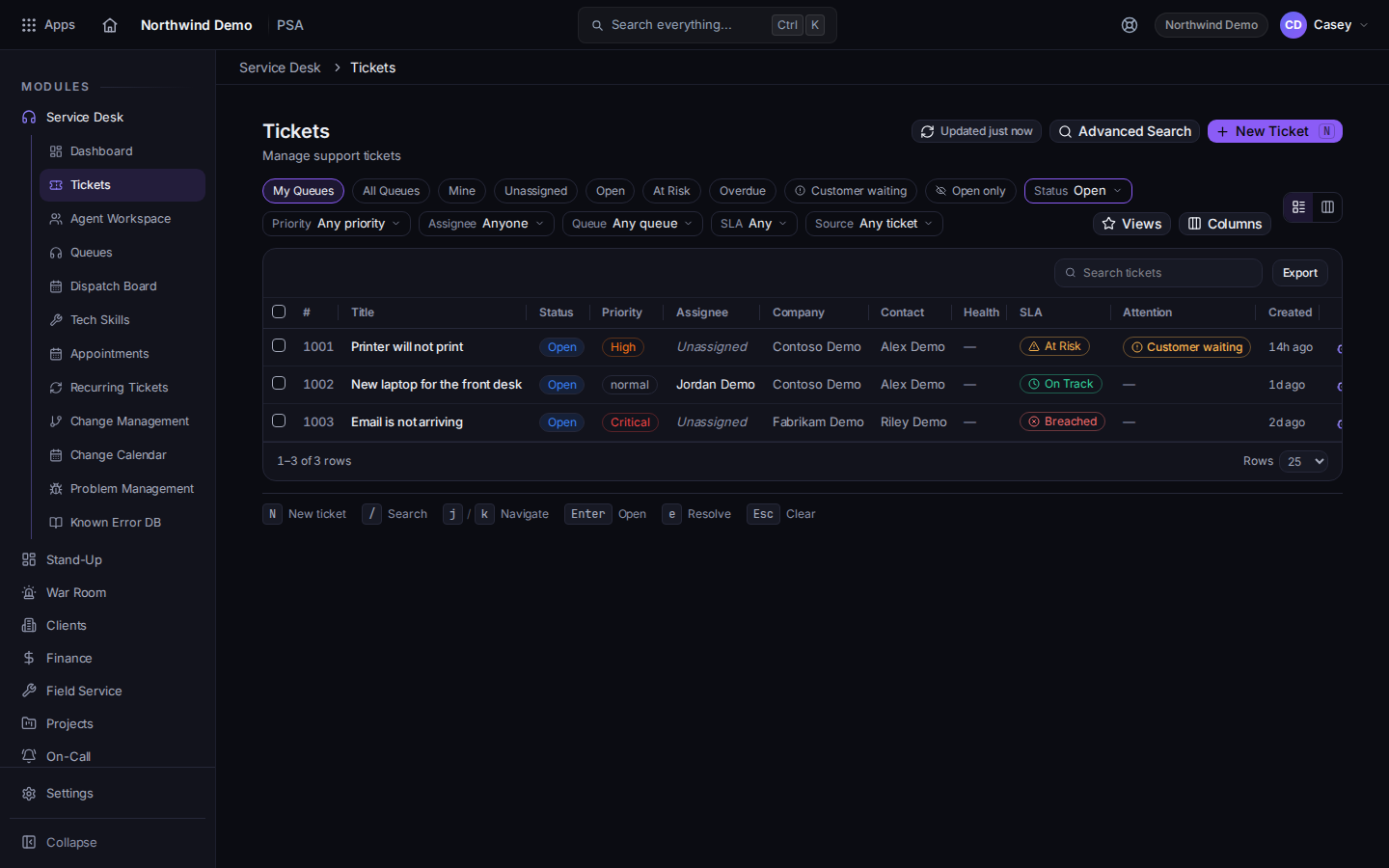
The SLA column, with On Track, At Risk, or Breached - Read the SLA column or the chip on the ticket. The states you will see are On Track, At Risk, Breached, No SLA, and Paused.
- Filter the list with SLA. The filter values are Any, On Track, At Risk, Breached, and No SLA. Paused is a state on the ticket. It is not one of the filter values.
- Choose the At Risk chip or the Overdue chip when you are picking what to work. See Triage a ticket.
Hover the chip on a ticket to see the target. The target comes from the policy for that priority. The clock follows business hours. It pauses outside those hours and on holidays your admin listed.
A first response that is close, or already missed, also shows in the bell and on the dashboard. See Read the service desk dashboard.
A ticket can also be stale when nobody has touched it. Any note, reply, time entry, or status change counts as activity. The idle limits are under Stale-Ticket Policy. See Open PSA settings.
If it goes wrong#
- The chip says No SLA. No policy target applies to this ticket. An admin checks SLA Policies.
- The chip says Paused. The clock is outside business hours, or today is a holiday on the calendar. It is not a breach by itself.
- At Risk on the dashboard does not match My Queues. The dashboard counts the organization. My Queues is only your queues. Choose All Queues.
What's next#
Was this article helpful?