Send a public reply the client can read, or keep an internal note on the ticket.
2 min read
Applies toTechnicianAdmin
A public reply is emailed to the client. An internal note stays with your team. Check the mode before you send.
Co-managed appears only on a ticket that uses it. SMS and THEO call are not turned on yet. They appear only when your administrator has turned them on for the ticket. Email to the client is Public reply.
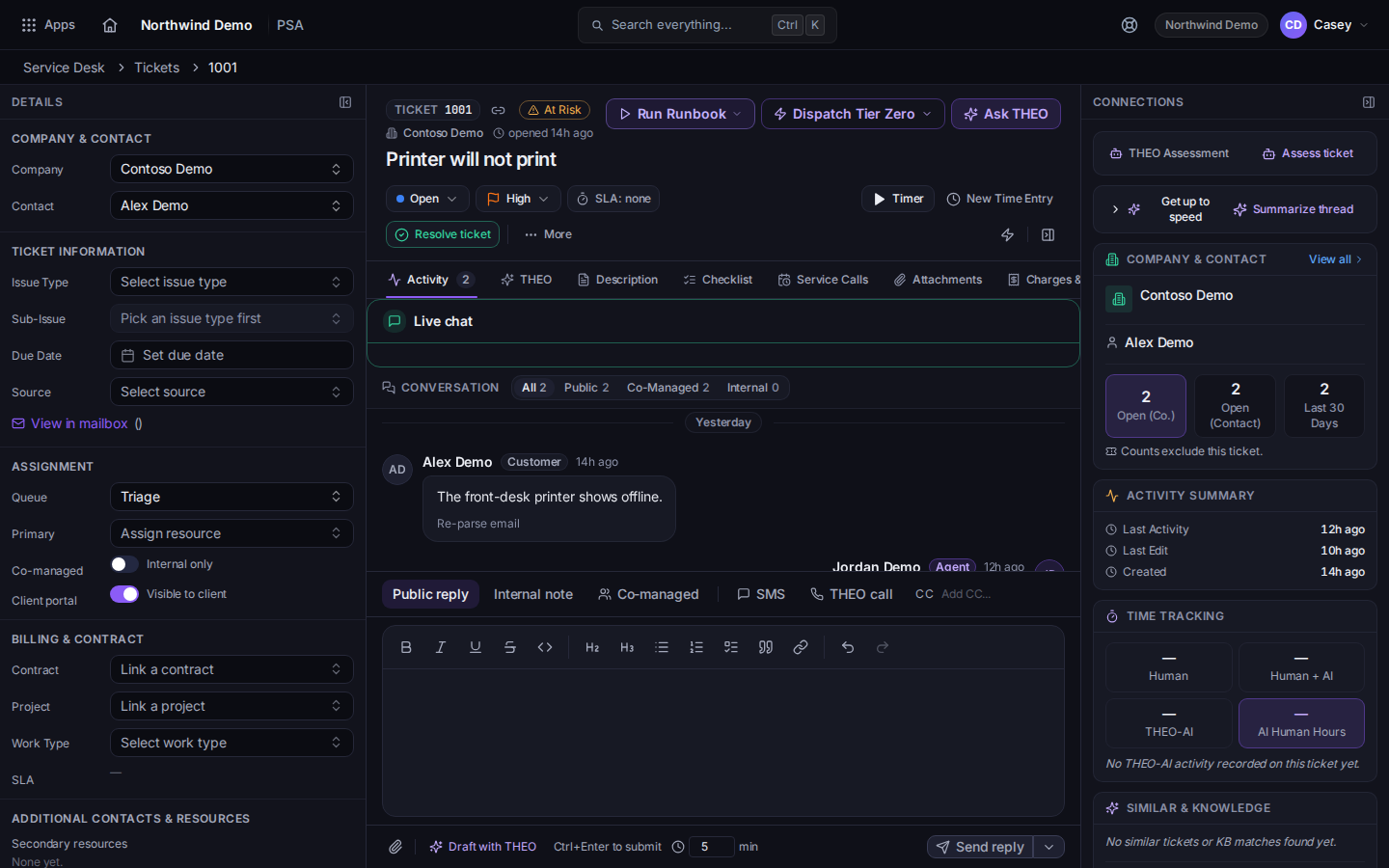
Open the ticket and find the composer under the conversation.Public reply and Internal note on the composerThe mode buttons are Public reply, Internal note, and, when the ticket uses it, Co-managed.
Choose the mode. Public reply is the one the client reads.
Write the message. On a public reply you can add CC.
Choose Macro if you want a saved reply. The tooltip is Apply Macro. See Apply a ticket macro.
Send it. With no status change, a public reply uses Send reply. To change status as you send, use Submit as and pick the status. When SMS or THEO call is showing, those buttons read Send SMS and Call with THEO.
On a Mac, Command+Enter submits. On Windows, Ctrl+Enter submits.
Use All, Public, Co-Managed, or Internal above the conversation when you want one kind only.
You can type minutes next to the reply when that field is showing, or log time on its own. See Log time on a ticket.
The client says they never got it. Confirm the mode was Public reply, not Internal note.
You meant to keep it internal. Send a correction. The first public reply is already sent.
Co-managed is missing. That mode is only on a ticket set up for it.
This queue isn't visible to the client. They won't see this ticket in their portal. The queue is hidden from the portal. The client will not see the ticket there.