
Create a project
Create a project from PSA with a name, a client, an industry type, and optional dates and budget.
Applies to Admin
Use this form when the work needs its own plan, not only a ticket. An admin or an owner can create one from the list. The button stays off for other roles, with the tip Admin or owner role required.
Create it#
- Open PSA, then Projects, then Projects.
- Choose New Project. The page title is Create Project.
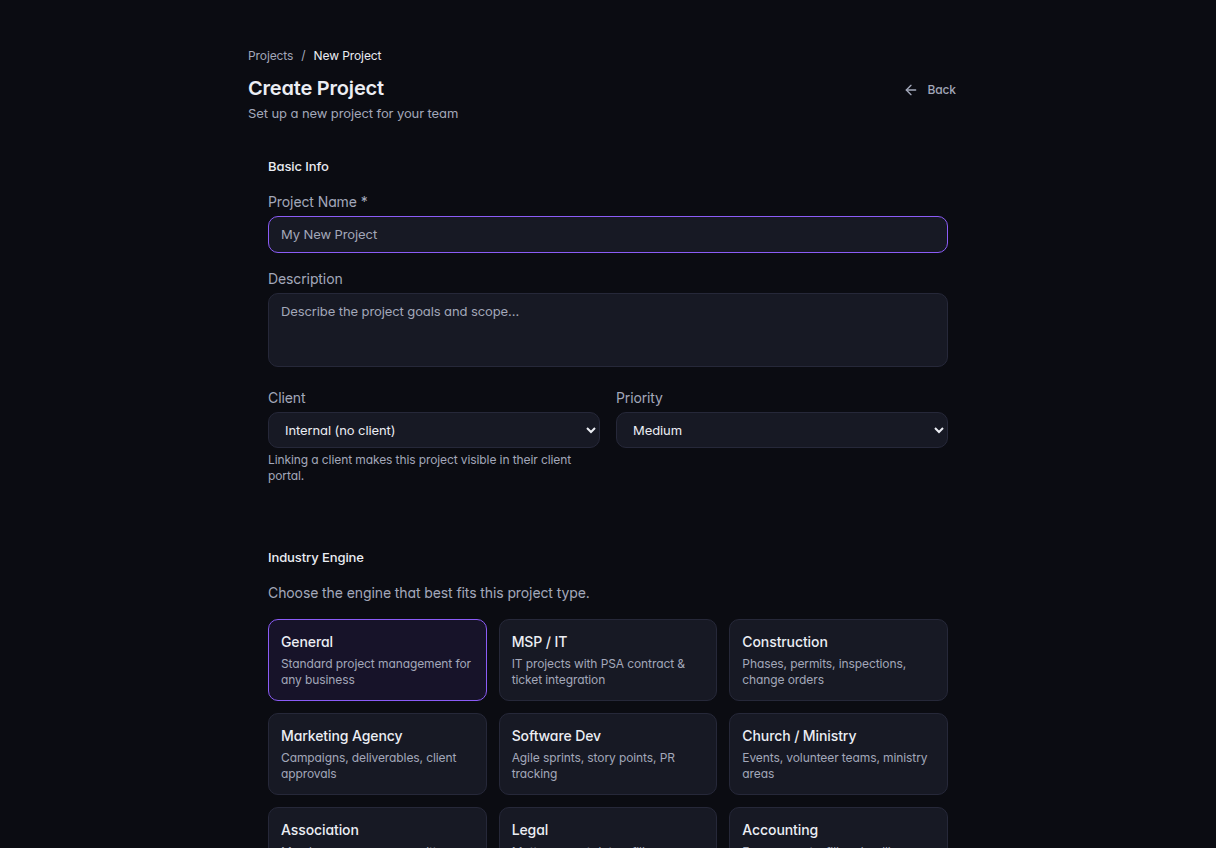
Create Project, with Project Name, Client, and Industry Engine - Under Basic Info, enter Project Name. Description is optional.
- Choose Client. Internal (no client) keeps the project inside your team. A named client is the company the portal can show it to. See Show a project in the client portal.
- Choose Priority: Low, Medium, High, or Urgent.
- Under Industry Engine, pick the type that fits. The choices are General, MSP / IT, Construction, Marketing Agency, Software Dev, Church / Ministry, Association, Legal, and Accounting. The type sets words on the project, such as the name of the Sprints tab.
- If Start from a template is shown, leave No template (blank project) or pick a template. A template adds its phases, tasks, and milestones. See Start a project from a template.
- Under Schedule & Budget, set Start Date, Due Date, Budget, Budget hours, Currency, and Tags if you want them.
- Choose Create Project. Cancel returns to the list.
If it goes wrong#
- New Project does nothing and the tip says Admin or owner role required. Ask an admin to create it, or to give you that role.
- Project name is required. Enter a name. The field is marked required.
- Failed to create project. Nothing was saved. Check the name and try again. If it keeps failing, ask an admin.
- The client list is a blank text box. No companies are available to pick. Add the company in CRM first. See Find a company.
What's next#
Was this article helpful?