
Turn Files on
For owners and admins. Turn the Files app on so a customer can open Company files.
Applies to Owner Admin
Files in the portal is the customer’s Company files area. It stays hidden until you turn the Files app on for that customer and for the roles that should open it.
A Workspace seat can also get a Files row under Workspace. That row follows the Workspace switch and the Files switch together. This article is the portal Files app.
Turn it on#
- Open the customer in Client Portal Admin.
- Open Apps & products and select Files.
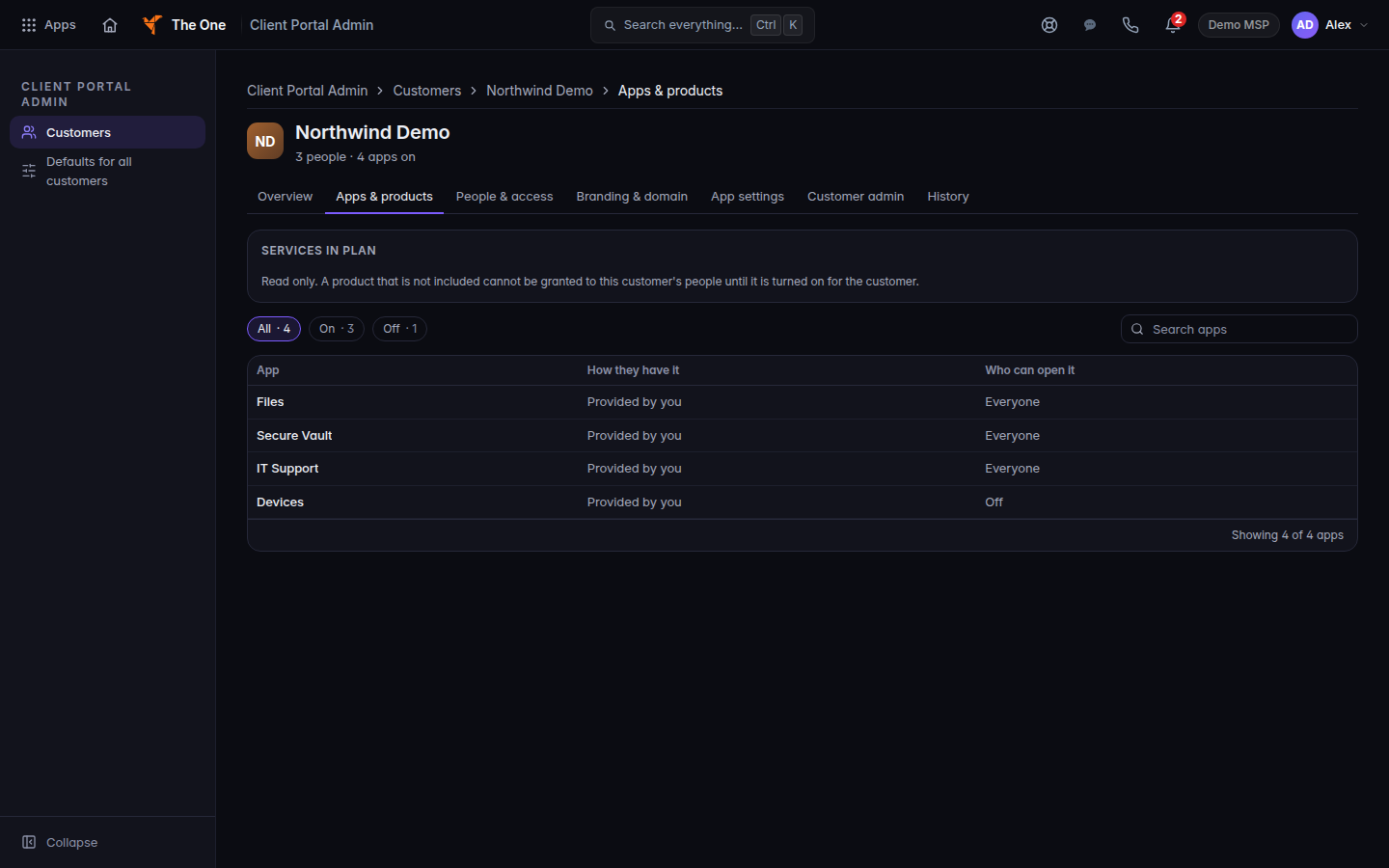
The Files app panel, set to On - Under This customer, choose On and confirm Turn on.
- Under Roles, set Admin, User, and Viewer. Viewer can look and cannot upload. Off hides Files for that role.
- Ask someone at the customer to open Files. The page title they see is Company files. See Open Files in the portal.
Files admin on the client’s Your company menu is for a customer admin, and only when that page is open to them.
If it goes wrong#
- The client sees Not turned on for your account. Files is off for the company or for their role.
- They can open files and cannot upload. They are View only, or the role is allowed to view and not to change.
- Uploads are paused. The company has used its storage and its grace allowance. Reads still work. Add storage before new uploads will go through.
- You wanted a copy from Dropbox. Turning Files on does not import anything. That copy is a Migrate job, and it is documented with the migration articles, not here.
What's next#
Was this article helpful?