
Switch the portal layout
For owners and admins. Move one customer between the Apps layout and the classic layout.
Applies to Owner Admin
Portal layout chooses the menu your customer’s people see. Apps layout shows Today and the apps turned on for each person. Classic layout shows the older section navigation.
A section you turned off in the classic layout stays off in the Apps layout too.
Switch it#
- Open Client Portal Admin, then Customers, and open the customer.
- On Overview, find Portal layout.
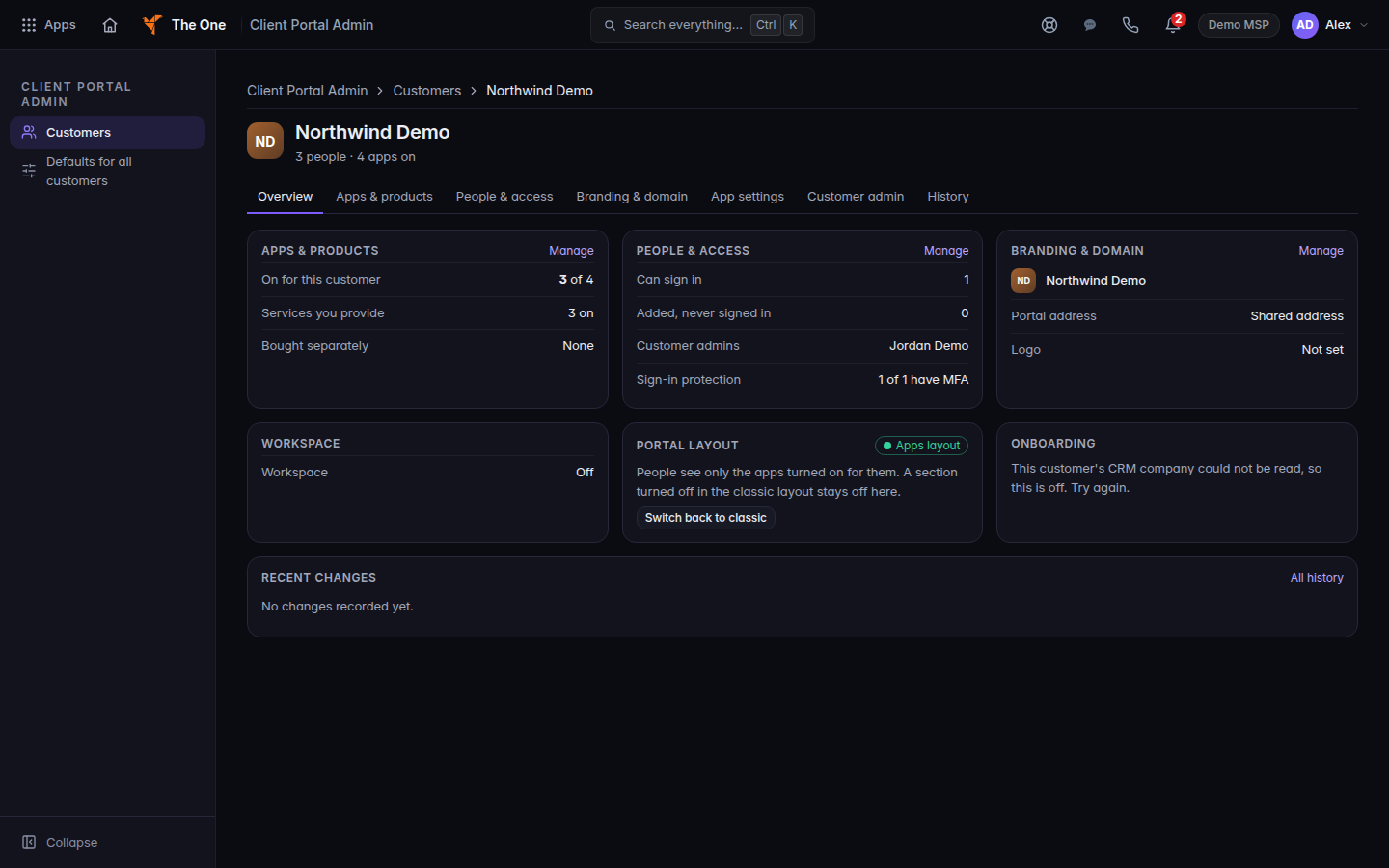
Portal layout, showing Apps layout or Classic layout - To leave the classic menu, choose Move to Apps layout. Confirm Move to Apps layout. The title is Move the customer to the Apps layout?
- To go back, choose Switch back to classic and confirm Switch back to classic.
People see the change the next time they open the portal. You can switch back at any time.
On the Apps layout, Today is the home page. See Use the Today page. On the classic layout, that page is not part of the portal.
If it goes wrong#
- Only an owner or admin can change the layout. You can see which layout is on, and the buttons are hidden. The same sentence appears if the server refuses the change: Only an owner or admin can switch the layout.
- The portal layout could not be loaded. Retry from the card. Do not assume the switch worked.
- A section you turned off came back. It should not. A section that was off stays off. If a person sees an app, it is on for their role. See Turn a client app on.
What's next#
Was this article helpful?