
Share a file in Files
For clients who can share. Give a person or a team Can view, Can upload, or Can edit.
Applies to Client
Share lets someone else open a file or folder you can already reach. The role you give is the most they can do.
Share it#
- Open Files and find the file or folder.
- Choose Share.
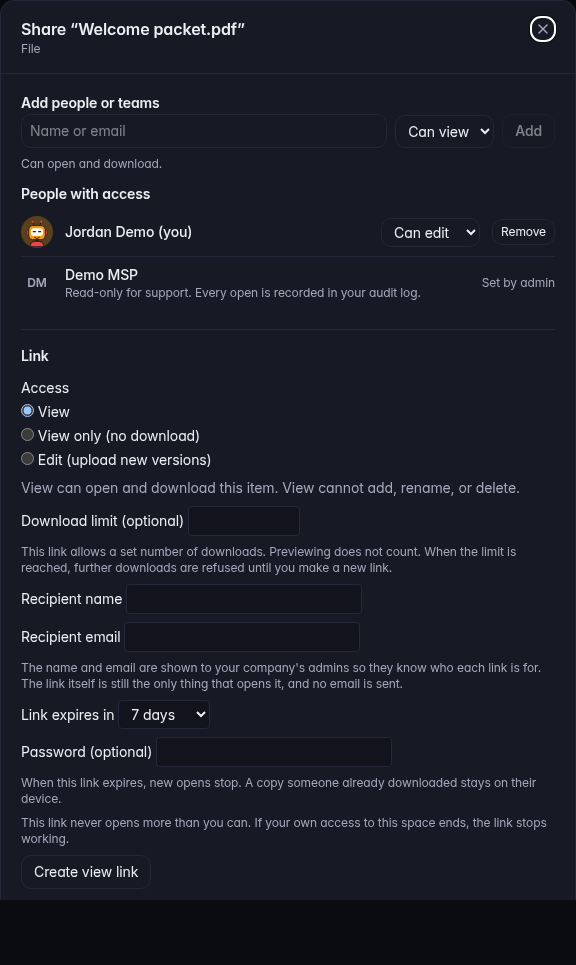
The share dialog, with Add people or teams 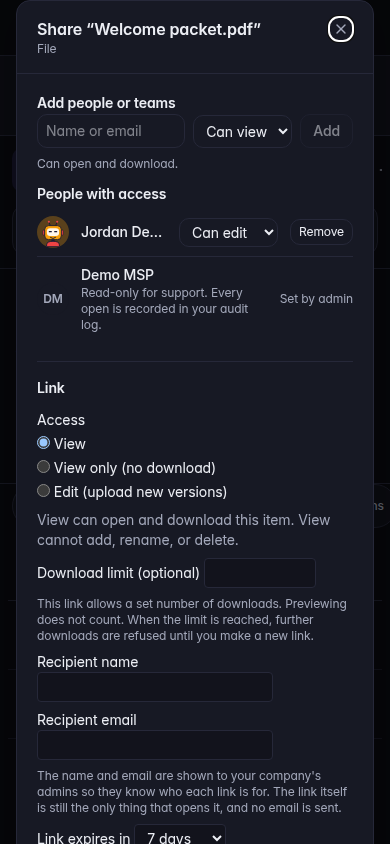
The share dialog, with Add people or teams, on a phone - Under Add people or teams, pick the person or team.
- Set the role: Can view, Can upload, or Can edit.
- Choose Add. Close leaves the people list unchanged.
- The same dialog has a Link section. Access is View, View only (no download), or Edit (upload new versions). Create view link makes the link. Done closes the dialog.
A link that also needs a password tells you: anyone with the link and the password can open it until it expires or you revoke it. Treat that link like the file.
If it goes wrong#
- Share is missing. You can view the file and you cannot change who else sees it.
- You are viewing this company’s files read-only. Nothing was changed.
- That file or folder is no longer there. Refresh, then share the file that is still there.
- The person cannot see it. They need a portal account, and Files has to be on for them. Ask your provider. See Turn Files on.
What's next#
Was this article helpful?