
See your vehicles
Open My fleet for your company's own vehicles. Live location is not included.
Applies to Client
My fleet is your company's own vehicles, drivers, service, fuel, and paperwork. It is not the computer list. Computers are under Devices. See See your devices.
Live location is not part of My fleet. The overview says Live location is not part of My fleet yet.
Open it#
- Open My fleet under your apps.
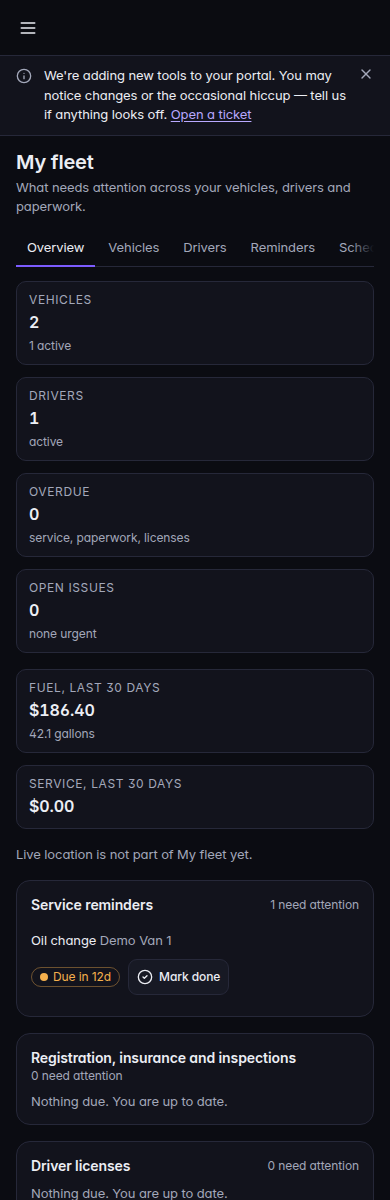
My fleet overview, including the live-location note
My fleet on a phone-width screen. The page says live location is not part of My fleet yet.
- Use Overview, Vehicles, Drivers, Reminders, Fuel, and Reports.
- On Reminders, Schedule, Service history, Documents, and Issues are sections of that page.
- Open a vehicle to read it. If your role can edit, you see Edit vehicle and Log for a fill-up, a service record, or an issue. An archived vehicle says so and has no actions.
- On Reports, pick the dates, then Export or Print. Print is off when there is nothing to print.
A viewer can read. Editing needs an editor role. Ask your provider if a control is missing.
If it goes wrong#
- My fleet is not turned on for your account. Your provider has not enabled it.
- You expected a map. Live location is not in this app.
- You expected a computer. Open Devices.
What's next#
Was this article helpful?