
Sign in to the client portal
How a client of an MSP signs in, and when two-step sign-in is asked.
Applies to Client
The client portal is the site your MSP gives you. You do not need a staff seat in the Hub. Sign in with the address your MSP sent you. On a branded address the page uses your MSP's name. The default tagline is Welcome back — sign in to continue.
A password sign-in asks for a second step. An emailed link or code does not ask a client for an authenticator code.
Sign in#
- Open the portal address from your MSP. The form heading is Sign in.
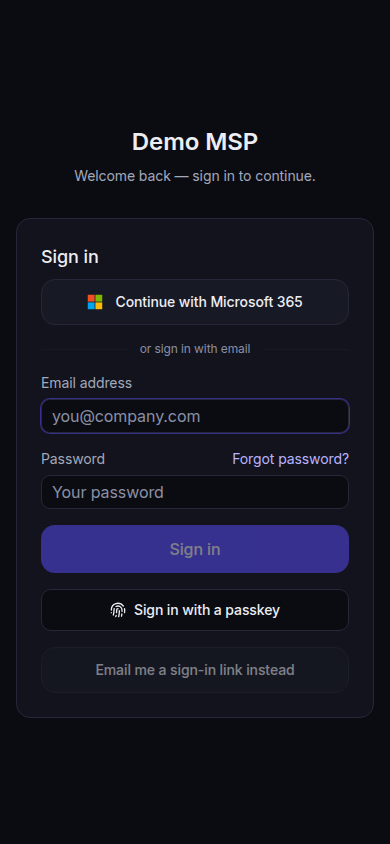
Demo MSP sign-in, with Welcome back — sign in to continue - Use one method the page shows.
- Continue with Microsoft 365, when that button is there.
- Email address and Password, then Sign in.
- Sign in with a passkey, when your browser offers it.
- Email me a sign-in link instead.
- If you used a password and the next page is Two-step sign-in, enter the code from your authenticator app. If you have not set one up, follow Set up two-step sign-in on that page.
- You land in your portal. To ask for help, see Get help in the client portal.
If it goes wrong#
- Invalid email or password. Use the email address your MSP added. Ask them to confirm it on People & access.
- The sign-in link does not arrive. Check spam. Links expire after 15 minutes. If your account is suspended, no email is sent.
- That code didn't work. Use the current 6-digit code. Ask your MSP if you are locked out.
- You expected a staff app such as PSA. This sign-in is the client portal. Staff use Sign in to the Hub.
What's next#
Was this article helpful?