
Reset your password
Send yourself a reset link, or change the password from My Profile.
Applies to Owner Admin Technician Client
Reset the password when you cannot sign in, or change it while you are signed in. A reset link expires in 1 hour.
Changing the password signs you out of the Hub and of the mobile and desktop apps. Sign in again on each device.
From the sign-in page#
- On Sign in, choose Forgot password?
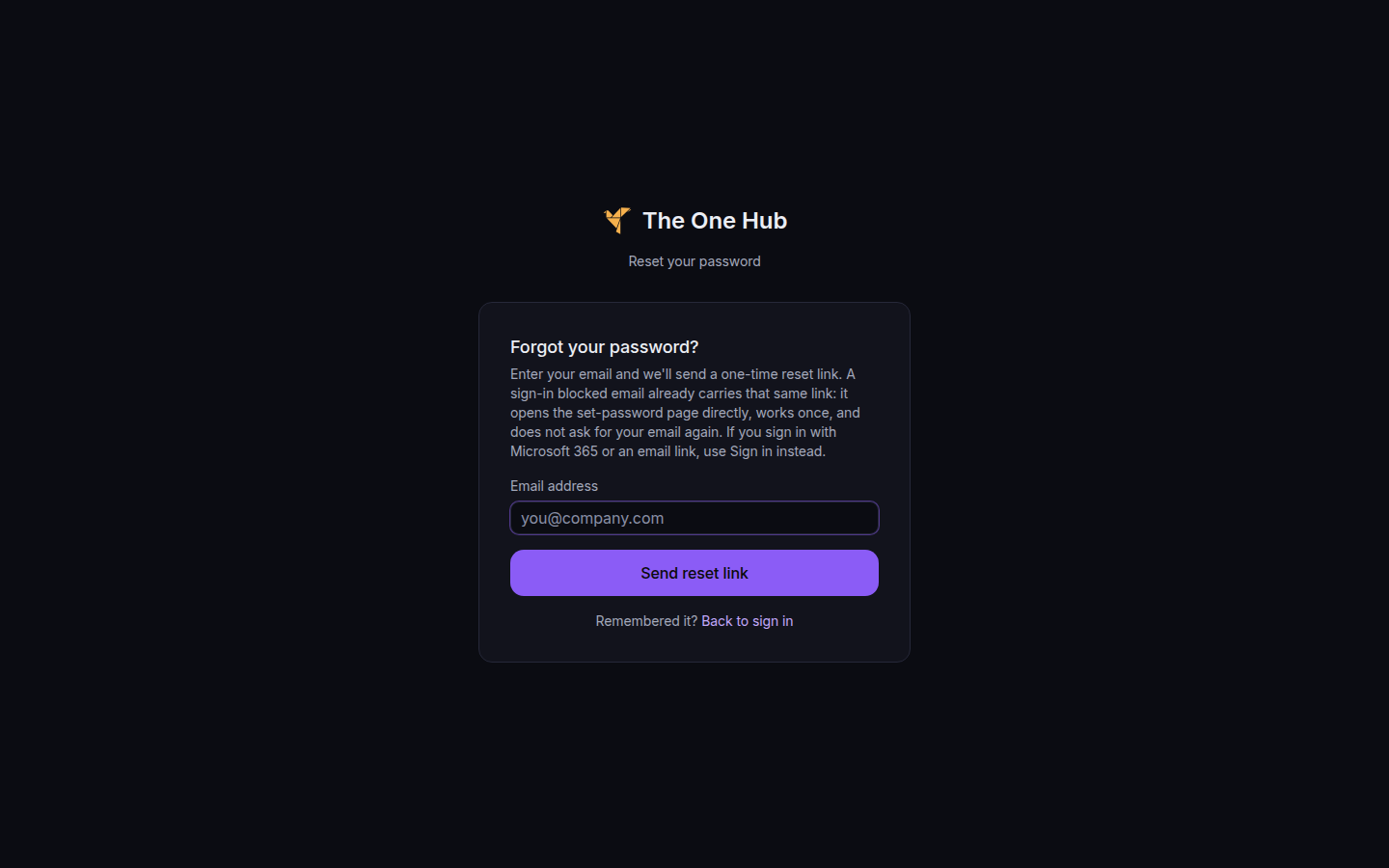
Reset your password, with Email address and Send reset link - On Reset your password, enter your email and choose Send reset link.
- The page says Check your email and that a link was sent if an account exists for that address. The same message is shown when no account exists.
- Open the link. The page is Set new password. Enter the new password twice and choose Reset password.
- When the page says Password reset!, sign in with the new password. Staff still complete two-step sign-in.
While you are signed in#
- Open Profile, then Security.
- Choose Change password. The button reads Changing... while it saves.
An owner or admin can also choose Send password reset email on your row in Team Members.
If it goes wrong#
- Too many reset requests in a short time. Wait a few minutes, then send the link again.
- Passwords do not match. Type the same password in both fields.
- Password must be at least 8 characters. Use a longer password. The strength labels are Weak, Fair, Good, Strong, and Very strong.
- The link is invalid. Request a new one. Links expire in 1 hour.
What's next#
Was this article helpful?