
Sign in with a passkey
Use a passkey on the sign-in page, and add one from My Profile.
Applies to Owner Admin Technician Client
A passkey is a sign-in stored on your device, such as a fingerprint, face, or device PIN. The button is Sign in with a passkey. It appears only when the browser can use one.
A passkey you add on My Profile does not sign you in by itself. You still choose it on the sign-in page.
Sign in#
- On Sign in, choose Sign in with a passkey.
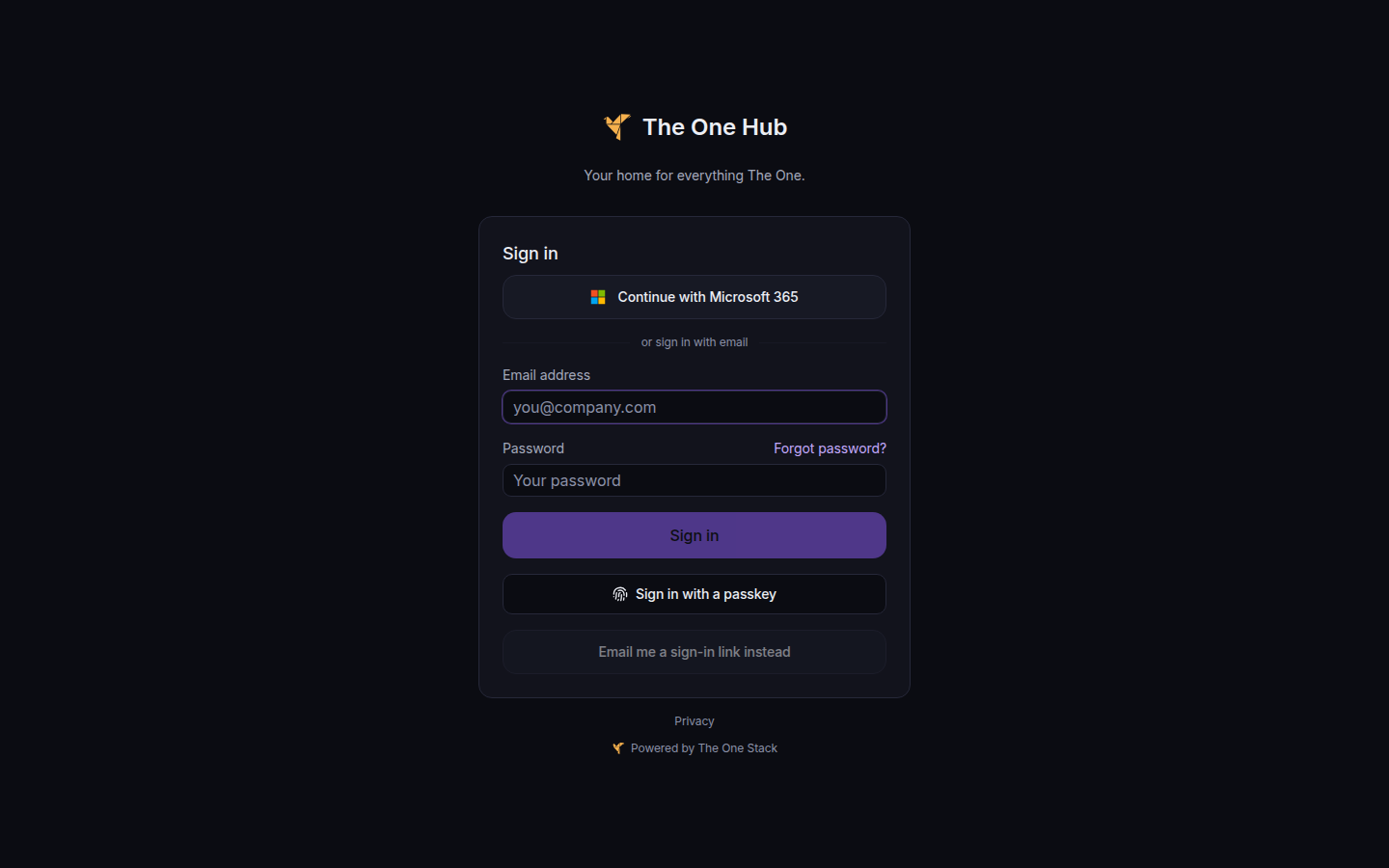
Sign in with a passkey, under the password button - Approve the prompt on your device. The button reads Waiting for your passkey… while it waits.
- If a second step is still required, the page says Use your passkey or asks for an authenticator code.
Add a passkey#
- Open Profile, then Security.
- Choose Add passkey. The button reads Adding… while it waits.
- During sign-in, you can choose Add a passkey (recommended) instead, and name it. The suggested name is This device.
If it goes wrong#
- The button is missing. This browser cannot run a passkey ceremony. Use email and password, then an authenticator code.
- Admins sign in with a passkey. Your organization requires a passkey for admins. Use the passkey, or add one when the page says Add a passkey to finish signing in.
- You canceled the prompt. Choose Sign in with a passkey again.
What's next#
Was this article helpful?