
Open the app switcher
Use Apps in the top bar, or My Apps, to open a product you can use.
Applies to Owner Admin Technician
The app switcher is the Apps button in the top bar. It lists the products you can open, plus a search box. My Apps in the left menu is the same list as a full page. A tile opens in a new tab.
You only see products your organization has and your role can open. A missing tile is an access setting.
Open an app#
- Choose Apps in the top bar. The button title is Apps — everything you can open. The panel title is Apps.
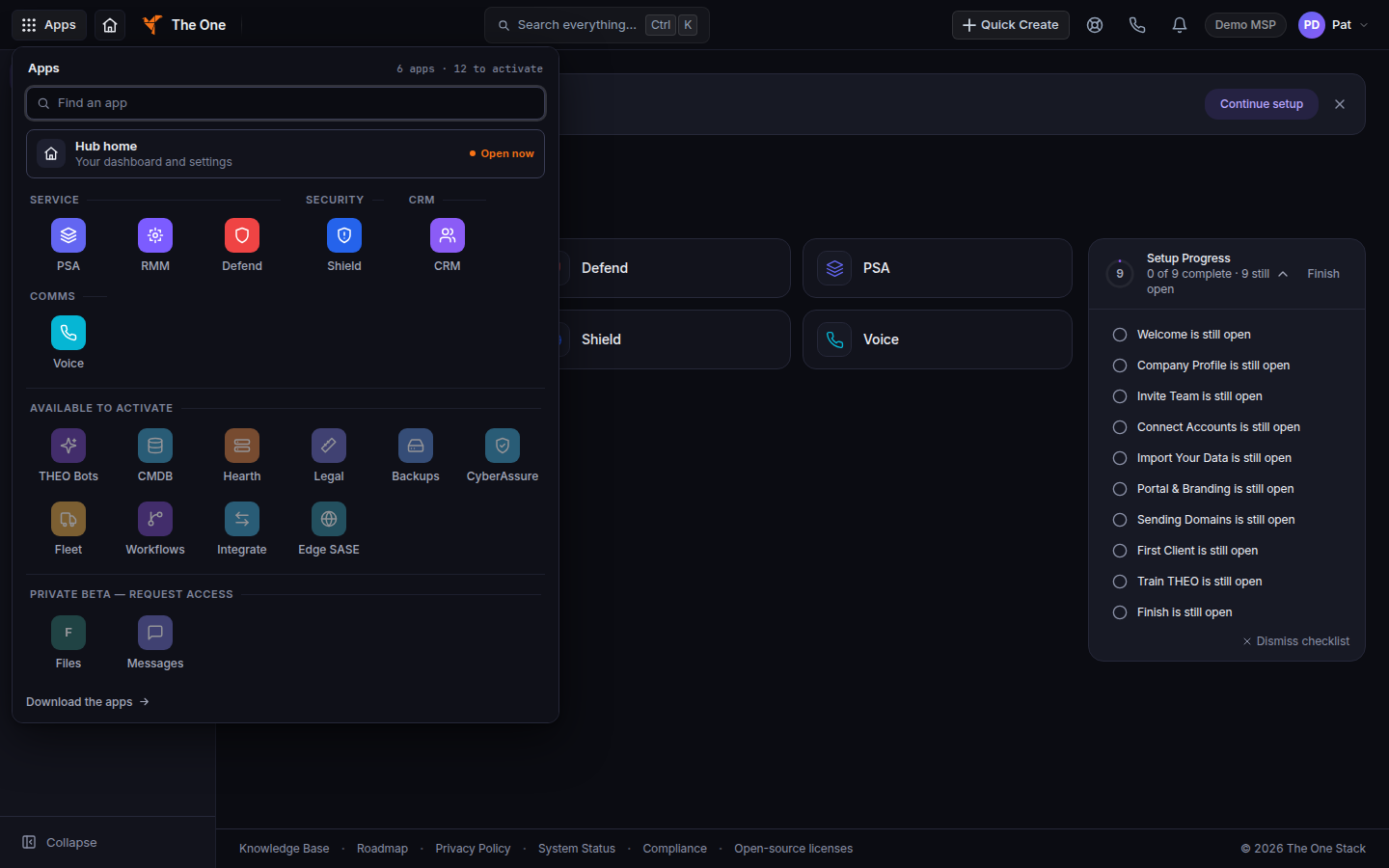
The Apps panel, with Find an app - Type in Find an app to filter the list. Clear search empties the box.
- Choose the product. It opens in a new tab.
- Or open My Apps in the left menu. The page says Launch any of your products below. Choose a tile. Open your dashboard goes to Dashboard.
Ctrl+K (Windows) or Cmd+K (Mac) searches tickets, companies, devices, and pages from anywhere. Quick Create in the top bar starts a ticket, a deal, or a time entry when you have more than one product.
If it goes wrong#
- No apps assigned yet or No products available. Your role has no product grant. Ask an owner or admin to assign apps on your profile. Browse Products opens Products.
- Couldn't load your apps. Refresh the page. The switcher does not invent a count while the list is loading.
- A name you expected is missing. Some products live inside another app. Projects and On-Call open inside PSA. eSign and Cypher open inside CRM. Network monitoring opens inside RMM. Messages can show as invite-only. Clarity and Migrate are not available to open yet.
- The tile opens Products. Your organization does not have that app. Ask an owner.
What's next#
Was this article helpful?