
Set up two-step sign-in
Add an authenticator app or a passkey when the Hub asks for a second step.
Applies to Owner Admin Technician
Two-step sign-in is the second check after your password. Staff who sign in with a password are asked for it. If you have not set it up, the sign-in page walks you through it.
Owners and admins can also require it for the whole team. See Require two-factor for your team.
Set it up during sign-in#
- Sign in with your password. If the next page says Set up two-step sign-in, stay on that page.
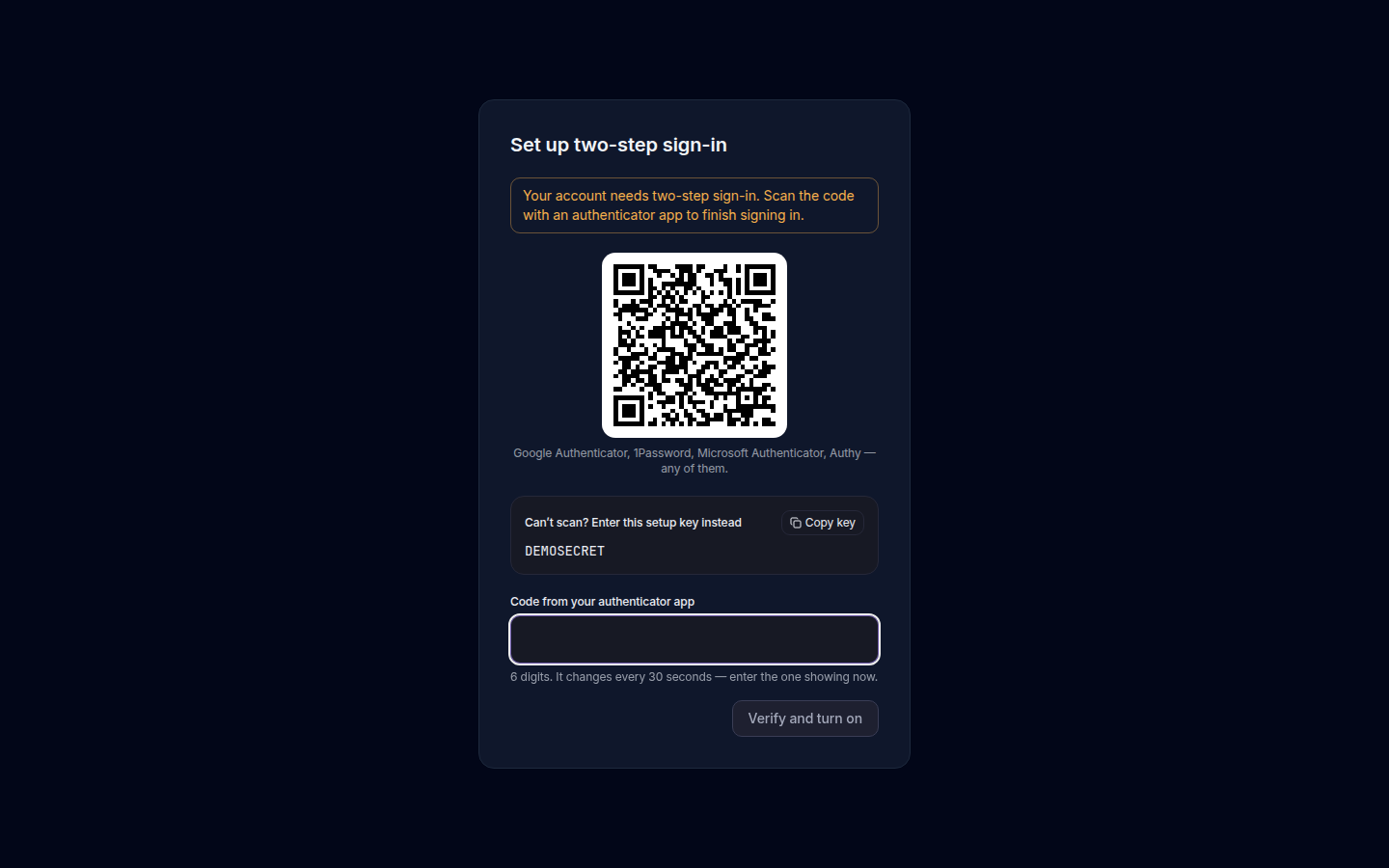
Set up two-step sign-in, with the authenticator warning - To use a passkey, choose Add a passkey instead (recommended) or Add a passkey (recommended). Name it. The suggested name is This device. See Sign in with a passkey.
- To use an authenticator app, scan the code. The warning says your account needs two-step sign-in.
- Enter the 6-digit code. The hint says it changes every 30 seconds. Choose Verify.
- Save the recovery codes when the page shows them. Each code looks like the placeholder XXXX-XXXX-XXXX. Choose Continue to my portal when you are done.
Set it up from your profile#
- Open the user menu and choose Profile. The page title is My Profile.
- Open the Security tab.
- Add the authenticator app, or choose Add passkey.
If it goes wrong#
- That code didn't work. Check that the phone clock is set automatically, then use the newest code.
- Too many attempts in a row. Wait before you try again. An owner or admin can choose Unlock two-factor on your row in Team Members.
- Your sign-in session expired. The page title is Session expired. Choose Back to sign in and start again.
- You dismissed a reminder. A banner can say Set up two-factor sign-in with Remind me later. It comes back until you finish setup.
What's next#
Was this article helpful?