
Require two-factor for your team
Turn on the team rule that asks every staff sign-in for a second factor.
Applies to Owner Admin
Security is the organization rule for staff sign-in. The page subtitle is Sign-in rules for everyone on your team. Your clients are not affected.
When Require two-factor for your team is on, everyone on the team must use two-factor at their next sign-in. Microsoft 365 sign-in is included when Microsoft did not already record a second factor. Clients are not covered by this switch.
Turn it on#
- Open Settings, then Security.
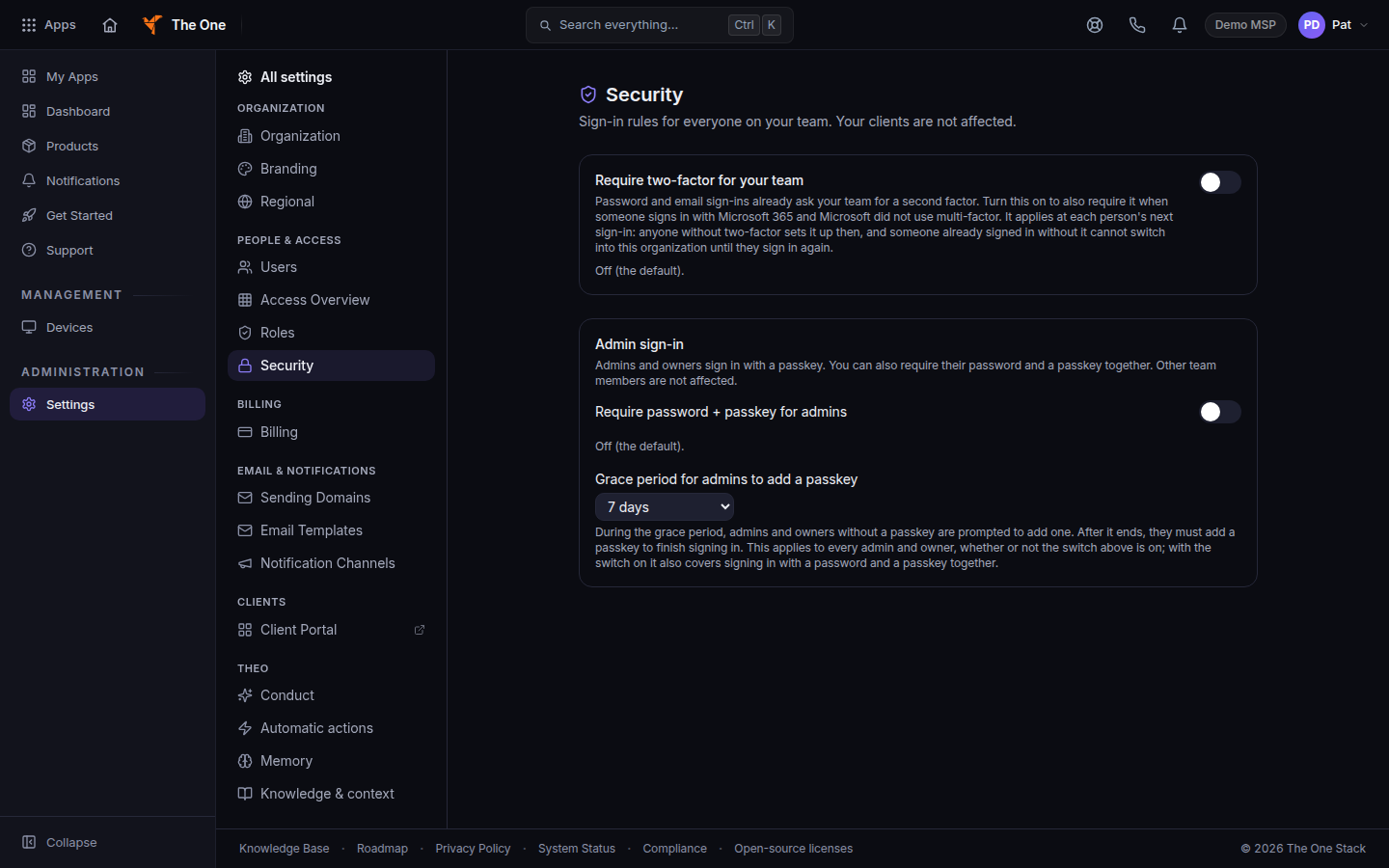
Security, with Require two-factor for your team - Turn on Require two-factor for your team. The state line reads On: everyone on your team must use two-factor.
- Confirm Turn on. Cancel leaves it unchanged.
- The toast says Two-factor is now required. It applies at each person's next sign-in.
Team two-factor coverage on the same page lists who has set it up. It is visible to owners and admins.
The off state reads Off (the default). Turn it off only when you mean to stop requiring it. The toast confirms the change.
If it goes wrong#
- A client was asked for a code after an email link. This switch does not do that. A password sign-in can still ask for a second step. An email link does not ask a client for an authenticator code.
- Someone uses Microsoft 365 and skipped the second step. If Microsoft already recorded a second factor, the Hub does not ask again. If it did not, the Hub asks when this switch is on.
- You cannot open Security. You need the Owner or Admin role.
What's next#
Was this article helpful?