
Add a notification channel
Create an email, SMS, Slack, or webhook destination for alerts.
Applies to Owner Admin
Notification Channels are organization destinations for alerts. The page title is Notification Channels (org). RMM and Pulse use them today. You create a channel here, then bind it to an alert policy inside the product.
New channels can be Email, SMS, Slack, or Generic Webhook. Microsoft Teams is not offered for a new channel.
Add a channel#
- Open Settings, then Notification Channels.
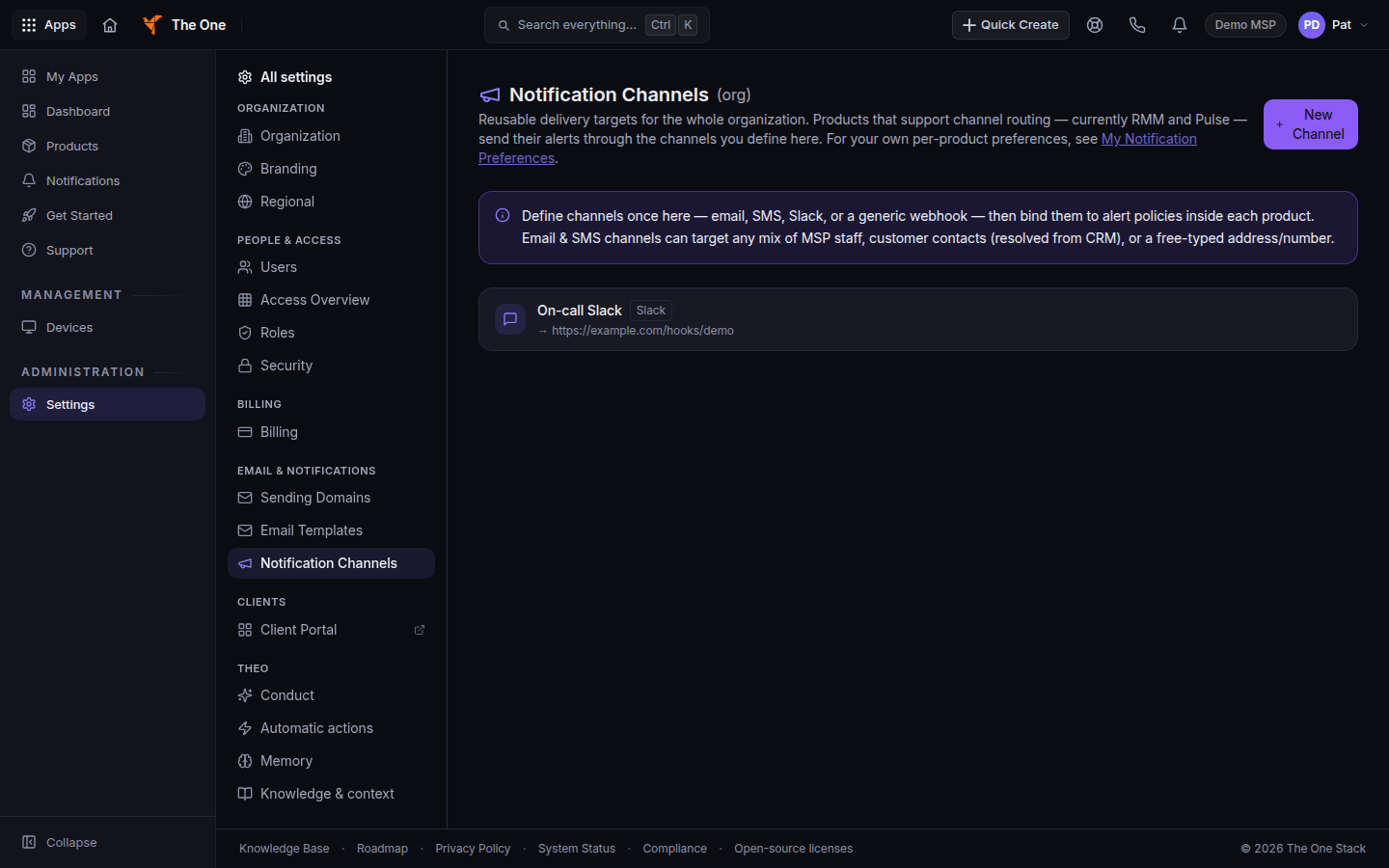
Notification Channels, with New Channel - Choose New Channel.
- Name it, and choose the type.
- Email delivers to staff, customer contacts, or an address you type.
- SMS texts staff, customer contacts, or a number you type.
- Slack posts to a Slack incoming webhook. The field is Slack incoming webhook URL.
- Generic Webhook sends a signed JSON body to an HTTPS address. The field is Endpoint URL (HTTPS).
- Save the channel.
- In the product that should use it, bind the channel to the alert policy. Creating the channel does not attach it by itself.
Personal switches under your account do not control this list. See Set your notification preferences.
If it goes wrong#
- No channels yet. Choose New Channel. An empty list means none are saved.
- You cannot open the page. You need Owner, Admin, or Manage Notification Channels.
- A Teams row says Microsoft Teams (retired). Leave it or delete it. Create a Slack, webhook, email, or SMS channel instead. Teams is no longer offered.
- Alerts still do not arrive. Confirm the product's alert policy names this channel. RMM and Pulse are the products that use these channels today.
What's next#
Was this article helpful?