
Suspend or deactivate a teammate
Suspend, reactivate, or deactivate a person from Team Members.
Applies to Owner Admin
Suspend a person when they should lose sign-in now and you may restore them. Deactivate them when they should stay out. Owners and admins do this on Team Members.
Status labels on the list are Active, Invited, Suspended, and Deactivated.
Change their status#
- Open Settings, then Users.
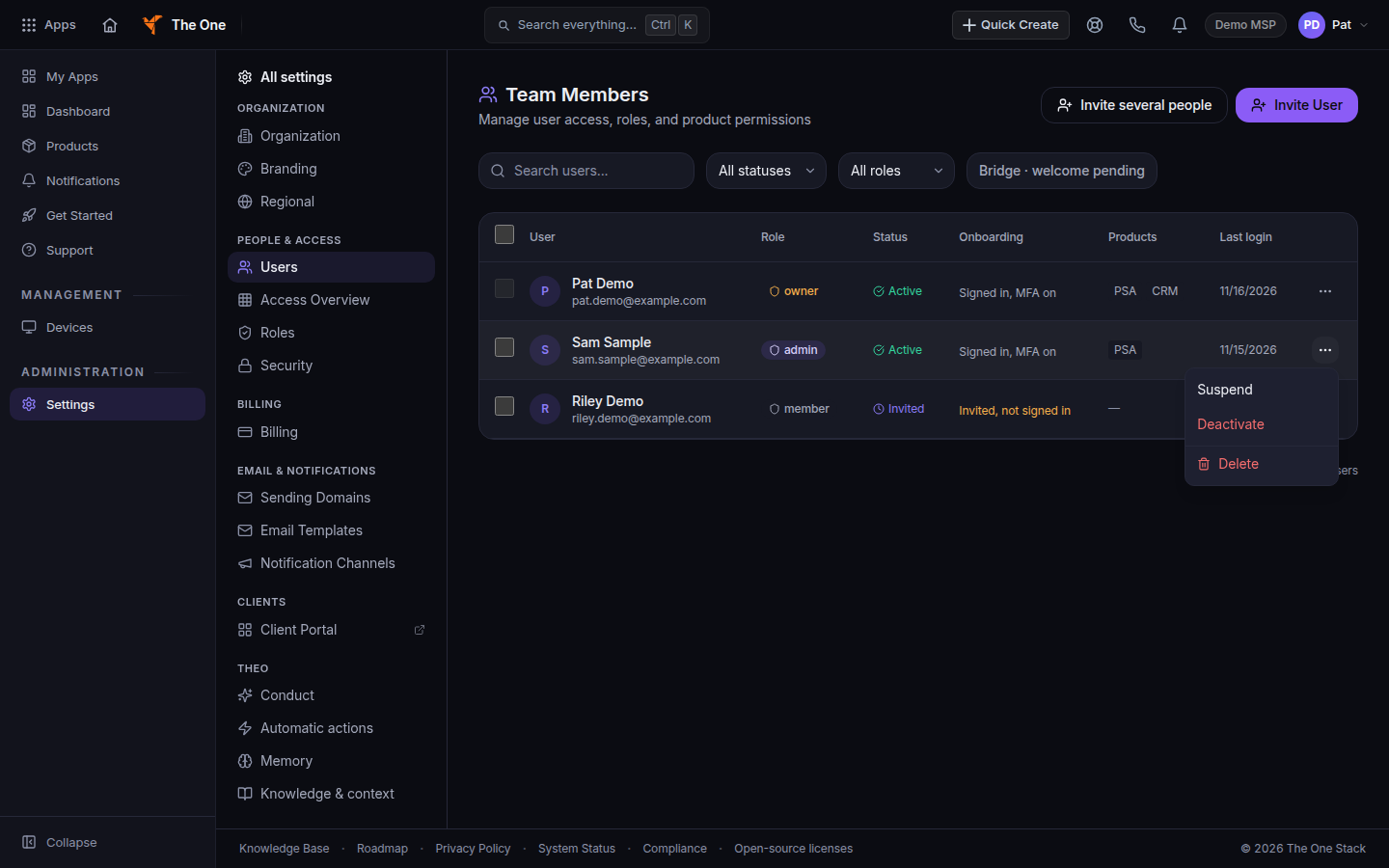
Team Members, with the row actions menu - Open the row menu.
- Choose Suspend, Reactivate, or Deactivate.
- For deactivate, confirm Deactivate User.
Delete asks you to type the person's email before it removes them. Delete permanently is on the person's Actions menu. Prefer deactivate unless you mean to remove the account.
Other actions on that menu: Resend Invite, Send Welcome, Send password reset email, Send MFA setup reminder, Reset two-factor, and Unlock two-factor.
To invite several people at once, choose Invite several people on Team Members. See Invite a teammate.
If it goes wrong#
- You do not see the menu. You are a member. The page says You can see who is on your team. Owners and admins manage people and access.
- The person can still sign in. Have them refresh. A suspended or deactivated account does not get a new sign-in email.
- You cannot act on an owner. Only an owner can change another owner. See Change a person's role.
What's next#
Was this article helpful?