
Update your profile
Change your name, password, two-step sign-in, and connected accounts.
Applies to Owner Admin Technician
Your name, password, and connected accounts are on My Profile. The user menu item Profile opens Preferences & Security first. That page says Account Settings is the main place to edit your profile.
Update your name#
- Open the user menu and choose Profile.
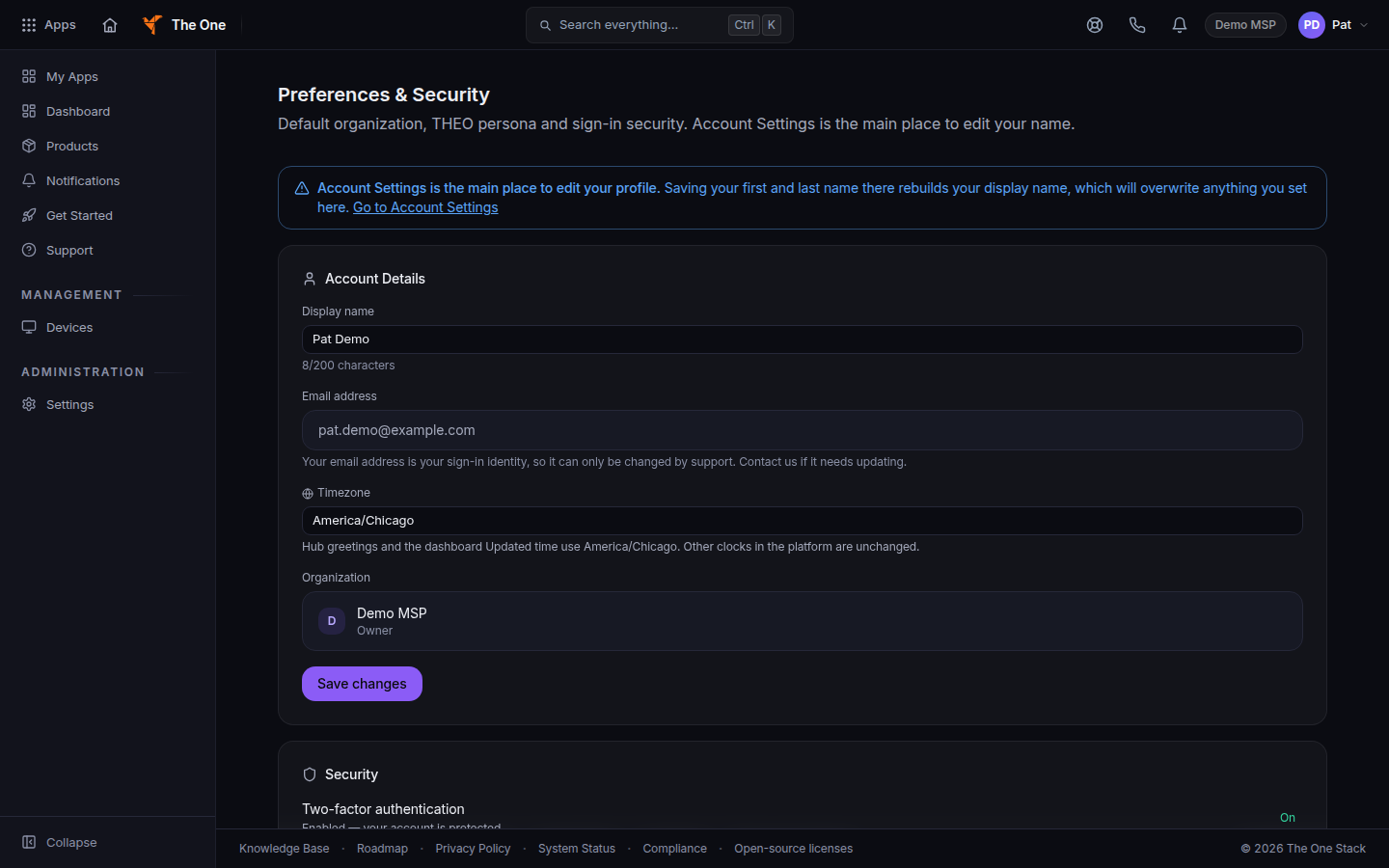
Preferences and Security, with Go to Account Settings - Choose Go to Account Settings. The page title is My Profile.
- On the Profile tab, under Personal Info, edit First name and Last name.
- Save. The confirmation is Profile updated.
The tabs are Profile, Security, and Connected Accounts. Owners and admins can also open Your account from the Settings home.
Security and connected accounts#
- Open Security to change your password, set up two-step sign-in, add a passkey, or choose Sign out of all devices. See Reset your password and Set up two-step sign-in.
- Open Connected Accounts to connect or disconnect Microsoft 365. See Sign in with Microsoft 365.
Sign out of all devices ends the session everywhere, including the mobile and desktop apps.
If it goes wrong#
- The page title is Sign-in and security. That view is for a restricted sign-in. Use the Security tab on that page.
- This is your only way to sign in. Set a password first. Set a password before you disconnect Microsoft 365.
- You wanted organization settings. Profile does not change the company name or other people. Owners and admins use Settings. See Set your organization profile.
What's next#
Was this article helpful?