
Getting started as a new MSP admin
The path from a new account to a team, a client, and a portal.
Applies to Owner Admin
This is the path for the person who sets up an MSP on The One Stack. Follow it in order the first time. After that, use it as a map.
You need the Owner role for the account itself. An admin can do the later steps.
Do these in order#
- Create your MSP account.
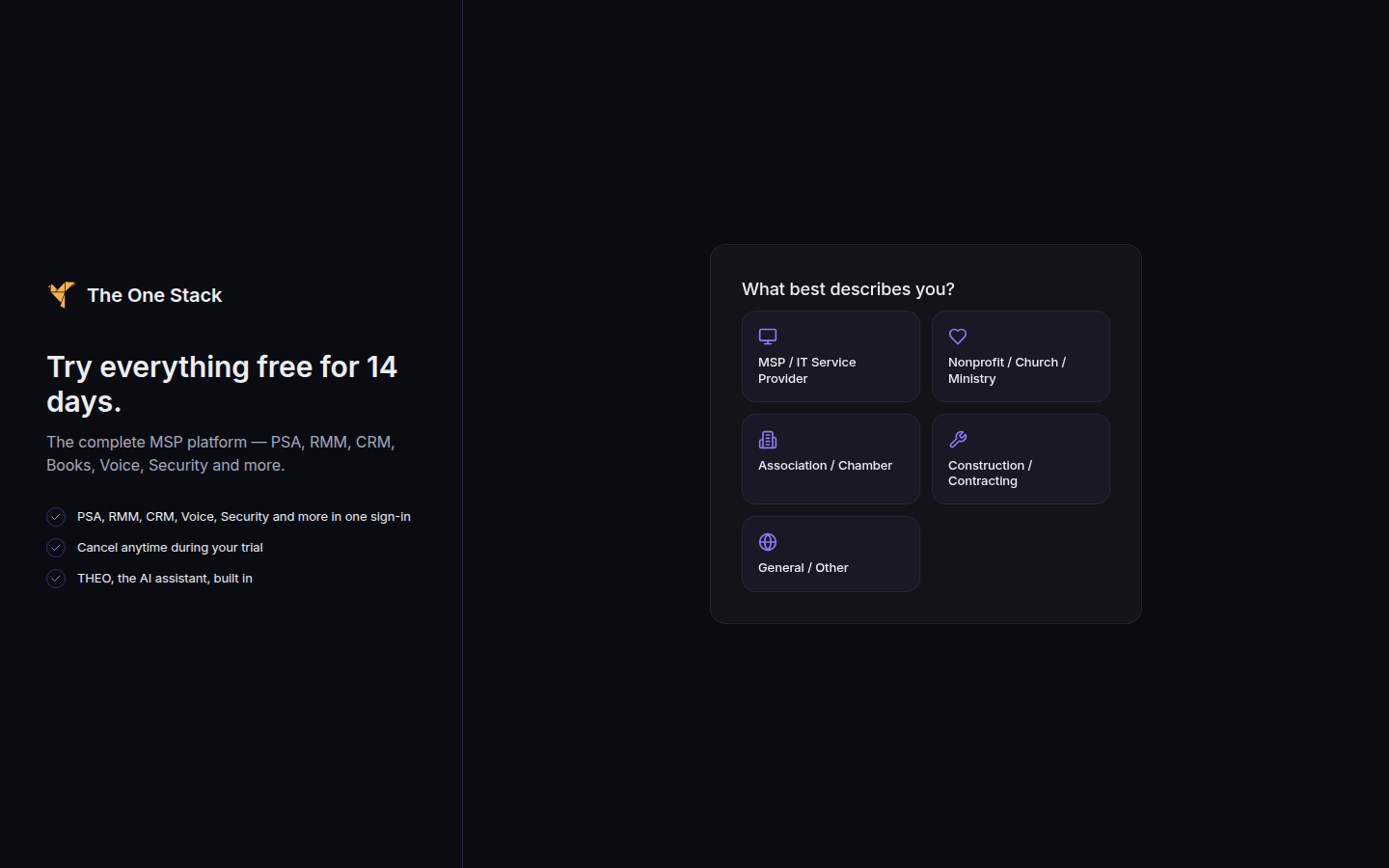
Try everything free for 14 days, beside What best describes you, including MSP / IT Service Provider - Sign in to the Hub, then set up two-step sign-in.
- Run the setup wizard. Come back to any step you skip.
- Set your organization profile, set your branding, and set regional defaults.
- Invite a teammate and give them a platform role. See Roles and permissions.
- Add a client company, set up your client portal, and add a person to a client portal.
- Open Get Started and finish the four checklist rows. See Work through Get Started.
Staff who join later start at The One Stack Staff Guide: start here.
If it goes wrong#
- You closed the wizard. Open it again from the address your browser used for setup, or from Profile if your role can re-run it. Owners and admins can reset it for the organization.
- A step stays open after you thought you finished it. Connect Accounts finishes only after a real connection exists. First Client finishes only after a customer is created. See Run the setup wizard.
- A teammate has no tile. The invite sets a platform role. App access is assigned on their profile after that. See Invite a teammate.
What's next#
Was this article helpful?