
Add a person to a client portal
Add a client on People and access. No email is sent.
Applies to Owner Admin
A client user signs in to your portal. You add them on the customer, under People & access. This does not send an email. They have not signed in yet. They sign in themselves with the address you enter.
A manager can open the people list and cannot add someone. Owners and admins can.
Add the person#
- Open Client Portal Admin, then Customers, then the customer.
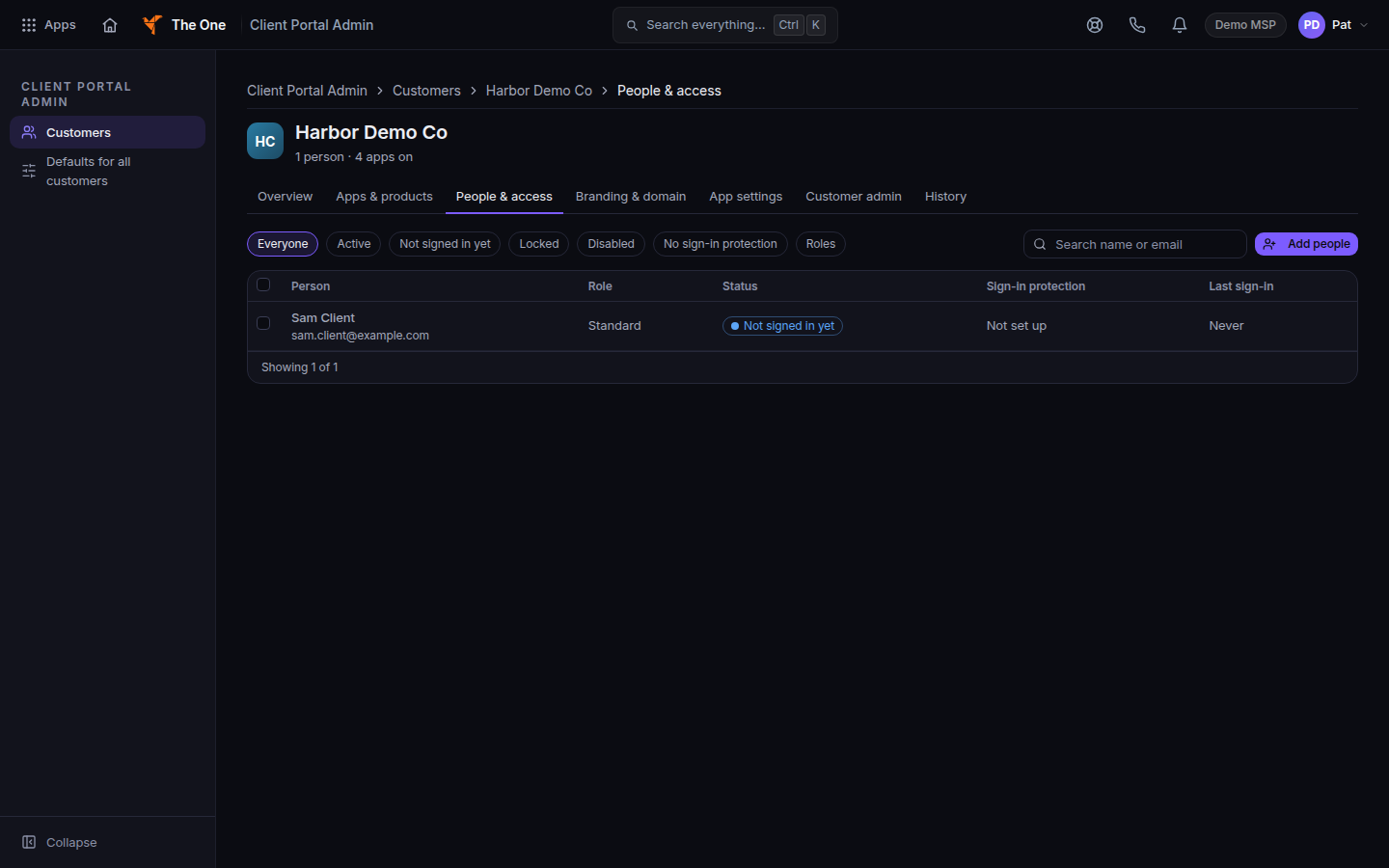
A customer, with People and access - Open People & access.
- Choose Add people. The form title is Add a person.
- Enter Email address and Full name.
- Choose a Role.
- View only. Can look at their own portal and cannot change anything.
- Standard. Can use the apps their role opens.
- Customer admin. Full access to the company's own portal sections.
- Choose Add person. The toast says they were added and have not signed in yet.
Tell them the portal address and that they should use Sign in to the client portal with that email address.
Filters on the list include Everyone, Active, Not signed in yet, Locked, Disabled, and No sign-in protection.
If it goes wrong#
- Add people is missing. You are a manager, or you cannot manage users. Ask an owner or admin.
- They say they never got an invite. This action does not send one. Give them the portal address and the email you entered.
- They cannot see an app. Open Apps & products for that customer and turn the app on. Then check the person's role.
- Customer admin was refused. The server can refuse a new Customer admin. The message on the form is the reason. Use Standard or View only, or ask an owner.
What's next#
Was this article helpful?