
Sign in to the Hub
Sign in at the Hub with a password, a passkey, an email link, or Microsoft 365.
Applies to Owner Admin Technician
The Hub is where MSP staff open their apps. Sign in at app.theonestack.com. The page title is The One Hub. The tagline is Your home for everything The One.
A password sign-in always continues to two-step sign-in for staff. An emailed link does not skip that step.
Sign in#
- Open app.theonestack.com. The form heading is Sign in.
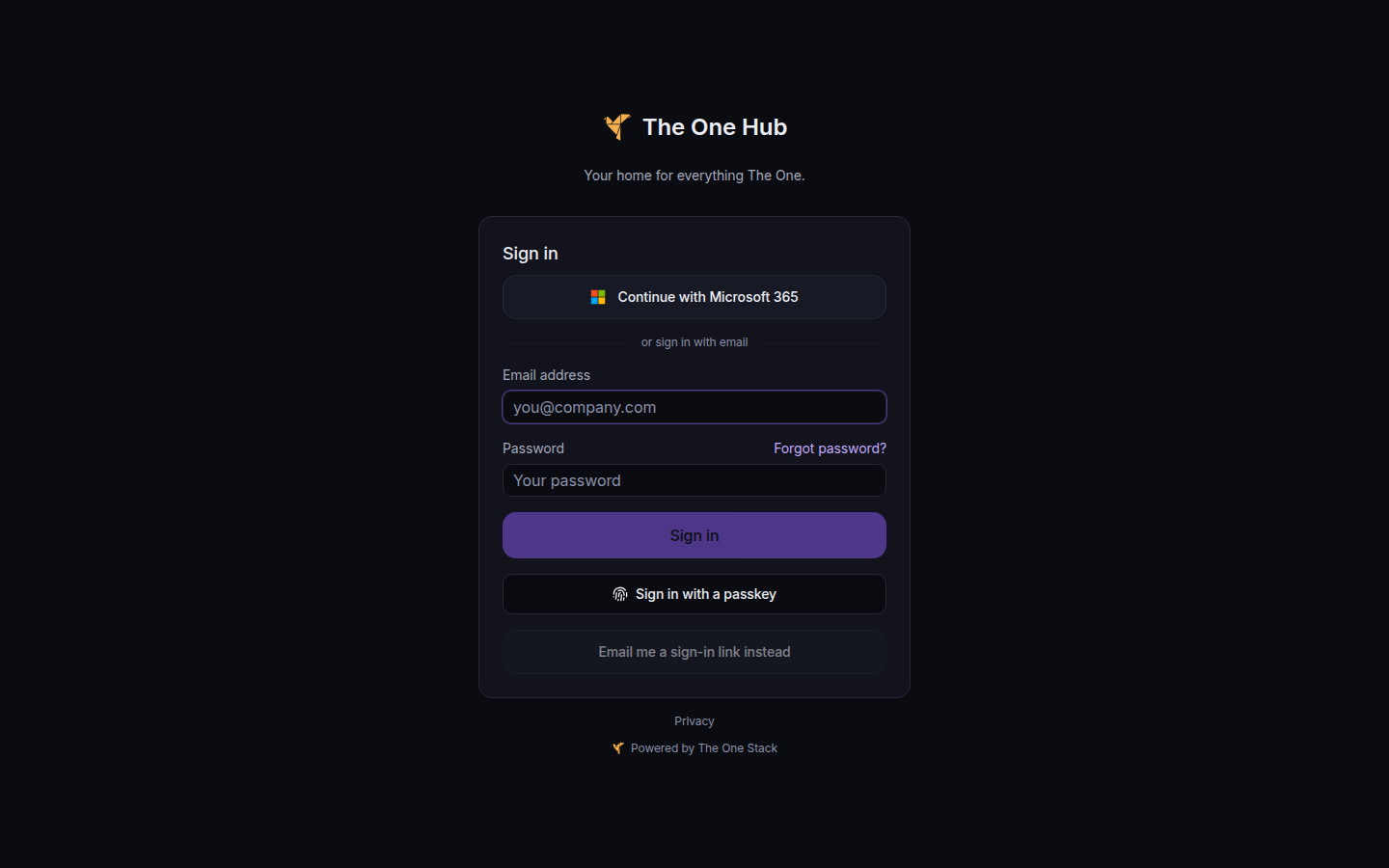
The Hub sign-in form, with Continue with Microsoft 365, email and password, Sign in with a passkey, and Email me a sign-in link instead - Use one of these methods, in the order the page shows them.
- Continue with Microsoft 365, when that button is on the page. See Sign in with Microsoft 365.
- Email address and Password, then Sign in. Choose Forgot password? if you need a reset. See Reset your password.
- Sign in with a passkey, when your browser can use one.
- Email me a sign-in link instead. The page then says to check your email. The link works once and expires after 15 minutes.
- If you used a password, finish Two-step sign-in. Enter the code from your authenticator app, use your passkey, or use a recovery code. See Set up two-step sign-in.
- You land on My Apps. Choose a tile to open that app in a new tab. See Open the app switcher.
If the page says Your session expired, so you were signed out, sign in again. Your work is still there.
If it goes wrong#
- Invalid email or password. Check the address and password, or use Forgot password?
- We couldn't check whether Microsoft 365 sign-in is available. Choose Retry. If the button never appears, Microsoft 365 sign-in is not turned on for this sign-in page. Use email and password.
- That code didn't work. Wait for a new code from the authenticator app. The hint on the page says the code is 6 digits and changes every 30 seconds.
- Too many attempts in a row. Wait, then try again. An owner or admin can choose Unlock two-factor on your user page.
- Too many sign-in link requests in a short time. Wait a few minutes before you ask for another link.
- Microsoft sign-in failed or Microsoft sign-in did not complete. Start again from Continue with Microsoft 365.
What's next#
Was this article helpful?